Эта страница является
переводом страницы
AV R. Перевод выполнен на 100%.
Hardware ⇒ AV Remote Control
AV Remote Control
AV remote control
The documentation was updated on 09.11.2024
The driver is available from 1.3.62 version
Function and Application
The device is designed for installation with iRidi Pro Server or other control systems in automation projects for apartments, houses and commercial objects.
Ideal solution for controlling home theatre, automation equipment and any audio and video devices using convenient visualization interfaces on touch display or using physical buttons of the AV remote control.
Advantages:
- touchscreen;
- physical buttons with backlight;
- individual visualization interfaces with iRidi Pro;
- control of AV equipment;
- control of automation equipment: light, climatr, curtains etc.;
- docking station with backlighting for convenience in the dark;
- possibility to wake up the device when you pick up it.
i3 pro is supported. Support of third-party applications is not tested and functionality is not guaranteed.
Technical Specifications
| Name |
AV Remote Control
|
| Product code |
AV-R
|
| Processor |
MTK 6580
|
| Memory |
RAM 1 GB, ROM 8 GB
|
| Display |
3,1" LCD UHD, 480х800 pixels, capacitive sensor
|
| Wireless connection |
Wi-Fi 2,4GHz
Bluetooth 4.0
IR emitter
|
| Relay type |
normally open, TE Connectivity RZ03-1A4-D005
|
| Sound |
Built-in speaker
|
| Microphone |
Yes
|
| Buttons |
23 buttons with backlighting
|
| Sensors |
Accelerometer
|
| Operating system |
Android 8.1
|
| Docking station |
Yes, 5V 2A, 90х22х90 mm
|
| Body material |
Aluminium and plastic
|
| Dimensions, mm |
229 х 54,8 х 12,2
|
| Weight, gr |
200
|
Buttons, interfaces and indication
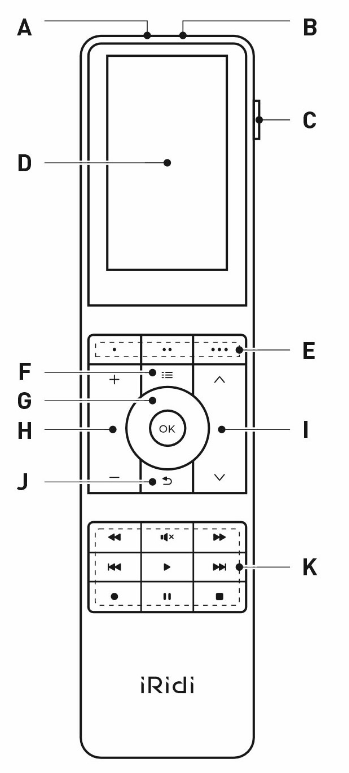
| А |
Microphone |
Located on the top side of the device
|
| B |
IR emitter |
Used to control household appliances via IR communication channel
|
| C |
Power button |
Long press for 5-7 seconds turns on/off the device
Short press turns on/off the display
|
| D |
LCD Display |
Touch control is supported
|
| E |
Scene buttons |
Quick call of customized scenarios or interface screens.
The functionality is determined by the application software.
|
| F |
Menu button |
Quit the application and return to the home screen
|
| G |
Joystick |
Used to navigate through elements in the active application
|
| H |
Volume buttons |
Increase or decrease the volume of the active application or controlled equipment.
The functionality is determined by the application software..
|
| I |
Channel buttons |
Switching channels.
The functionality is determined by the application software.
|
| J |
Back button |
Return to previous screen or quit the application
|
| K |
Service buttons |
Basic control of AV equipment.
The functionality is determined by the application software.
|
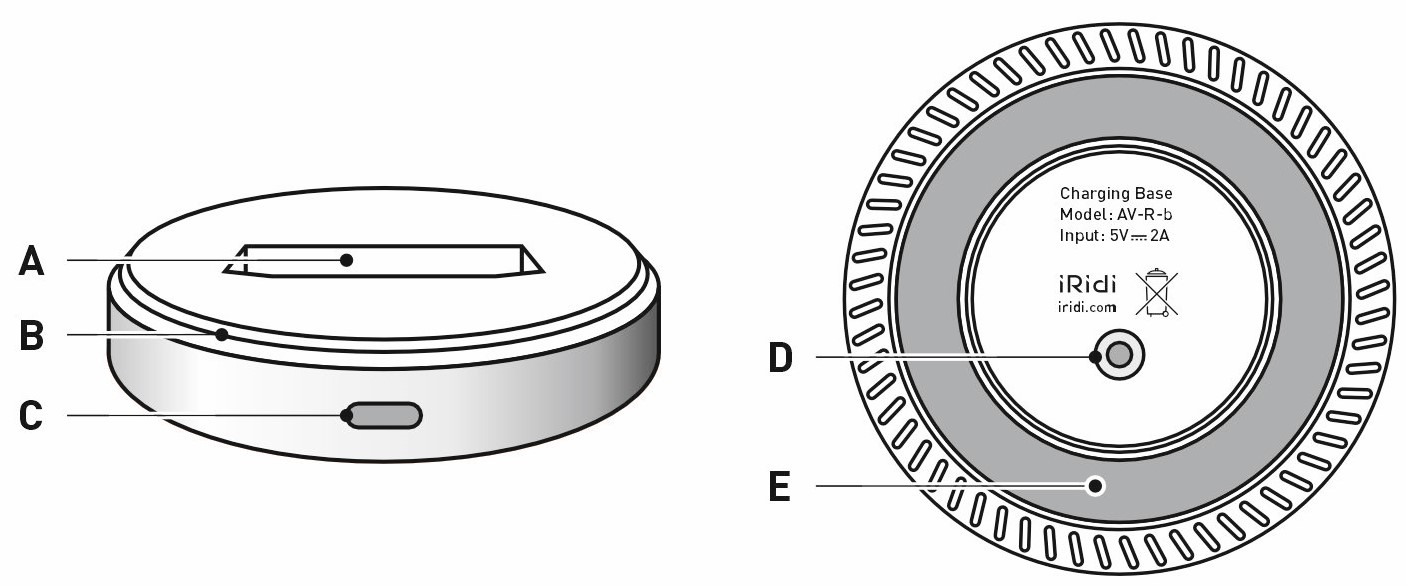
| А |
Magnetic connector |
To install AV Remote Control and recharge its battery
|
| B |
Backlighting |
Illuminated ring for convenience in the dark.
It flashes smoothly when the device is charging.
|
| C |
Power connector |
To connect the power cable from the adapter
|
| D |
Backlight button |
To turn on/off backlight (B)
|
| E |
Backing board |
Anti-slip material for reliable installation on the surface
|
Storage and transportation
Products must be stored in packaging at temperatures from 0 C to +40○C and a relative air humidity of 80% in heated and naturally ventilated warehouses, in air-conditioned storage facilities, in the absence of aggressive impurities, conductive dust, acid and alkali vapors, and as well as gases that cause corrosion and destroy insulation.
Manufacturer's warranty
The warranty period is 1 year from the date of sale.
Without a note of sale the warranty period starts from the date of manufacture. Manufacturer's warranty does not cover the following: mechanical damage of the device; damage caused by liquids; damage caused by abnormal power supplies; damage caused by violation of device connection rules; modifications or changes to the device or its connection diagrams by the buyer or third parties without the consent of the manufacturer; use for
purposes other than those for which designed; failure to comply with conditions of transportation, storage, operation, installation of the device and maintenance of the premises established in this passport and operational documentation, as well as the occurrence of other circumstances beyond the control of the manufacturer.
Completeness
AV Remote Control......…………………………………….............…....1 pc.
Docking station……..……………………………………………………....1 pc.
Power adapter......………………..…………………………...…......1 pc.
Power cable USB Type-A - USB Type-C ........…………...…..................................................1 pc.
User documentation......………………………..………..........1 pc.
Package.....…………………..…………………………..……..1 pc.
Disposal
At the end of its service life, the product must be disposed of in accordance with the laws of the country of stay.
Safety
WARNING: It is not allowed to use the device in systems responsible for the safety of people, animals, material assets, as well as in systems whose failure will lead to a violation of safety.
Initial setup of access to Wi-Fi
To connect the device to your network and further to have access to the Ethernet network, go to the app and choose “Settings”, than select “Network and Internet”
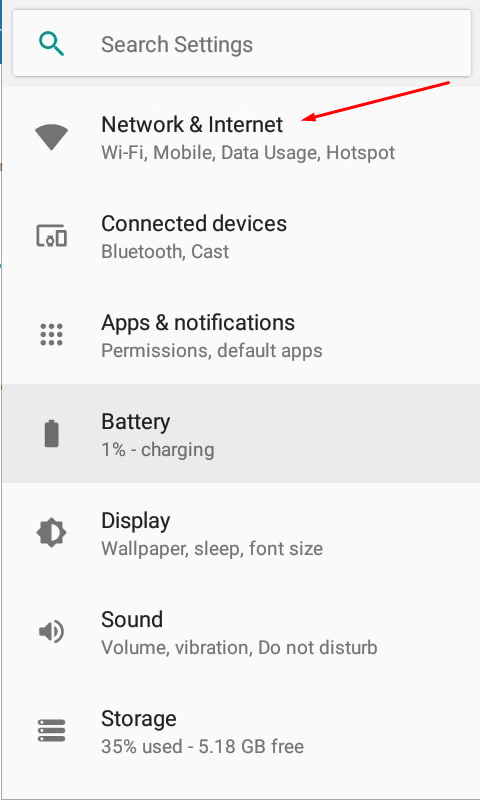
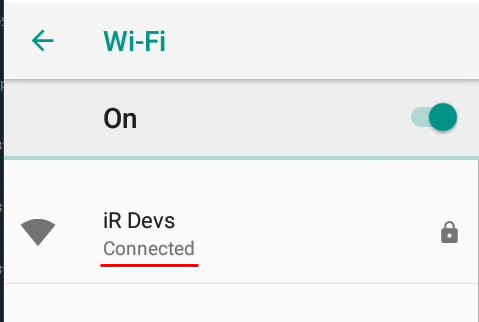
Enable Wi-Fi and go to selection of available 2.4GHz Wi-Fi networks
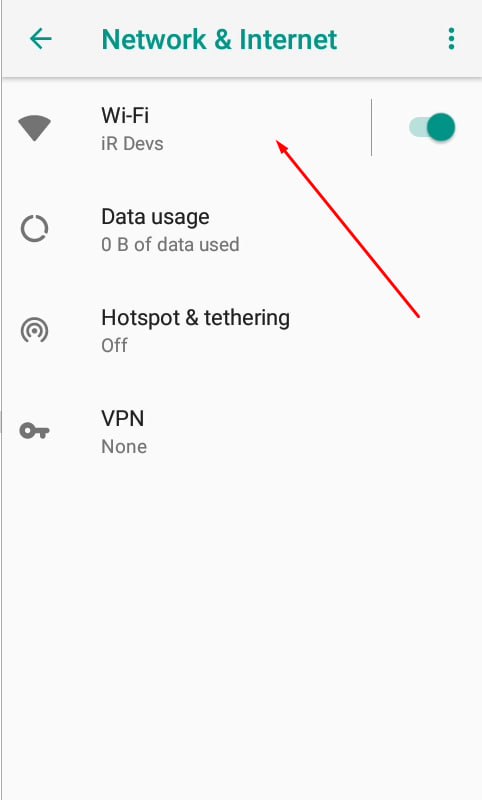
Enter the details to connect to your network and wait for the successful connection message
Reset to factory settings
A reset will delete all user settings and applications.
Reset via Android OS settings
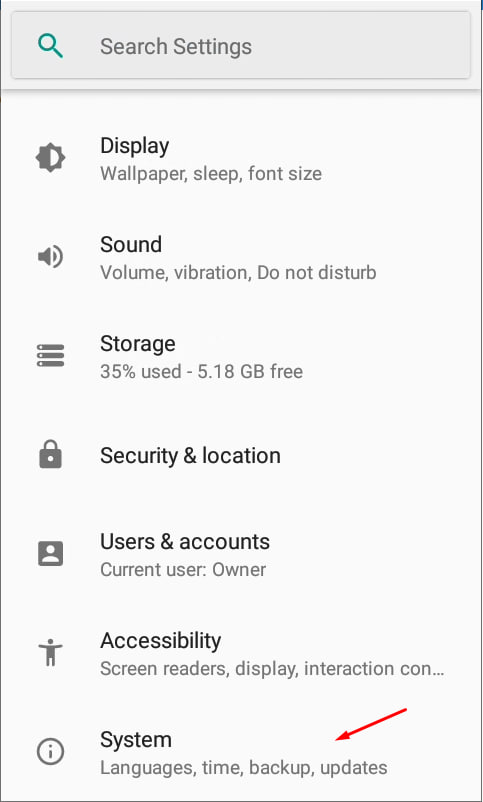
To reset your device to factory settings, go to the “Settings” and go to the “System“ section (the last section of the “Settings”)
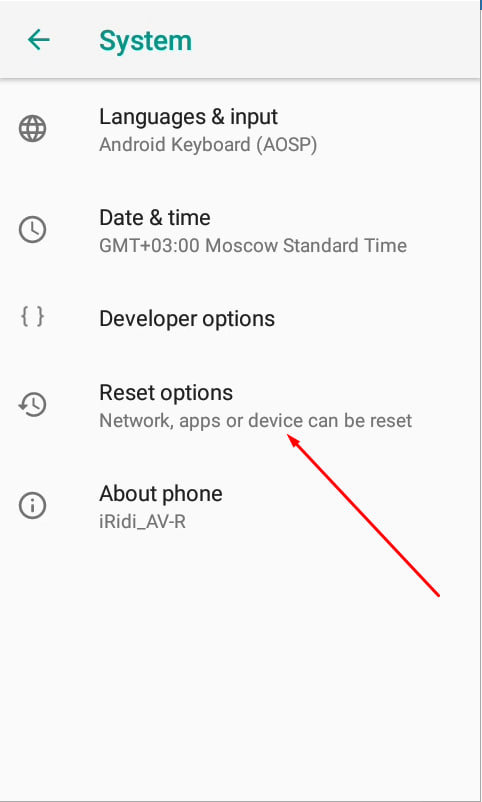
Select the “Reset” option in the “System” section
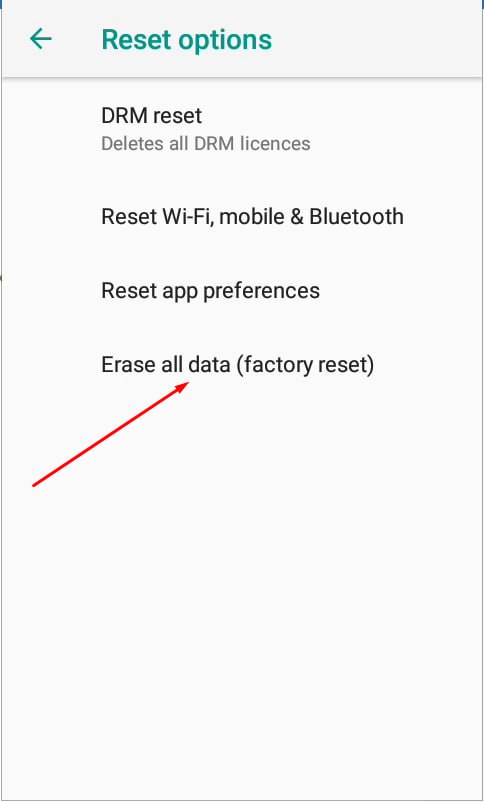
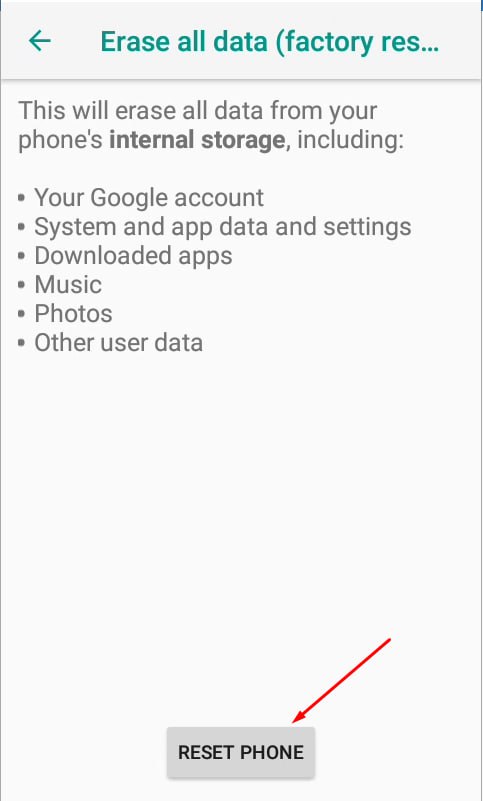
Choose the “Delete all data (reset to factory settings)” option in the “Reset” section
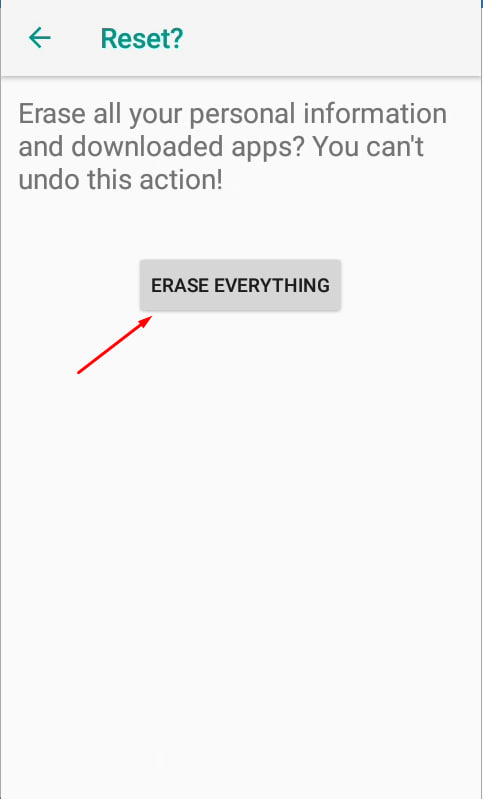
Confirm deleting all data
Reset via Android Recovery
- Turn off the device.
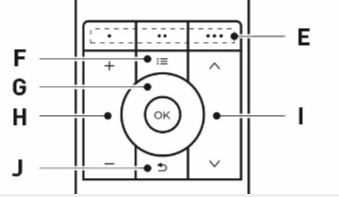
- Press and hold the Back button (J button, fig.) + Power button (C button), when the iRidi logo appears - release the Power button and hold the Back button until you enter the Android Recovery menu.
- Use the joystick to select Wipe Data / Factory Reset, press the Power button to go to the selected item.
- Use the joystick to select Yes (agree to delete data), press the Power button to select the item.
Wait until the reset is complete.
- Use the joystick to select Reboot system now, press the Power button to confirm the reboot.
Wait until the device is loaded.
Actions after reset to factory settings
After the reset, it is necessary to install the following applications:
- Update Launcher to provide functionality for controlling the backlight of the keys and the charging station:
- Install the i3 Pro application:
Additional built-in functionality
The functionality of the device and its individual components is determined by application software – i3 Pro.
To install the current version of i3Pro (APK File) follow this link or go to Download section in the iridi.com website.
Working with physical buttons
The buttons on the AV remote control, by default, work only with the Android operating system. To intercept presses and subsequently implement control of the internal functions of the i3Pro application, you must use the special driver - AV Remote Control.
Navigation through graphic items
Navigation through items is available immediately after launching i3Pro; no additional configuration is required.
AV-R
Physical buttons “Joystick” (G) and “Back” (J) are used for navigation
! Navigation through items is available for the AV-R device unless the Capture Navigation Buttons option is enabled.
Navigation keys Up, Down, Left, Right allow you to move the navigation focus from one element to another.
OK allows you to generate a Press event, as well as a Release event on an item.
Items will be ignored in navigation if any of the following options are set to
- HIT = Pass Through
- Visible = False
- Enable = False
Back button allows you to return to the previous page or popup, as well as remove focus from an item of the Level type and items of the List type and items within it.
For example, if an item of the Level type was previously selected (pressed), then after that, you need to click the Back button once to move the navigation focus to another item.In the case of the List item, you may need to press Back several times to get the List item after which you can move the navigation focus to other items on the page.
i You navigate through popups in the following way. The last opened popup is in focus. To go to another popup, close the current one with focus. To navigate through the page, close all popups on the page.
Recommended list of items for use in graphical visualization interfaces for the AV Remote Control device to navigate using physical buttons:
| Tested items
|
| Item name: |
Note:
|
| Button |
*Without item rotation
|
| MS Button |
*Without item rotation
|
| Trigger Button |
*Without item rotation
|
| Level (Horizontal) |
*Without item rotation
|
| MS level (Horizontal) |
*Without item rotation
|
| Label |
*Without item rotation
|
| In developing
|
| Item name: |
Note:
|
| Level (Vertical) |
*Maybe non-standard behavior
|
| MS level (Vertical) |
*Maybe non-standard behavior
|
| Text Area |
*Maybe non-standard behavior
|
| Virtual key |
*Maybe non-standard behavior
|
| Circular level |
*Maybe non-standard behavior
|
| Up/Down Button |
*Maybe non-standard behavior
|
| List |
*Maybe non-standard behavior
|
| Static List |
*Maybe non-standard behavior
|
| Advanced List |
*Maybe non-standard behavior
|
| Not supported
|
| Item name: |
Note:
|
| MS Circular level |
*There is no way to set the State of an item
|
| Linear Trend |
*Ignored in navigation
|
| Pie Chart |
*Ignored in navigation
|
| Bar Chart |
*Ignored in navigation
|
| Edit Box |
*Ignored in navigation
|
| Text Area |
*Ignored in navigation
|
| Joystick |
*Ignored in navigation
|
When interacting with items of the Level type, as well as with all types of lists, this mechanism allows you to fix focus on the item for further interaction with it. For example, it is possible to adjust the Level value using the navigation arrows, and it is also possible to move between list items, while pressing this combination again on the list allows you to fix the focus on it and interact with the items inside.
Debugging project navigation in the emulator of iRidium Studio and i3 Pro for Windows
Ctrl + navigation keys (up, left, right, down) - allows you to emulate presses of UP, DOWN, LEFT, RIGHT navigation keys of the AV Remote Control joystick.
Ctrl + Enter - allows you to emulate presses of the OK button of the AV Remote Control joystick.
Ctrl + Delete - allows you to presses of the Back button of the AV Remote Control device.
Lift to wake function
It is possible to wake up the AV remote control when picking up the device according to the readings of the built-in accelerometer.
This feature is disabled by default. To activate it in the i3Pro application, go to the System menu and activate the Lift to wake setting.
After the setting is activated, every time you pick up the remote control, the device screen will be automatically activated. This function has accidental touch protection - after the screen is locked, the function will not work for 6 seconds.
It is recommended to pre-set automatic screen shutdown in the Android operating system for a comfortable time interval to save device power.
Update of the i3Pro app
To update the application quickly, you can use the Check app update function
To use the update function, go to the System menu and find the Check app update option.
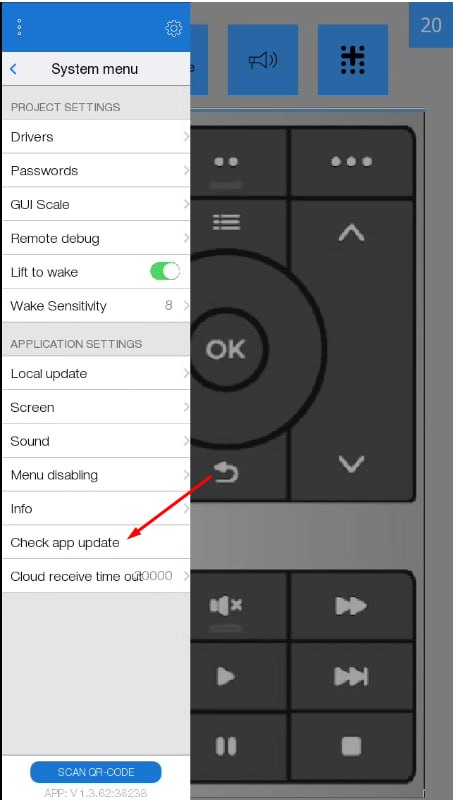
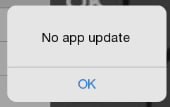
If you have the latest version of the app installed, you will see a window with information that there are no updates for this version of the app.
Control via IR emitter
The AV remote control has a built-in IR emitter on the top of the device, which can be used to send IR commands to actuators. The format of the sent data must correspond to the iRidi Hex, which can be received when learning IR commands through the ProAV Control Processor device. To implement control via IR emitter, you must use the AV Remote Control driver.
Setting in iRidium Studio
To configure the AV Remote Control device in iRidium Studio, follow the instructions at the link.


