Эта страница является
переводом страницы
Animation API. Перевод выполнен на 100%.
iRidium API. Animation
functions, methods and properties of objects used for animation of moving popups and graphical items in a project with the help of the animation library. Use of the animation library is an outdated way to create animation. You can also use new native methods to create animation (see description of here).
Animation Library
the free webinar
Animation library is a ready JavaScript file which contains a set of functions and methods for animation of items in your project.
Standard methods are based on use of frame animation and change of item states. iRidium animation library enables creation of complex effects for separate items and groups.
The recent version of the library:
Do not edit the library and do not write your code in the library file to keep the compatibility.
Library use
- Download the library (the *.js file) and add it to the iRidium project (JavaScript Editor >> Add from file).
- Create a new script file (JavaScript Editor >> New file) and write in it the word
ANIMATION - it is a library function.
The function has parameters:
var Player1 = ANIMATION(
	[effect_1, effect_2],
	[item_1, item_2],
	duration,
	delay,
	repeat,
	type,
	startCallBack,
	endCallBack,
	context
);
- [effect_1, effect_2] - {Array | Effect} effects to be applied to items. List of effects:
- MoveHorizontal(0, 100) - horizontal shift, parameters: the initial position and the shift by the X axis, in pixels
- MoveVertical(0, 100) - vertical shift, parameters: the initial position and the shift by the Y axis, in pixels
- MoveDiagonal(0, 100) - diagonal shift, parameters: the initial position and the shift by the X and Y axes, in pixels
- Rotate(360) - rotation, parameter: the rotation angle in degrees
- Show() - show
- Hide() - hide
- ScaleXY(0.0, 1.1) - stretch, parameters: the initial size and the stretch factor by the X and Y axes
- ScaleX(0.0, 1.1) - stretch, parameters: the initial size and the stretch factor by the X axis
- ScaleY(0.0, 1.1) - stretch, parameters: the initial size and the stretch factor by the Y axis
- Value(0, 100) - gradually changes the item value, parameters: the initial value, the final value
- ValueToText(0, 100) - gradually changes the item text, parameters: the initial value, the final value
- [item_1, item_2] - {Array | IridiumItem} in the array there are references to items to which you want to apply animation
- "'duration"' - {Number} the duration of animation (ms) >= 0; the key word
ANIMATION.DEFAULT_TIME = 300 ms, the duration by default
- delay - {Number} the delay in animation >= 0; If there is no delay, then specify the key word
ANIMATION.NO_DELAY
- repeat - {Number} repetition of animation (yes/no). The key words:
LOOP - repeat, ANIMATION.NO_LOOP - not to repeat
- type - {Number} twinner, the type of animation calculation. The list of calculation types:
- IR.LINEAR = 0;
- IR.SINE_IN = 1;
- IR.SINE_OUT = 2;
- IR.SINE_IN_OUT = 3;
- IR.QUINT_IN = 4;
- IR.QUINT_OUT = 5;
- IR.QUINT_IN_OUT = 6;
- IR.QUART_IN = 7;
- IR.QUART_OUT = 8;
- IR.QUART_IN_OUT = 9;
- IR.QUAD_IN = 10;
- IR.QUAD_OUT = 11;
- IR.QUAD_IN_OUT = 12;
- IR.EXPO_IN = 13;
- IR.EXPO_OUT = 14;
- IR.EXPO_IN_OUT = 15;
- IR.ELASTIC_IN = 16;
- IR.ELASTIC_OUT = 17;
- IR.ELASTIC_IN_OUT = 18;
- IR.CUBIC_IN = 19;
- IR.CUBIC_OUT = 20;
- IR.CUBIC_IN_OUT = 21;
- IR.CIRC_IN = 22;
- IR.CIRC_OUT = 23;
- IR.CIRC_IN_OUT = 24;
- IR.BOUNCE_IN = 25;
- IR.BOUNCE_OUT = 26;
- IR.BOUNCE_IN_OUT = 27;
- IR.IR.BACK_IN = 28;
- IR.BACK_OUT = 29;
- IR.BACK_IN_OUT = 30;
- startCallBack - {Function} the callback function that will be activated at animation start
- endCallBack - {Function} the callback function that will be activated when animation ends
- context - {Object} the context of execution for callback functions
Управление плеером
- Player.stop() – completes animation and disables repetition of loop until restart
- Player.pause() – interrupts animation
- Player.restart() – restarts animation, after (stop)
- Player.play() – restores animation after (pause)
- Player.nextFrame() – goes to the next frame ( in the pause mode)
- Player.prevFrame() – goes to the previous frame ( in the pause mode)
Групповое управление всеми анимациями
- ANIMATION.stopAll() – completes all animation and disables repetitions of loop until restart
- ANIMATION.pauseAll() – interrupts all animation
- ANIMATION.restartAll() – restarts all animation, after (stop)
- ANIMATION.playAll() – restores all animation after (pause)
- ANIMATION.nextFrameAll() – goes to the next frame ( in the pause mode)
- ANIMATION.prevFrameAll() – goes to the previous frame ( in the pause mode)
Example
var Home_main = IR.GetItem("Home Page");

function Open_Home()
{
	ANIMATION(
		[ANIMATION.Show(), ANIMATION.ScaleXY(0.8, 0.2)],
		[Home_main.GetItem("B1")],
		200,
		ANIMATION.NO_DELAY,
		ANIMATION.NO_LOOP,
		IR.CIRC_OUT
	);

	ANIMATION(
		[ANIMATION.Show(), ANIMATION.MoveVertical(1164, 980)],
		[Home_main.GetItem("Item 3")],
		400,
		ANIMATION.NO_DELAY,
		ANIMATION.NO_LOOP,
		IR.QUART_OUT
	);

	ANIMATION(
		[ANIMATION.Show(), ANIMATION.MoveHorizontal(360, -220)],
		Home_main.GetItem("t1"),
		200,
		ANIMATION.NO_DELAY,
		ANIMATION.NO_LOOP,
		IR.QUART_OUT
	);

	ANIMATION(
		ANIMATION.Show(),
		Home_main.GetItem("i1"),
		200,
		ANIMATION.NO_DELAY,
		ANIMATION.NO_LOOP,
		IR.CIRC_OUT
	);

	ANIMATION(
		[ANIMATION.Value(0, 78)],
		[Home_main.GetItem("v1")],
		500,
		ANIMATION.NO_DELAY,
		ANIMATION.NOT_LOOP,
		IR.CIRC_OUT
	);

	ANIMATION(
		[ANIMATION.MoveHorizontal(116, -100)],
		[Home_main.GetItem("Zone Name")],
		700,
		ANIMATION.NO_DELAY,
		ANIMATION.NO_LOOP,
		IR.CIRC_OUT
	);

	function animationStartCallBack(){
	  IR.Log("Start " + this.Name);
	}

	function animationEndCallBack(){
	  IR.Log("End " + this.Name);
	}

	var Player1 = ANIMATION(
	  ANIMATION.Rotate(360),
	  [IR.GetItem("Page 1").GetItem(0), IR.GetItem("Page 1").GetItem(1)],
	  1000,
	  1000,
	  ANIMATION.LOOP,
	  IR.LINEAR,
	  animationStartCallBack,
	  animationEndCallBack,
	  {
		 Name: "Animation 1"
	  }
	);
}
IR.AddListener(IR.EVENT_START, 0, Open_Home);
Methods
IR.CreateEffect
сto create an effect and apply it to a group of effects at popup showing and hiding.
, On the basis of this method "'ready animation library"' is created. It can be applied to popups and graphic items of your project.
Syntax
IR.CreateEffect(effect).property
| effect
|
|
type: object
the effect type
- IR.EFFECT_FADE - fade-in / fade-out
- IR.EFFECT_ROTATE - rotation around the central axis
- IR.EFFECT_SCALE - increase / decrease
- IR.EFFECT_SLIDE - movement to (from) side
- IR.EFFECT_TVSCAN - horizontal compression
|
| property
|
|
type: object
effect properties
- Group - the number of the group of effects, where the effect will be placed. It is recommended to use numbers starting from 1000 to avoid groups of effects created by the editor
- Delay (ms) - the delay before executing the effect
- Duration (ms) - the duration of the effect
- Tween - the calculation formula, see the list of formulas
|
| effect
|
|
type: object
the reference to the effect you want to save in a variable
|
Sample
IR.AddListener(IR.EVENT_START, 0, function()
{
	// create effect, add in variable
	var Fade = IR.CreateEffect(IR.EFFECT_FADE);
	Fade.Group = 1000;	// assign number of group
	Fade.Delay = 0;		// choose delay
	Fade.Duration = 400;  	// choose duration of effect
	Fade.Tween = 0; 		// choose tweener
	// show popup with created effect
	IR.ShowPopup("Popup 1", 1000)
});
On the basis of this method "'ready animation library"' is created
If you use the EFFECT_SLIDE effect, you need to configure the optional SlideType parameter.
Possible values and their correspondence to values in the editor:
- SLIDE_TYPE_LEFT - 0 - Left
- SLIDE_TYPE_RIGHT - 1 - Right
- SLIDE_TYPE_TOP - 2 - Top
- SLIDE_TYPE_BOTTOM - 3 - Bottom
- SLIDE_TYPE_CROP_LEFT - 4 - Left out
- SLIDE_TYPE_CROP_RIGHT - 5 - Right out
- SLIDE_TYPE_CROP_TOP - 6 - top out
- SLIDE_TYPE_CROP_BOTTOM - 7 - bottom out
Example:
IR.AddListener(IR.EVENT_START, 0, function()
{
	// create effect, add in variable
	var slideEffect = IR.CreateEffect(IR.EFFECT_SLIDE);
        slideEffect.Group = 1000;
        slideEffect.Delay = 0;
        slideEffect.Duration = 400;
        slideEffect.Tween = IR.TWEEN_SINE_IN_OUT;
        slideEffect.SlideType = 0;
});
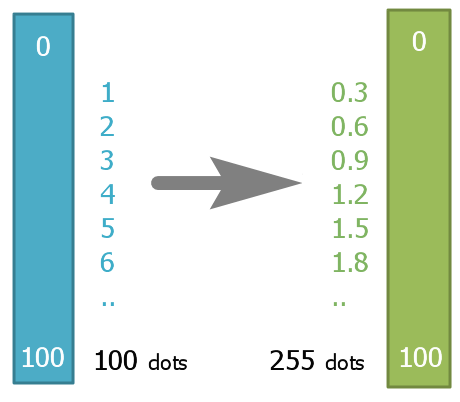
IR.Tween
specifies the value of the variable calculated by the formula on the specified interval. It allows to construct an animation curve of popup showing
Syntax
IR.Tween(formula, step_number, begin, end, steps)
| step_number
|
126
|
type: number
the number of the calculation step, the value in which you want to return
|
| begin
|
0
|
type: number
the beginning of the calculation range
|
| end
|
100
|
type: number
How much to change the range
|
| steps
|
255
|
type: number
how many parts (calculation steps) the specified range has to be divided in
|
| number
|
50
|
type: number
the returned value
|
Sample
IR.AddListener(IR.EVENT_START, 0, function()
{
    var value1 = IR.Tween(IR.TWEEN_LINEAR, 126, 0, 100, 255);
    IR.Log(value1); // 50
    var value2 = IR.Tween(IR.TWEEN_LINEAR, 50, 0, 255, 100);
    IR.Log(value2); // 126
});
var timer = 0;
LeftTween("Popup 1", 20, 852, 400); // popup, X, Y, moving range
function LeftTween(popup, X, Y, range)
{
IR.ShowPopup(popup); // show popup
IR.GetItem(popup).Y = Y; // position by Y
var Tm = IR.SetInterval(1, function(){ // change coordinate X in interval of 1 ms
var speed = 20; // showing speed
timer++;
var Tween = IR.Tween(IR.TWEEN_LINEAR, timer, 0, range, speed); // calculate Tweener
IR.GetItem(popup).X = X+Tween; // set coordinate by X
if (timer > speed) {IR.ClearInterval(Tm); timer = 0;} // delete interval when finished
});
} the visual presentation of calculated values:
Calculation Formulas
Formulas determine how an intermediate value on the selected interval will be calculated. Each formula has its own number that has to be sent to the function IR.Tween as the first parameter:
Names and numbers of the formulas:
- IR.TWEEN_LINEAR: 0
- IR.TWEEN_SINE_IN: 1
- IR.TWEEN_SINE_OUT: 2
- IR.TWEEN_SINE_IN_OUT: 3
- IR.TWEEN_QUINT_IN: 4
- IR.TWEEN_QUINT_OUT: 5
- IR.TWEEN_QUINT_IN_OUT: 6
- IR.TWEEN_QUART_IN: 7
- IR.TWEEN_QUART_OUT: 8
- IR.TWEEN_QUART_IN_OUT: 9
- IR.TWEEN_QUAD_IN: 10
- IR.TWEEN_QUAD_OUT: 11
- IR.TWEEN_QUAD_IN_OUT: 12
- IR.TWEEN_EXPO_IN: 13
- IR.TWEEN_EXPO_OUT: 14
- IR.TWEEN_EXPO_IN_OUT: 15
- IR.TWEEN_ELASTIC_IN: 16
- IR.TWEEN_ELASTIC_OUT: 17
- IR.TWEEN_ELASTIC_IN_OUT: 18
- IR.TWEEN_CUBIC_IN: 19
- IR.TWEEN_CUBIC_OUT: 20
- IR.TWEEN_CUBIC_IN_OUT: 21
- IR.TWEEN_CIRC_IN: 22
- IR.TWEEN_CIRC_OUT: 23
- IR.TWEEN_CIRC_IN_OUT: 24
- IR.TWEEN_BOUNCE_IN: 25
- IR.TWEEN_BOUNCE_OUT: 26
- IR.TWEEN_BOUNCE_IN_OUT: 27
- IR.TWEEN_BACK_IN: 28
- IR.TWEEN_BACK_OUT: 29
- IR.TWEEN_BACK_IN_OUT: 30