Logo Logo en
  • iRidi Pro
    Основные компоненты
    • Приложение i3 Pro
    • iRidi Pro Server
    • iRidi Studio
    • iRidium studio v. 1.3.8 (устаревшая версия)
    Java Script в iRidi
    • Руководство
    • Справочник
    • Примеры
    • JS драйвера
    другие
    • Личный Кабинет
    • iRidium Cloud
    • iRidium Transfer
    • Push-уведомления
    • Лучшая практика
    Лицензирование
    • Лицензирование и передача проекта
    • Оффлайн-лицензирование
    • Активация iRidi Pro Server
  • Продукты
    i3 lite
    • Приложение i3 lite
    • Регистрация и лицензирование
    • Сервер
    • Модули
    KNX Home Server
    • Приложение i3 KNX
    • KNX Home Server
    BUS77 HOME SERVER
    • Приложения Bus77 Home и Bus77 Lite
    • Bus77 Home Server
    Решения
    • BYOD - решение для гостиниц
    • Портал жителя - решение для МКД
    iRidi SCADA
    • iRidi SCADA
  • Bus77
    НАСТРОЙКА BUS77
    • Основы Bus77
    • Приложения Bus77 Home и Bus77 Lite
    • Работа с драйвером Bus77 в iRidi Studio
    • Настройка шины Bus77 в iRidi Studio
    ПРОТОКОЛ BUS77
    • Характеристики CAN (Bus77)
    • Описание протокола
    • Исходники на GitHub
    ОБОРУДОВАНИЕ BUS77
    • Каталог Bus77 Pro
    • Каталог Bus77 Lite
  • Поддерживаемое оборудование
    Драйверы
    • Список драйверов
    • ProAV драйвера
    • AV & Custom Systems
    • JS драйвера
    • Сторонние драйвера и фриланс
    Протоколы и интерфейсы
    • Голосовое управление
    • 1-Wire
    • BACnet IP
    • Bus77
    • KNX
    • KNX IP BAOS
    • Weinzierl kBerry
    • Microsoft Exchange
    • Modbus
    • MQTT
    • NFC
    • ODBC
    • Onvif
    • SIP
    • SNMP
    • Wake On Lan
    • Z-Wave
    • ZigBee
    Производители
    • AMX
    • AVCiT
    • Beckhoff ADS
    • Biamp Tesira
    • Bluesound
    • Casambi
    • BSS Harman
    • Clipsal
    • ControlArt 7Port
    • Crestron
    • DigiBird
    • Domintell
    • Duotecno
    • EIDE
    • EPSNET
    • Global Cache
    • HDL Buspro
    • Helvar
    • IEAST
    • INELS BUS
    • INELS Wireless
    • Intesis
    • Kleger
    • Kramer VIA
    • Kramer 3000
    • Larnitech
    • Legrand Netatmo
    • LG TV
    • Lutron
    • Lutron Homeworks QS
    • MyHome
    • Nest
    • Novastar
    • Panasоnic PTZ
    • Philips Dynalite
    • PJLink
    • Satel
    • SamsungTV
    • Sonos
    • Somfy
    • SpinetiX
    • Televic Conference
    • TIS
    • Tion
    • URRI
    • Velbus
    • Velocio
    • Vinteo
    • WyreStorm
    • WiiM
    • Xicato
    • Yamaha
    • ZONT
    • Z-Wave.me
    Протестированное оборудование
    • Панель HDL S57
    • Панель HDL S10
    • SIP-домофон
    • Akuvox
    • Arlight
    • Divus
    • QBic TD-1050 PRO
    • QBic TD-1060 Slim
    • QBic TD-1070
    • Sigur
    • Uni-Ubi
    • Velocio
  • Оборудование iRidi

    Серверы
    • HS Сервер
    • ProAV Control Processor Basic
    • ProAV Control Processor Advanced
    • Спецификация контроллеров UMC
    • Настройка контроллера UMC C2
    • Настройка контроллера UMC C3
    • Настройка контроллера HDL IntelliCenter 2 (UMC C4)
    Модули расширения
    • I-PX-RS1
    • I-PX-RS4
    • I-PX-IR3
    KNX
    • KNX Home Server
    • KNX IP Interface
    Панели управления
    • iRidium Panel 7
    • Touch Panel P3
    • Touch Panel P6
    • Touch Panel P8
    • Touch Panel P10
    • Tabletop Touch Panel 10
    • AV Remote Control
    ОБОРУДОВАНИЕ BUS77
    • Каталог Bus77 Pro
    • Каталог Bus77 Lite
    • Differences
iRidium mobile web-site
Содержание
    Инструменты‌
    • Сведения о странице
    • Постоянная ссылка
    • Версия для печати
    • Спецстраницы
    • Связанные правки
    • Ссылки сюда
    Login / Create Account
    Материал из for iRidium developers
    Перейти к: навигация, поиск
    Эта страница является переводом страницы Driver for AV Remote. Перевод выполнен на 15%.

    Hardware ⇒ FM-402-1W

    Содержание

    • 1 Setting of AV Remote Control
      • 1.1 Description
      • 1.2 Work in iRidium
      • 1.3 Setting Commands and Feedback Channels
        • 1.3.1 Keypad subdevice
        • 1.3.2 IR subdevice

    Setting of AV Remote Control

    A set of tools to set iRidi AV Remote Control.

    The documentation was updated on 25.1.2024

    Description

    AV Remote Control - a driver designed to work with the AV-R device in i3 Pro panel visualization projects. It allows you to implement the functionality of capturing hardware button presses and to work with a built-in IR transmitter of the AV remote.

    AVR img.png

    Work in iRidium

    1. Create a new panel project
    2. Go to the Devices tab in the created panel project and add the AV Remote Control driver:
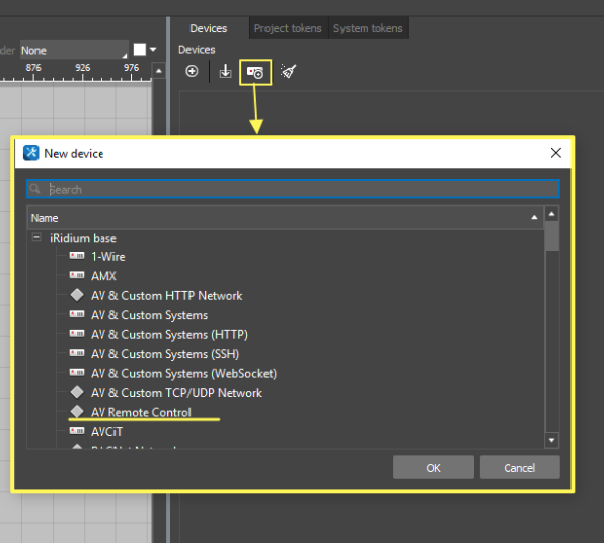
    Driver menu AV.png

    Setting Commands and Feedback Channels

    Keypad subdevice

    By default the Joystick buttons, Volume buttons and Back button are used to navigate through the visialization interface in i3 Pro. But it is also possible to capture presses of the device buttons to use events of their presses (Feedbacks) in programming and logic. For example, capturing joystick button presses can be used for navigating through Smart TV menu or menu of the set-top box or receiver.

    To activate capturing hardware button presses of the AV-R device use commands of the subdevice
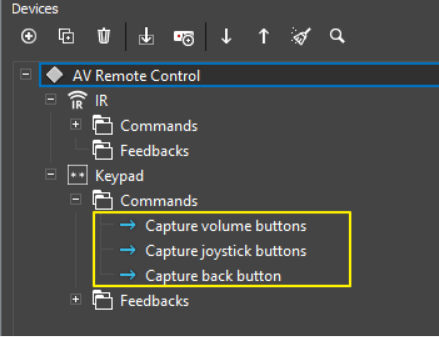
    Diveces menu AV.PNG

    Parameter Value Description
    Capture volume buttons 1- To turn on capturing hardware button presses
    0 - To turn off capturing hardware button presses
    It turns on capturing volume keys presses (volume keys control volume in the system by default)
    Capture joystick buttons 1- To turn on capturing hardware button presses
    0 - To turn off capturing hardware button presses
    It turns on/off capturing joystick keys presses (joystick keys control navigation through items in a panel project by default)
    Capture back button 1- To turn on capturing hardware button presses
    0 - To turn off capturing hardware button presses
    It turns on/off the Back button presses (Back button is used to navigate through items in a panel project by default)


    Feedbacks

    Parameter Value Description
    Scene 1,

    Scene 2,
    Scene 3,
    Volume Up,
    Volume Down,
    Channel Up,
    Channel Down,
    Back,
    Rewind,
    Forward,
    Previous,
    Next,
    Mute,
    Play,
    Pause,
    Stop,
    Record,
    Up,
    Down,
    Left,
    Right,
    Ok

    0 - key is released

    1 - key is pressed
    2 - holding presses

    It returns the state of a hardware key on the AV-R remote


    ! Feedbacks of the subdevice are feedbacks from pressing hardware keys on the iRidi AV-R device.

    • Capturing button presses should be activated with the help of driver commands (see above). Otherwise feedback channels won't receive events of pressing buttons
    • Feedback channel icons correspond to engraving of the iRidi AV-R buttons


    To configure the time before the key press event is triggered, use the Long press activation time parameter. It is set in ms.
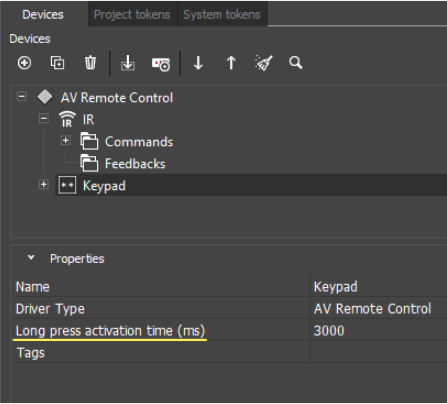
    Keypad AV.PNG

    IR subdevice

    It allows you to control equipment with the help of IR commands through a built-in IR transmitter of the remote control. To set up control, begin the IR learning process using iRidium Studio and ProAV Control Processor.
    Learning IR commands:
    1. Launch iRidium Studio.
    2. Create a panel project and add the AV Remote Control driver.
    3. Create the required number of commands for the IR subdevice.
    4. Press right mouse button on the subdevice and select the Learning by AV Processor option (to learn each command separately, press right mouse button on the required command and select the Learning by AV Processor option).
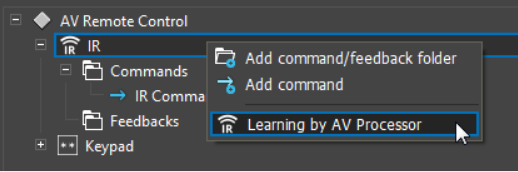
    Remote control AV.PNG
    5. Enter IP address of the ProAV Control Processor and select the equipment manufacturer. If you don't find your equipment manufacturer, select the Other option and enter the required frequency.
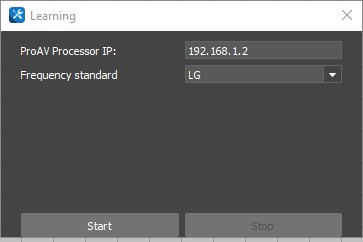
    Learning AV EN.jpg
    6. Press the "Start" button.
    7. Direct the IR signal source to the IR receiver on the front panel of the ProAV Control Processor device.
    8. Send the required command.
    9. Repeat steps 8-9 for each command.
    10. After learning all commands the learning process will be finished automatically.
    11. To stop the learning process, press the "Stop" button in the "Learning" window.

    Setting commands

    Parameter Value Description
    Send IR command code
    • At the moment, only IR commands of the iRidium HEX format are supported, which are learned through ProAV Control Processor
    To send an IR command to a device

    To send IR commands from a remote control through a built-in IR transmitter, do the following:

    • Assign commands learned from the IR subdevice to graphic items in the interface of a panel project.
    • Upload the project to i3 Pro launched on the AV-R device.
    • Send IR commands using graphic items of the panel project.

    Источник — «https://dev.iridi.com/index.php?title=Driver_for_AV_Remote/en&oldid=138938»
    About us
    Company
    Team
    History
    Philosophy
    Rewards
    Partnership
    Our partner
    Partnership Programs
    Apply for partnership
    products
    iRidium pro
    iRidium lite
    iRidium gate
    iRidium server
    Loads
    iRidium pro
    iRidium lite
    Other version
    Marketing materials
    Support
    On-line courses/Video
    Recommended equipment
    Other version
    iRidium pro
    Documentation
    FAQ
    Forum
    iRidium lite
    Documentation
    Forum
    Projects
    Standart projects
    Smart buildings
    Smart house
    Special solution
    Find a dealer
    News
    Youtube
    Twitter
    VK
    Logo
    contact@iridi.com
    +7 (499) 322-73-29

    Privacy policy
