Эта страница является
переводом страницы
HUE. Перевод выполнен на 100%.
Philips HUE module
A remote control for Philips lamps.
Characteristics:
- lamp color control;
- lamp brightness control;
- lamp color saturation control;
- switching on/off;
- scripts;
- displaying the set color;
- notifications(switching off, downloading data, authorization, search);
- auto search of HUE router.
Supported iRidium Versions: V2.1.2 and later
App to start the module on iOS/Android: i2 Control V2.1 and later
Required licenses: iRidium for AV & Custom Systems: Device license Pro
Download the Philips HUE module from our website:
The archive contains the module file for iPad 1, 2, iPad Mini with screen resolution 1024x768 and a brief instruction in Russian and English.
If you want to run the module on another device (Android, Mac), adapt it to the required resolution.
Working With a Module
Run the Philips HUE module in the Emulator in your PC, tablet, smartphone to see how it works. There is no need to set up or edit the module in iRidium GUI Editor for this purpose. The module requires a license for AV & Custom Systems (Pro) to operate.
Note:
The HUE router must scan lamps at least once in order for the module to work.
Some problems with auto search for router on Android may occur.
After launching the module, it starts searching for the HUE router in the network. If the router is found, the module asks you to press the button on the router to confirm the connection with it.
If the connection with the router isn't succesful, you see the Disconnected page with options to solve the problem.
If the connection with the router is successful, the module will show you the page to control Philips HUE lamps.
- All the lamps that are found by the router are located on the left side of this page.
- On the right side you see the On/off switch.
- RGB pallete.
- Contrast and brightness panel.
- Script scenarios samples.
- Scenarios sample created by the driver channels.
Commands and feedback channels
This way of working with the driver allows you to control the lamps and see their states from any project page.
The Switch 1 command means that it is:
a lamp switch at number 1.
To create a lamp switch at number 2, create a new command and name it Switch 2.
Do the same with feedback channels.
Script Scenarios
This way to work with the driver allows you to control lamps in sync with other devices in your house.
For example, you can set lighting that matches the music or album cover color when the music is on.
The HUE_user_GUI module contains an example to control lamps via script.
- PUB_switch function
Turns on/off the lamp
- Syntax:
PUB_switch (Number, State);
- Parameters:
Number - the sequence number of the lamp, starting from one.
State - true – turn on, false – turn off
- Example:
PUB_switch(1, True); // turn on lamp 1
- PUB_changeLight function
Changes contrast, brightness and color of the lamp
- Syntax:
PUB_changeLight (Number, Contrast, Brightness, Color);
- Parameters:
Number - the sequence number of the lamp, starting from one.
Contrast - 0 – 255
Brightness - 0 - 255
Color - 0 – 65535
- Example:
PUB_changeLight (1, 255, 255, 65535 ); // Set the bright red color for lamp 1.
Color Chart
To call a scenario from the graphic interface, group scenarios in the function and call them with the help of the Script Call macro in the macros editor.
function HUE_PUB_Light_1_blue(){
   PUB_switch(1, true);
   PUB_changeLight(1, 255, 255, 46920);
}
Router searcher
The HUE_searcher module contains the searcher that is activated when you launch the module at the first time. This module searches HUE router.
If you know the IP address of the router and aren't going to change it, you can delete the HUE_searcher module, replacing it with one line of the code:
Syntax:
HUE(IP_address);
Example:
HUE(192.168.1.33);
Adapting For a Device With a Different Resolution
For the module to display correctly on any control panel, it's enough to change the resolution of the module in the iRidium GUI Editor.
To do this, you need to:
- Open the iTunes module closest to your requirements in iRidium GUI editor. For example, to adapt the module for an Android smartphone, you need to take the module for iPhone. To adapt it for a tablet, you need to take the module for iPad.
- Press the
Project properties 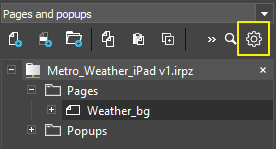 key to open the properties of the project.
- Find the
Target Device section in the General tab and select the device on which you are going to use the module in the drop-down list. If your device is not listed, choose Custom and enter the required resolution in the Landscape Width and Landscape Height items.
- Press the
Save button.
- Choose
YES in the Resize all pages and Resize items and popups dialogs to allow the editor to automatically change the resolution on all pages and popups.
Editing Rules
- delete script files from the project
- change the type of graphic items
- delete states of graphic items
- add the module several times in your project
- delete project tokens
- change the screen resolution of the module to suit your project
- change the appearance settings of items:
- color and status icons
- text in text fields
- transparency and other parameters in the States tab
- you can change the appearance of the standard graphic interface and add more pages and popups if it is necessary. But if you move graphic items to other pages, do not forget to change their names and pages names and specify new links to the items in the HUE_gui script module