Эта страница является
переводом страницы
IRidium for Windows. Перевод выполнен на 100%.
iRidium for Windows: the "i3 pro" application
application for launching iRidium visualization on Windows 7/8/10
Download and install from the iRidium mobile web site the i3 pro application included in the iRidium setup. The i3 pro.exe application is available in "Start > All programs > iRidium Mobile 2"
Sychronization with PC
Fast synchronization of projects with i3 pro is performed via iRidium Transfer. To work with iRidium Transfer, authorize in i3 pro using logs and the integrator password from the iRidium mobile web site.
Use of Transfer is available for the integrator only, as a debugging tool. Use the iRIdium Cloud service to send projects to the end-user
Add Control Panels in Transfer
- Start i3 pro on the control panel and iRidium Transfer on your PC
- Click the Search panel in Transfer - you will see the network scanning bar running
If Search does not work, read the instructions "Transfer Troubleshooting"
Add Your Project in Transfer
Add the project file (*.irpz) in iRidium Transfer. You can send the project file from iRidium Studio in Transfer by clicking "Send To Panel" on ToolBox
Prepare the Project
A control panel has two red fields:
- Select the project you want to upload on the control panel
- Set up its properties if necessary
- Select the control panel where you want to upload the project
Synchronize Transfer and the Panel
Variant 1 Click Reload in Transfer
- i3 pro is started and opened on the control panel
- the panel indicator in Transfer - green
Variant 2 Click "Send To Transfer" in Studio
- i3 pro is started and opened on the control panel
- Indicate the control panel where you want to upload your project
If the panel is not updated and the panel indicator does not become green, read "Transfer Troubleshooting"
Commercial Use
Authorize on the iRidi web site to start work with iRidi Cloud. Go to the My account section, the My projects tab.
1 Create a folder and an object.
- You can systemize projects of different end-users with the help of folders and objects:
- A folder holds several automation objects by some common feature (for example, the same end-user)
- An object holds projects, users and the license used on one automation object (for example, a house or an office).
Add projects and accounts only of one customer to one object. Create separate objects for different customers.
License selection and invitation of end-users to an automation object are available via your My account section in the cloud.
2 Upload projects from PC
- iRidi projects are files for launching visualization in the i3 pro application (*.irpz) and if there are any, projects for iRidi Server (*.sirpz). Projects are created by integrators of automation systems and uploads them in the cloud when they are completed.
If there is a license (see how to add it in the object below), visualization projects can be uploaded on the end-user's control panels.
Keep in mind that the Enterprise+ license has limitations for the number of projects which can be uploaded on the licensed object.
3 Select the suitable license.
You can assign a license to the created object in the Licenses tab. An object without an assigned license is not working and is not displayed in i3 Pro.
1. Create license. In this window you can use a built-in calculator of licenses for a object and pay for a license on-line. After the payment, you'll get the license key to your e-mail.
2. Choose from paid licenses. If you have a paid license on your account, you can assign it to your object in this window. One license can be assigned to one automation object.
3. Activate by code. If you have a license key, you can activate it in this window. You get a license key together with the purchased equipment (you find it on the back cover of the device) or you buy a license key on-line (step 1).
When the license is assigned to the object, it cannot be transferred to another object! But you can add functions to it.
If you have problems when purchasing or activating licenses, you can write us at contact@iridi.com.
After you assign the license, the object will be available for testing on control panels for you as an integrator. To start testing log in to the app using your username and password and download the project to your panel (step 5).
4 Invite end-users.
Invite end-users to control the visualization object.
There are two ways to add a user to an object:
1. Invite - send a request by e-mail. In this case the user confirms the creation of the account, chooses a password and sets account data in the iRidi website. You can invite the user in the "Users and panels" tab.
2. Create an account - fill in account data of the user, choose a password. In this case the user gets an e-mail that the account has been created, the user can decline it. This way is better to use when users do not have an opportunity to help you with the initial setting i3 pro.
You can't invite the user to the project, if the user is already registered on iRidi website as an integrator or DIY.
Ask the user to authorize in i3 Pro with his login and password and download the project. When the project is being downloaded, the panel is registered in the cloud, receives a license and appears in the list of “Active panels”. You can delete a panel from this list to clear space for another control panel (for example, to replace a broken one).
If you use a server, upload your project to a server (step 5).
5 Upload projects on control panels and the server
- 5.1 To download the visualization project (*.irpz) on a smart phone, tablet or PC, the invited user has to authorize in i3 pro on the corresponding device:
- The project developer invites users by email
- The user follows the link in the invitation email and selects the password for accessing i3 pro
- The user authorizes in i3 pro and sees the project to which he is invited.
If there are several projects, the navigation between them is performed via Projects menu. It can be opened on the tablet or smart phone by the left-to-right swipe on the screen (click F7 on Windows). The menu shows the projects available to the user .
The user can log out of the account in the Settings tab to clear space for another control panel (deactivate the license) and delete all projects from the panel
Do not give your login and password for the test to users, otherwise they will see all your objects and have access to them!
- 5.2 The server receives the license and the project from the cloud but the developer (integrator) NOT the user must authorize on the server using the login and password on the iRidi web site. Launch the server, open the web-interface (see the instruction to your server platform) and activate the server:
- Input the login and password of the integrator account where you created the object with the server project
- Select the service password to access the server settings. It is 2007 by default.
- Then you will see the list of objects and server projects. Select the project which has to work on the server and click on it to download (miss this step if you have not used the cloud before).
- In the server web-interface (the Cloud tab) you can download a project to the server (Projects) or deactivate the server (Deactivate Server). You can upload projects from iRidi Transfer to the server with the activated Test Mode.
If there are no server projects in the cloud during authorization, you can upload them later in the server web interface (step 2).
Setting, Debugging
i3 pro Menu
Control of the i3 pro application is performed via the menu which can be opened:
- with the right-to-left swipe from the screen side (OS, Android)
- by clicking F7 (Windows, Mac)
The following actions are available in the i3 pro menu
- download projects from iRidium Cloud
- select the project for launching
- open the scanner of QR codes for fast project download by the link
- unauthorize to delete a device from the list of panels (to clear space for a new panel)
- local upload of projects from iRidium Transfer in the testing mode (for integrators only). The list of uploaded projects will also be displayed in the i3 pro menu.
System Settings
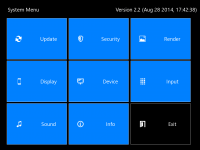
The system menu is a system section of the application in which functions for fine-tuning the operation of the application and the project are grouped
All Settings
i3 pro system settings
MENU
|
Settings of the i3 pro application available for editing during project work.
|
UPDATE
|
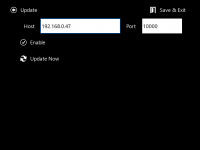
Settings for project update on control panels.
Host - the IP-address of PC from which the update will be performed. It will be written automatically at control panel "Search" in iRidium Transfer
Port - the ТСР port for project update. It is not reccomended to change it! If you need to change Update Port, also change it in the Transfer settings.
Enable - to activate\deactivate the possibility of project update on the control panel.
Update Now - to start project update from the indicated Host:Port
|
SECURITY
|
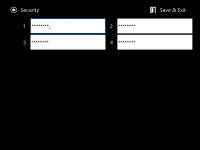
Password 1 - Password 4 - the passwords for accessing protected project pages. They can be changed for the project version uploaded on the device. When using passwords it is recommended to deactivate the possibility of entering the menu "on hold" in the Info (Enable System Menu > Off) tab. The passwords are set up in iRidium Studio
|
RENDER
|
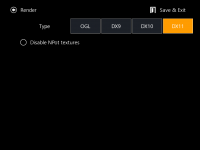
Disable NPot texture - it deactivates support of textures which are not 2-fold. On the outdated video cards it improves graphics performance by increasing the required memory of the 3D accelerator.
Render (Windows) - it allows you to select the system of image formatting. It is recommended to change it if your video card does not support one of the render types or iRidium does not close correctly (stays in the Windows task bar)
- OGL - OpenGL supported by the most part of PCs
- DX9, DX10, DX11 - the DirectX family of modern rendering systems (it requires installation of Microsoft DirectX)
|
DISPLAY
|
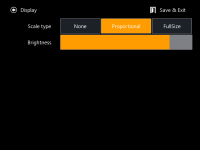
Scale Type - the type of project scaling (if the resolution is different from the screen resolution)
- None - not to scale (display with actual resolution)
- Proportional - to scale with proportions of the original project
- Full Size - to scale to the screen resolution without keeping proportions of the original project
Brightness - control of the iPad, iPhone, iPod touch screen brightness
|
DEVICE
|
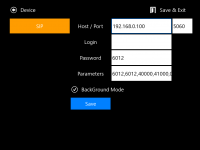
The drivers in the project. You can change settings of connection to equipment for the drivers in the list.
|
INPUT
|
there are no properties in this section at the moment
|
SOUND
|
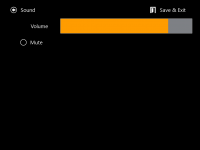
Volume - volume of sounds in the application
Mute - to turn sounds in the application on/off
|
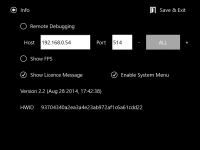
INFO
|
Remote Debugging - it sends the i3 pro log to the remote PC with the installed Syslog server. You need to set up the server address and logging depth.
Show FPS - to show the speed of interface update (frames per second)
Show License Message - to show/hide the message about working without a license.
Enable System Menu - to turn on/off the possibility of activating the i3 pro settings on holding in the application window.
Version... - i3 pro version
HWID... - the identifier of the Windows panel. It is used at licensing
|
Debugging
i3 pro for Windows (unlike for iOS, Android and Mac) allows you to see the system log directly in the application (Local logging). You can also send the log file to a remote PC (Remote logging)
Local logging
You can open the log of the i3 pro client application for Windows by clicking F4 in the application window (or in Emulator).
To enable display of required data in the log:
- 1. Indicate the logging depth for iRidium systems and subsystems in iRidium Studio. The setting up is performed in the Debug tab in the panel project settings window. The logging depth: from EMERGENCY (errors only) to DEBUG (full information)
- 2. Indicate the logging depth for each driver added in the project
- 3. If you use JavaScript in your project, use the
IR.Log("text") method to output messages
- 3. Start the i3 pro application or Emulator on Windows, then click F4 to open the log.
Remote logging
The log of i3 pro can be sent to a remote PC. The log is sent with the help of software generally called Syslog Server. Here is an example of such a program: www.winsyslog.com
[Install] and set up the server:
- 1. enter the UDP-port for launching the service: 514, the same as in the i3 pro system settings
- 2. start Syslog Server
Set i3 pro to connect to Syslog Server:
- 1. Turn on Remote Debugging option in the Debug tag of the settings windows of a panel project, enter the Host - IP address of a PC where Syslog Server is launched. Logging port - 514. Enter the depth of logging of iRidium systems and subsystems in iRidium Studio. There are several levels of logging depth from EMERGENCY (only errors) to DEBUG (detailed information).
- 2. Set the depth of logging for each driver added to a project.
- 3. Remote logging of i3 pro can be set not only in a project on a PC, but also in the system menu of i3 pro using one of the following ways. Click the right mouse button on the panel in iRidium Transfer and open the menu with the help of Show System Menu, long press on the empy area of workspace or a swipe from left to right.
Activtae remote logging Enable in the Remove debug tab and enter the Host - IP- address of a PC with Syslog Server, port (514) and logging level.
Fixing problems
There is a number of typical problems which can lead to the disfunction of the panel search in iRidium Transfer or disable project uploading on control panels. Even when your application is set up correctly you can face the situation when you need to check some settings of PC, network and safety.
All problems described in this article can occur in practical work. Please check their solutions here before contacting iRidium Support Team!
How to understand that there is a problem ?
Normal uploading:
- Panel indicator in Transfer - green
- The project and license file are selected (the license file is not necessary but equipment cannot be controlled without it)
- You can see the "Downloading" bar in Transfer
- There is the "Updating has finished" string in the Transfer log
- You see your updated project after the process is finished
Panel indication in Transfer
The indicator in Transfer displays the i3 pro state. To update the project the indicator has to be green (On) and i3 pro has to be started and opened:
 |
i3 pro is not connected to Transfer (start, open the app, check Wi-Fi)
|
 |
i3 pro is connected to Transfer, but the update is not allowed in the i3 pro settings (Update)
|
 |
i3 pro is connected to Transfer, the upload will start when clicking the Reload button
|
Fixing problems
Please perform all actions below one by one. They will help you to find and fix the problem:
* Yellow icon in Transfer
If you see the yellow icon On of i3 pro panel in Transfer it means that the ability of update has been trned Off in i3 pro settings. To turn it On again:
- press on panel in Transfer by the right mouse button, select "Show system menu"
- now you see the System setting in i3 pro . Select the "Update" tab
- set the tick Enable and press "Save & Exit"
- press the button in Transfer. Now the project updated!
1 Correspondence of versions
iRidium versions on PC and your control panel have to correspond:
- with iRidium V1.5 you need to use the iRidiumHD application
- with iRidium V2.1 you need to use the i2 Control application
- with iRidium V2.2 you need to use the i2 Control V2.2 application
- with iRidium V3.x you need to use the i3 pro application
The OS version of control panels mast be supported. For V3.x (i3 pro) you have to use:
- Apple iOS 11 and later - iPad, iPhone.
- Windows 7/8/10 - PCs, mono-blocks, tablet computers. Embedded versions and OS Emulators are not supported!
- Android 4.4 and later - smartphones and tablet computers. It is required to have a possibility to write data in the device internal memory (at least 50 Mb) an at least one network interface (Wi-Fi, Ethernet, 2g/3g/4g).
2 Home or office Wi-Fi network
Make sure the Wi-Fi network is not "Public", as Search and Upload will not work in this mode.
3 Transfer Network Connections
Only ONE network connection should be selected in the Transfer settings:
Confirm the changes and restart Transfer.
4 Windows brandmauer
Turn off the Windows brandmauer. It is the most common reason of problems with project upload.
The brandmauer does not show messages about blocking Transfer. The problem can appear after you reinstall Transfer, restart your PC or change your Wi-Fi network even if there were no problems before.
Start > Control Panel > Windows Brandmauer >Turn Windows Brandmauer On or Off > Turn Brandmauer Off.
If it helped add iRidium Transfer in the list of exceptions of the brandmauer (or temporarily turn it off).
5 Anti-virus software
Turn off any anti-virus software (for example, AVAST, ESET, Kaspersky, Dr.WEB, Microsoft, Panda, Agnitum, etc.) temporarily. If you are sure that you will do it correctly just add iRidium Transfer in the list of exceptions of your anti-virus software. Restart Transfer.
6 Connection between devices
The project might not upload on the control panel because of incorrect settings of the IP-network.
For example, on one of the devices Wi-Fi can be off or the devices might be in different IP-subnetworks. To check it, pingthe control panel with the PC where Transfer is running:
Start > Run > cmd > ping <IP of the panel> >>> ping 192.168.0.10
Check network settings on all devices - their addresses should belong to one network and subnetwork:
If there are problems with network connection please contact your local network administrator.
7 Third-party software (torrent-tracker)
The Transfer application uses ТСР port 10000 and UDP ports 10001, 10002 for searching panels and uploading projects. Some applications, for example uTorrent, also use these ports and thus block the work of Transfer.
If the port of project uploading (10000) is busy, you will see the message in Transfer. Do not ignore it. Turn off the third-party applications which show network activity and restart Transfer.
8 Selecting projects in Transfer
Make sure you added your project and license in Transfer, and not only upload the standard interface (default screen saver) which is stored in Transfer by default.
When making any changes in your project you need to update the project in Transfer for these changes to be uploaded on the control panel.
9 Correct Wi-Fi settings on all devices
If you use the static address of the PC and panel, make sure all required fields of connection settings are filled in (especially the router address). Otherwise, you will have ping but Search will not work.
- The device IP-address should be unique in one IP subnetwork
- The router have to be indicated and it should be done correctly. Otherwise, the client will not be able to connect to Transfer for project uploading.
- DNS should be indicated. Generally it is the same as Default Gateway
If you use DHCP click "Renew Lease"
10 HTC, Samsung note 3 (Android OS)
Due to security settings on Samsung note 3 tablets and due to problems with firmware on some HTC smartphones (HTC Sensation, HTC Incredible S) the panel search function and update from Transfer do not work.
In the case of such problem you should update your project through i3 pro system settings. See more information about it in “What to do if you couldn’t fix the problem”.
What to do if you couldn’t fix the problem
Use these instructions if you need to solve the problems urgently. In other cases please contact iRidium Support Team to find out the reasons of problems with panel search or project upload as this method does not always help.
You can initiate project upload manually. The indicator of the panel in Transfer will be red but in some cases the project upload becomes possible.
- Start i3 pro on the control panel.
- Hold a finger on any area of the application without active items (for example, in the left upper corner) for 10 seconds.
- You will see the password request. Enter 2007 and click ОК
- Open the "Update" tab, activate the update - Update: ON
- In the "Host" property indicate the IP-address of the computer where Transfer is running.
- Click "Update Now"
- In the Transfer log (if Search didn’t work) you will see the message "Authorization is false" (the device is not in the list). The device HWID will be shown in the line before the message:
- Copy the HWID and add it in the list of panels
- Close i3 pro. The application should NOT be in the background
- Select the project and license and restart i3 pro. The upload of the project on the panel will start.
If Search didn’t work, it will not work but you will be able to upload your projects by restarting the application on the panel.
Please go through all the above mentioned solutions one more time. If it didn't work, contact iRidium Support Team.


