Эта страница является
переводом страницы
IRidium studio 2019 Scheduler. Перевод выполнен на 100%.
Scheduler
Scheduler as a schedule with events
The schedule of events is available on the iRidium server only
'Schedule in server logic' is an event scheduler, available in the SCHEDULER panel when configuring the logic for iRidium server. Event Properties:
- events can be triggered once and with a given frequency
- an event can start (Start) and end (Finish), the beginning and end of the event can activate server routines
- an event can be in progress (In process) or not be executed right now (Not in process). The event state can be used as an exception condition (BUT ONLY IF) in server routines
- event response time can be changed during server operation
- the frequency of an event cannot be changed during server operation
- event can be turned on and off during server operation
Types of Schedules
There are 2 types of schedules: Advanced and Simple.
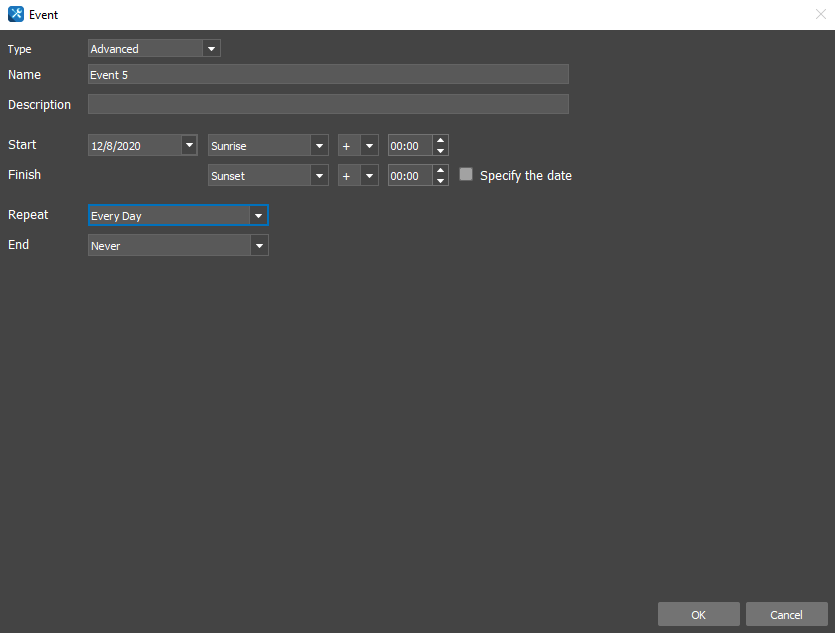
Advanced are advanced (basic) schedules. Advanced schedules allow to set in the studio the following parameters beforehand: the time and date of event start and end, and the repetition period of an event. Advanced schedules also work with TimeTable item.
See a detailed decsription of advanced schedules below.
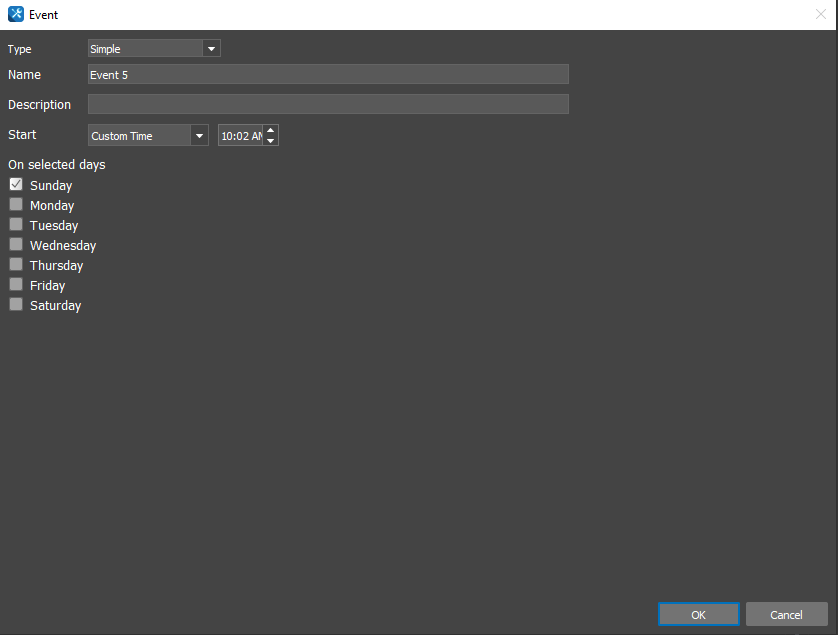
Simple are simplified schedules. Simple schedules have fewer setting parameters, but they allow to work with editable routines from a launched panel proejct.
Only the time and date of event start can be set in simple schedules. To assign an action to the end of an event, it is required to create a separate event.
Read a deatailed description of setting editable routines here.
Settings of Shedule Events
- Name - event name.
- Description - short description (not obligatory)
- Start - date and time of the event start
- Select time - date and time.
- Sunrise, Sunset - time of sunset or sunrise.To use, you need to configure astrotimer.
- Finish - date and time when the event ends. The "Specify the Date" tick is disabled by default. It means that the event ends the same day it starts. When you enable the tick, you can choose the date when the event ends.
- Select time - date and time.
- Sunrise, Sunset - time of sunset or sunrise.To use, you need to configure astrotimer.
The "Sunrise" and "Sunset" parameters have the additional ability to offset the time from the current moment.
The time offset has two parameters:
"-" - the time offset in the negative direction relatively to the event;
"+" - the time offset in the positive direction relatively to the event.
- Repeat - frequency of the event. If it is off, the event will be activated once, on the date and time specified during configuration. See the settings for repeat below.
- End - when to complete event repetition (if the Repeat parameter is enabled)
- Never - never
- Date - on the specified date
Repeat: settings for event repetition
- Repeat - frequency of the event repetition
- Never - do not repeat the event. The event will be activated once, on the date and time specified during configuration
- Every Day - every day, at the specified time
- Every Week - every week on the same day of the week that the event started. For example, every Monday
- Every 2 Weeks - every second week on the same day of the week that the event started. For example, every second Sunday
- 'Every Month' - every month on the same date the event started. For example, every 23rd of the month
- Every Year - every year on the same date and month the event started. For example, every January the 1st.
- Custom - allows you to configure the repetition by day, week, month, year, but with a large period. For example, every 3 days, or every second Monday of a specified month.
- Period - repetition frequency
- By Days - repeat every N-th day, starting from the start date of the event. For example, every second day
- Every: <N> Days - repetition interval in days, from 1 to 365
- By Weeks - repeat every N-th week, on the specified days of the week, starting from the start date of the event. For example, Thursday of every second week
- Every: <N> Weeks - repetition interval in weeks, from 1 to 52
- On specified days of week - indicate the days of the week on which you want to repeat the event
- By Months - repeat every N-th month. Choose the principle of repetition: on specified dates of the month / on specified days of the month. For example, every second month, the 23rd or every first Monday of the month.
- Every: <N> Months - repetition interval in months, from 1 to 12
- On specified dates of month - repeat on specified dates of the month. You can select multiple numbers
- On specified days of month - repeat on specified days of the month: first Monday, fourth Sunday, ...
- By Years - repeat every N-th year
- Every: <N> Years - repetition interval in years
- On specified months - months of the year when the event will be repeated. It will be activated on the start date of the event.
- On specified days - repeat on specified day of the week, not the date of the month, check the "At specified Day" checkbox. For example, you can set the trigger on the first Monday of the month
- 'End' - the date on which the repetition of the event should end
- 'Never' - never
- 'Date' - date selection
Astronomical timer
An astronomical timer is meant to create schedules and rules related to sunrise and sunset. For example, you need to create a schedule according to which the street lighting will be turned on at sunset and turn off at sunrise. To work with the astrotimer, you do not need the Internet connection.
1 Open Settings of the server project:
2 Fill in the Location parameters:
- Latitude and Longitude - the latitude and longitude of the server location as a decimal number.
You will find Latitude and Longitude tokens in the Project folder located in the System tokens tab of a server project. These tokens store values of longitude and latitude entered in the project settings. The values of tokens can be changed or received with the help of script methods IR.SetVariable и IR.GetVariable.
Example:
IR.AddListener(IR.EVENT_START, 0, function () {
    //write "16.155562" value in the "Latitude" token:
    IR.SetVariable("System.Project.Latitude", 16.155562);
    //assign the "lat1" variable the value of the "Latitude" token:
    var lat1 = IR.GetVariable("System.Project.Latitude");

    // write "122.145897" value in the "Longitude" token:
    IR.SetVariable("System.Project.Longitude", 122.145897);
    //assign the "long1" variable the value of the "Longitude" token:
    var long1 = IR.GetVariable("System.Project.Longitude");

    //log values of the vriables:
    IR.Log(lat1 + " / " + long1);
});
Configure Schedule for the Astrological timer work, you can read more about setting here


