Эта страница является
переводом страницы
JS module Sonos. Перевод выполнен на 100%.
Sonos module
This is a full-featured control panel for Sonos music systems from iPad, iPhone, Mac, as well as Android and Windows-based devices.
The app supports any Sonos system from version 3.8 and later.
The Sonos module can be easily integrated with AMX, KNX, Crestron and other control projects.
Characteristics:
- Automatic connection to Sonos via home WiFi network
- Playing music and Internet radio all over the house. Playing different songs in different rooms or playing the same song synchronously
- Searching for tracks in the app and use other resources, including the home network, to find the content you need
- Sorting and playing tracks alphabetically, by genre, album, etc.
- Displaying the current playlist
- Viewing album covers in thumbnails or full-screen mode
- Controlling the sound in one room or simultaneously in all rooms
Required licenses:
- iRidium for AV & Custom Systems: Device license Pro
Download the Sonos JS module from our web site:
If you want to run the module on another device (Android, Mac), adapt it to the required resolution.
Working With a Module
Run the Sonos module in the Emulator on your PC, tablet or smartphone to see how it works. There is no need to set up or edit the module in iRidium GUI Editor for this purpose. The module requires a license for AV & Custom Systems (Pro) to operate.
The local network will be scanned for the presence of Sonos devices and its main page will open after launching the module. The list of audio sources is located on the left side of this page. It can be Internet radio or a device connected to the line-in of Sonos or devices in the same local network.
Important!
It is necessary to have at least one turned on Sonos player in the same network as the module in order for the module to work
The player control panel and information about the current track, as well as the ability to select Sonos system zones are located in the central part.
You need to press the key with the current zone and in the drop-down menu and select the one you want to change. You can also group zones together. To do this, click on the  icon next to one of the zones. Check the checkboxes next to the zones you want to group together in the opened menu. By doing this, you can set the music that will play in all these zones and control their overall volume. If you wish, you can set a different volume in each zone by clicking on the icon that appears after you group them together.
The module has an option to change the design style. The Settings button opens a window with options to choose the color scheme and select an image for the background.
You can also watch a video on how to work with the Sonos module.
Adding Module to Project
To add a module to your project it is necessary to:
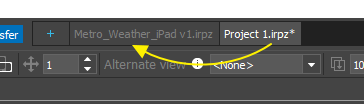
1 select the module folder in the PROJECTS OVERVIEW window with the mouse and hold down the button and drag it to the folder of your project:
2 the editor will ask if you want to merge these two folders. Choose Yes
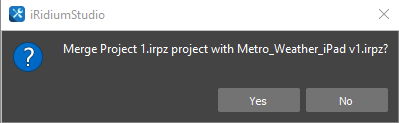
Now the projects are merged.
Go to the Sonos_FAQ module page in the iRidium GUI editor and copy the button to have access to the player from different pages of the project
This button must be added to all pages of your project from which you would like to open the module.The button is already assigned to the module page, thus, you do not have to set anything additionally.
There is also a button to return to the previous page on the Sonos_FAQ page in iRidium GUI editor.
To have the ability to return to the page of your project from which the module was launched, the button to return needs to be added to the module page. The button also has all the necessary commands for this purpose and there is no need to set it up additionally.
Adapting For a Device With a Different Resolution
For the module to display correctly on any control panel, it's enough to change the resolution of the module in the iRidium GUI Editor.
To do this, you need to:
- Open the iTunes module closest to your requirements in iRidium GUI editor. For example, to adapt the module for an Android smartphone, you need to take the module for iPhone. To adapt it for a tablet, you need to take the module for iPad.
- Press the
Project properties 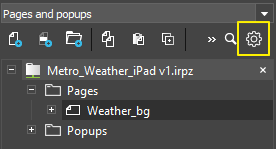 key to open the properties of the project.
- Find the
Target Device section in the General tab and select the device on which you are going to use the module in the drop-down list. If your device is not listed, choose Custom and enter the required resolution in the Landscape Width and Landscape Height items.
- Press the
Save button.
- Choose
YES in the Resize all pages and Resize items and popups dialogs to allow the editor to automatically change the resolution on all pages and popups.
Editing Rules
- change or delete elements on pages and popups
- change page and popup names
- change element names
- delete script files from the project
- change the type of graphic elements
- delete states of graphic items
- add a module to your project several times
- delete project tokens
- change the screen resolution of the module to suit your project
- change the appearance settings of items:
- color and status icons
- text in text fields
- transparency and other parameters in the States tab
- in the
Metro_Sonos_Retina_2048_RC_2.2.1.irpz module it is allowed to add IP addresses of players to the script, as well as to edit the Sonos_Open_Zones module script in order to add system zones and bind them to buttons on the main page. (Information about this can be found in the ReadMe.txt file and on the script's own page)


