Эта страница является
переводом страницы
KNX. Перевод выполнен на 100%.
iRidium for KNX
a set of tools for creating interfaces to control KNX equipment
Description
The documentation was updated on 20.12.2024
Description
iRidium for KNX is a set of tools for creating interfaces to control homes or offices on the basis of KNX equipment.
iRidium for KNX enables connection of control panels (iOS, Android, Windows, Mac) to KNX TP1 via any interface or KNX router with the IP Unicast support (KNXnet/IP Tunneling): Jung IPS 100/200 REG, Jung IPR 100/200 REG, Evika Logic Machine 2, 3, Reactor, Weinzierl KNX IP BAOS 770/771/772/777, ABB, Siemens, Gira, Mean Well KSR-01IP etc.
See information about working with KNX through KNX IP BAOS Object Server (Datapoints) in the KNX IP BAOS section.
Licensing of iRidium for KNX (more)
Supported types of KNX group address:
- 1.* 1-bit
- 2.* 2-bit controlled
- 3.* 3-bit controlled
- 4.* Character
- 5.* 8-bit unsigned value
- 6.* 8-bit signed value
- 7.* 2-byte unsigned value
- 8.* 2-byte signed value
- 9.* 2-byte float value
- 10.* Time
- 11.* Date
- 12.* 4-byte unsigned value
- 13.* 4-byte signed value
- 14.* 4-byte float value
- 16.* Character string
- 17.* Scene number
- 18.* Scene control
- 20.* 1-byte
- 229.* 4-1-1 byte combined information
- 232.* 3-byte colour RGB
- 251.* Colour RGBW
Connection
Equipment configuration and settings required for iRidium to control KNX equipment are given below.
Connection Methods to KNX
Different ways to connect to the bus provide a different number of concurrently connected control panels. The number of concurrent connections is affected by your choice of a KNX IP interface.
Drivers to connect i3 pro to KNX:
- KNX Router (KNXnet/IP)/Serial (UMC) - supports 3 protocols: UDP, Serial, USB
- KNX IP BAOS 770 / KNX IP BAOS 771-774/777 - to connect via Weinzierl IP BAOS with a preconfigured Object Server mode (via Datapoints)
Drivers to connect iRidium Server to KNX:
- KNX Router (KNXnet/IP) / Serial (UMC)- for any server to connect to KNX IP interface or router via IP, in the Unicast mode
- KNX IP BAOS 770 / KNX IP BAOS 771-774/777- for any server to connect via Weinzierl IP BAOS with a preconfigured Object Server mode (via Datapoints)
- KNX LMx (Logic Machine) - only for Logic Machine controllers. TP1 physical interface is used to connect to the bus.
- KNX I2C - (available for iRidium Studio 1.3.8) only for Pobeda controllers. TP1 physical interface is used to connect to the bus.
- KNX kBerry BAOS - only for Raspberrycontrollers with a physical TP1 interface to connect to the bus.
1. Any KNX IP interface or router provides one concurrent connection of iRidium to the KNX bus. It means that a standard KNX IP interface can take only 1 KNXnet/IP connection at a time and concurrent control from two tablets is impossible. Some KNX interfaces support more than 1 connection, see the description of your interface.
2. KNX IP BAOS and Logic Machine interfaces are recommended when you are required to control the bus from 5 or more devices at a time. KNX IP BAOS supports up to 5 concurrent connections, Logic Machine (2, 3, ReActor...) supports up to 10 connections.
3. iRidium Server provides unlimited connection to the KNX bus because it establishes connection to the bus via KNXnet/IP and control panels connect to the server using iRidium protocol, thus not loading the bus.
KNX Router (KNXnet/IP) / Serial (UMC)
KNX Router (KNXnet/IP) / Serial (UMC) driver supports several protocols:
- UDP - for any server to connect to KNX IP interface or router via IP in the Unicast mode;
- Serial - only for servers based on UMC. It uses TP1 physical interface to access the bus;
- USB - only for iRidium Server on Win or a panel project. USB interface is used to access the bus.
If you choose to work via KNXnet/IP Tunneling (UDP) protocol, consider its features:
- Control panels and the KNX IP interface must be in one IP subnetwork.
- Your KNX IP interface must support the KNXNet/IP Tunneling protocol.
- IP multicast (the routing mode) is not supported by iRidium.You can use IP unicast only.
- Most KNX IP interfaces support only 1 Unicast connection at a time.
- To work via the Internet, activate the NAT mode in the settings of the KNXnet/IP driver in iRidium and set port forwarding on your Internet router.
- iRidium sends forced requests to KNX group addresses at each launch. It is required to see the initial states of KNX variables. Tick "Read" in the properties of each address that must be updated at launch in ETS.
- When setting the Wi-Fi network it is NOT recommended to use several access points, as connection with the KNX IP router gets lost for some time between access points. It can cause loss of connection with KNX for 1-2 minutes. It happens because of protection of KNX interfaces from emergency disconnection. Use Wi-Fi repeaters to organize a seamless network or routers which support several concurrent connections.
- If your project has many (>100) group addresses, some data can be lost on the way to the control panel at the start of request. It does not affect regular work (event changes). Set Send Time: 15 for a request to be slower but it does not guarantee a stable request. It is recommended to use iRidium Server or KNX IP BAOS (a datapoint mode) when working with a lot of KNX variables
Connection to the Bus via USB:
Not all USB KNX devices work with this type of driver.
Tested equipment:
- WEINZIERL / KNX USB Interface 311
1 Connect KNX HID device to a PC;
Before starting to work with the device after connecting it to a PC, check that the device is working and there is no driver mistake in Windows.
2 Find the device in the Device Manager;
3 Go to Properties;
4 Choose Device instance path in the properties;
5 Enter HID/PID (given from "_" to "&") find Vendor ID and Product ID, where VID is Vendor ID, and PID is Product ID.
6 Enter Vendor ID and Product ID in the driver settings.
After a special setting, KNX HID can function as KNX/IP-gateway:
1 Connect KNX HID to the KNX bus with the help of USB interface;
2 Create a new project for iRidium server in iRidium studio: File> New > New Server Project...
3 Set KNX Router (KNXnet/IP) / Serial (UMC) driver manually to connect KNX HID to the bus via USB (read above where to find Vendor ID and Product ID parameters);
You do not have to enter a physical address for KNX/IP-gateway. It is automatically formed from the physical address of the KNX HID device.
4 Create an empty scipt file (JS > New Script) and paste the following into it:
IR.AddListener(IR.EVENT_START,0,function()
{
   var KNXSerial = "KNX HID";   // name of KNX Router (KNXnet/IP) / Serial (UMC) driver in your project

   if(IR.GetDevice(KNXSerial)) {
      IR.GetDevice(KNXSerial).SetParameters({ServerDevice: "KNX IP"});
   }
   IR.CreateDevice(IR.DEVICE_KNX_IP_SERVER,
                  "KNX IP",
                  {Port: 3671,
                  ClientDevice: KNXSerial
                  });
});
5 After starting a project with a set driver and script on the server, you can find KNX HID in ETS and use it as an interface to access the bus. Programming devices in the bus will also become available with the help of KNX HID.
Determination of the Start and End of a Request of KNX Bus
There are two ways to determine the start or end of a request:
1 Using the TagUpdate driver token. 1 - start of the request, 0 - end of the request.
2 Using listeners of the start and end of a request (IR.EVENT_TAG_UPDATE_START, IR.EVENT_TAG_UPDATE_END). For your convenience the information can be logged to monitor the time of a request.
Contact iRidium technical support team to get more detailed recommendations.
Import of Group Addressed from ETS
iRidium connects to KNX bus and it can interact with devices in the bus writing and reading values of group addresses. A list of group addresses can be imported from ETS5 project (*.knxproj) and added to your iRidium project - all at once or in parts. Additional import and update of settings of group addresses are supported. Import of KNX IP BAOS datapoints is supported.
To import group addresses from ETS5 project (*.knxproj):
1 Start iRidium studio, create a project and open two side panels: IMPORTED DATA and DRIVERS TREE:
2 Find in the IMPORTED DATA panel the Import button and click it, select a file with *.knxproj resolution.
3 When the file is processed, enter synchronization settings of ETS file with the Drivers panel (can be left by default):
see Synchronization settings of ETS file and KNX driver in iRidium. You can come back to synchronization settigns by clicking the "Settings" button in the import panel.
When you re-import or update the imported ETS base, you see the window with import settings:
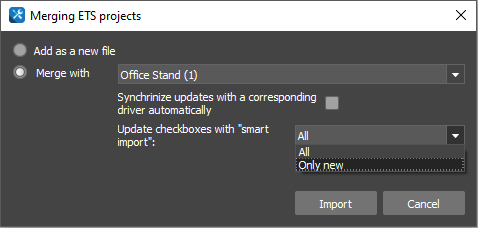
- Add as a new - to import the ETS project as a new one;
- Merge with - to merge with the current project base;
- Synchronized updates with a corresponding driver automatically - to synchronize with a driver after import is completed;
- Update checkboxes with “smart import” - to select the “smart import” mode;
- All - to update all checkboxes (user settings for creating commands and feedbacks will be reset);
- Only new - to update only new checkboxes (user settings for creating commands and feedbacks will be saved);
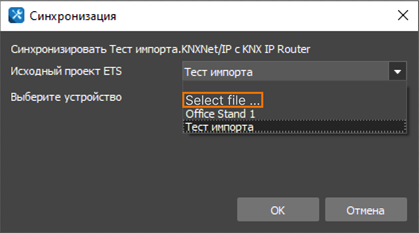
Selecting a new source file for an existing KNX driver
To synchronize the driver with the project, use the option in the context menu or the button on the panel for controlling the project driver structure:
1. Synchronization of the driver using the “Select file…” option in the driver parameters
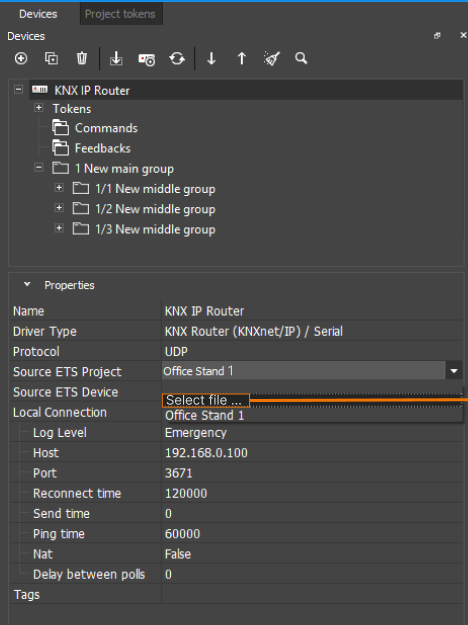 Select the “Select file…” option and select the file with the *.knxproj extension in the opened window.
2. Synchronization of the driver using the synchronization button in the context menu
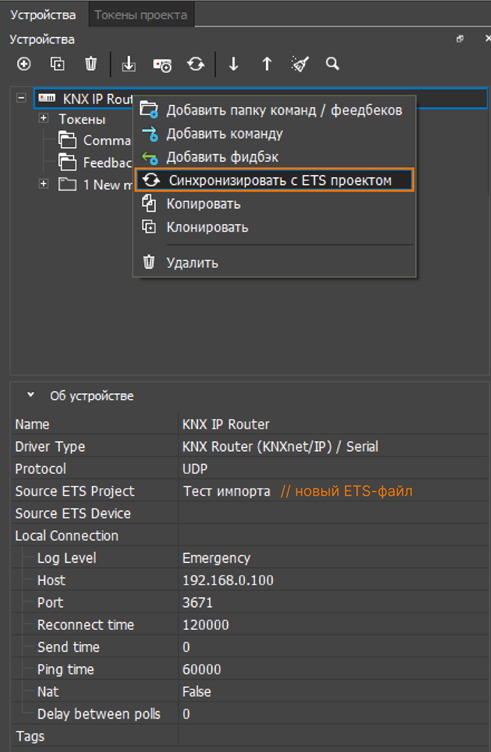 Select the source project and synchronization device
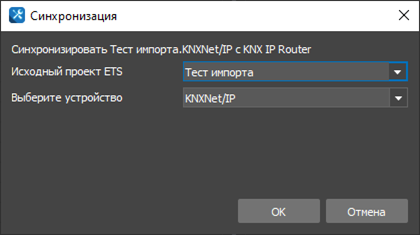 Select the “Select file…” option to load a new source file
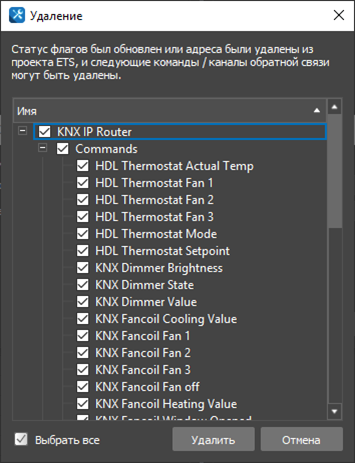
 After selecting the source and device, you see a pop-up for deleting irrelevant / missing items from the old source
Work of flag analysis of group addresses: flags of all communication objects connected with a group address are summed, and on the basis of their presence a decision is made about adding a command or a feedback channel. Flags:
- Communication (connection) – nether a command nor a feedback channel can be created without this flag
- Write – a command will be added
- Transmit – a feedback channel will be added. "Read on start" option is turned off if there is no Read flag
- Read – turns on "Read on start" option in the settings of a created feedback channel
- Update – it is not analyzed
4 When import is completed and synchronization parameters are entered add addresses to project (a driver of a corresponding type will be created for it):
All addresses or only a part of them can be added and placed in folders:
- To add all addresses from ETS file, drag'n'drop the file to the Drivers panel
- To add part of addresses from ETS file, move a folder with addresses or a group of addresses from the list using drag'n'drop
- Addresses can be added to folders at once. Create a folder in the driver, select the driver, click (+) on the Drivers panel, select "Add command/feedback folder". Drag'n;drop the selected addressed to the folder - commands and feedback channels of the selected addressed will be added to this folder.
Use the Synchronize button, to update addresses in the driver according to the synchronization settings (see settings in the Import panel) or drag'n'drop addresses to the Driver panel for partial synchronization.
5 To update a list of addresses after making changes in the ETS project, export a file from ETS and import it again - data will be united.
New addresses added from ETS file will be marked with the [new] label. Addresses deleted from the ETS file will be marked with a bucket label, they must be deleted from the driver by means of synchronization.
6 A file of ETS project does not store the address of KNX IP interface. Check that you entered the right IP-address of KNX IP interface:
Tools of IMPORTED DATA Panel
- Import – it adds a new ETS file to the import base or updates the contents fo the added file. ETS5 files (*.knxproj) are supported.
- Synchronize – it synchronizes ETS file of a project with a corresponding driver in the panel. Synchronization settings see by Press (4). Synchronization can be done by drag'n'dropping a file from the import panel on the driver
- Delete data of ETS project – it deletes import data completely. Partial deletion of data from a file is not possible
- Synchronization settings – parameters of synchronizing data about group addresses between the import panel and the driver (see description of parameters in point 3 of the manual on import)
- Update properties – it updates settings of group addresses during synchronization
- Group address names – it updates names
- Group address properties – it updates types of data
- Add and delete – it adds and deletes group addresses during synchronization
- Add new group addresses from ETS file – it adds new addresses to the driver
- Delete group addresses removed from file – it deletes from the project addresses that do not longer exist in a EST file (after confirmation)
- Object flags – analysis of flags of group objects connected with a group address; analysis of BAOS group objects
- Analyze object flags to create command, feedback and read requests of Group addresses – as a result of flag analysis only an available method to work with a group address will be added to the driver (command to write in the address, feedback chanel to read the address state, capability to request the state when a project is launched)
- Switching the base of group addresses / BAOS datapoints. ETS file stores information about addresses and datapoints that are used in different driverss and support different methods of sorting
- Method of sorting group addresses. The same sorting as in ETS is supported: "Group addressed", "Devices", "Building"
- The Name field displays a list of group addresses united in folders according to a chosen method of sorting (6). The names are made up of three components: group address, name (like in ETS), flags of connected group objects. To name a command or a feedback channel, only the name of an address is used
- The Type field displays the subtype of data of a group address according to ETS. If an address is not connected with group objects, it won't be added to a project, and the field type will be Unknown
- The status field displays a [new] sign next to addressed added during the reimport of a ETS file. It also displays a busket sign next to addresses that were deleted from the file of a ETS project, but are not deletd from the driver.
- The "Use" field displays a sign denoting if a command and a feedback channel are created in the driver for a corresponding address.
Commands & Feedbacks
As a result, we have two levels of KNX settings:
- KNX Router (Interface) - the driver, it contains the list of group addresses in the bus
- Commands и Feedbacks - the commands and feedback channels which help to control the group addresses. Commands - group addresses available for writing, feedback channels - group addresses available for reading.
Commands and feedback channels have to be assigned to project graphic items to control equipment:
- Commands are assigned to graphic items indicating the value to be sent to the bus when clicking on the items;
- Feedback channels are assigned to graphic items to display the state of the group address.
To assign commands or channels to graphic items, use the drag&drop method.
Below you can see examples of commands to control different types of addresses.
Setting Connection to the Bus
Select the connection settings by default. They can be changed while working with the project.
Local connection
- Host - the KNX IP interface IP-address (IPv4)
- Port - the UDP port of connection to the KNX interface: 3671
- Reconnect time (ms) - the waiting time at the abnormal disconnection: 60000 or 120000 ms (depends on the KNX interface)
- Send time (ms) - the pause before command sending. It is set up to decrease the workload of the bus when the several commands sent of button, script of routine without a delay
- Ping Time (ms) - the frequency of sending the Ping command for confirming the connection with the interface
- Nat - the NAT mode. It should be activated when working via the Internet or with another IP subnetwork
- DelayBetweenPolls (ms) - enter the delay between "Read on start" requests of KNX driver when the Client starts and pulling the "On Start" requests of the bus. For 100+ addresses, it is recommended to use the delay 100+ ms. For 1000+ addresses, the recommended delay will be 500+ ms
Internet and network interconnection
- Host - the public IP-address of Internet router
- Port - the UDP port of connection to the KNX interface. It has to be available from the Internet, so set up port forwarding with the help of the Port Forwarding service of the Internet router
- Reconnect time (ms) - waiting time during emergency disconnection: 60000 or 120000 ms (it depends on the KNX interface)
- Send time (ms) - a pause before sending a command to the bus. It is set to decrease the workload of the bus when buttons, scripts or schedules send a lot of commands one after another.
- Ping Time (ms) - the frequency of sending the Ping command to confirm connection with the interface
- Nat - the NAT mode. It should be activated when working via the Internet or with another IP subnetwork.
- DelayBetweenPolls (ms) - enter a delay between requests of statuses of groups addresses when the driver is connected to the bus. All addresses in Feedback with an active "Read on start" option are requested. It is recommended to introduce DelayBetweenPolls from 100 ms when the number of addresses is more than 100 to reduce the workload of the bus. When more than 1000 addresses are requested, the preferable delay is from 500 ms.
To work via the Internet, indicate the public IP-address of the router to which the controller is connected and set up Port Forwarding.
You can see the public IP-address of the router here
Physical connection (Serial)
- Protocol - Serial;
- Log Level - level of logging;
- Host - IP address of the KNX IP interface (IPv4);
- Used with iRidi device - set the host for the corresponding equipment (if the parameter is selected, the Host line will be inactive);
- Delay between polls (ms) - a delay between requests of group addresses statuses when the driver is connecting to the bus. All addresses in Feedback with the active "Read on start" option are requested. To reduce the load on the bus, enter a value from 100 ms in the DelayBetweenPolls parameter if the number of addresses is more than 100. When more than 1000 addresses are requested, the optimal delay is from 500 ms.
- Baud Rate - speed of data exchange;
The parameter is hidden if the "Used with iRidi device" option is not [None].
- Data Bits - number of data bits in a shot;
The parameter is hidden if the "Used with iRidi device" option is not [None].
The parameter is hidden if the "Used with iRidi device" option is not [None].
- Stop Bits - stop bit in a shot;
The parameter is hidden if the "Used with iRidi device" option is not [None].
- Update Time (ms) - the frequency of data update;
- Physical Address - the physical address.
- ACK All Telegrams - True/False values.
The ACK All Telegrams parameter is shown only if the "Used with iRidi device" option is not [None].
The parameter is responsible for the function of the server responding as a KNX device to telegrams sent to it via the physical bus.
If the parameter is True, the server responses to all telegrams sent to it via TP1. In this case devices won't send a packet again.
If the parameter is False, the server doesn't response to telegrams sent to it via TP1. In this case the device on the KNX bus will try to send a packet three times, if there are NO devices other than the server which works with the requested group address.
-
Remote Connection (ETS Remote)
ETS Remote provides remote connection to the KNX bus via UMC C3. The following is required for its work: UMC C3 with KNX module and a downloaded server project, a Windows client with a panel project and a license with ETS Remote addon.
1 Add the KNX Router (KNXnet/IP) / Serial (UMC) driver in the server project and set the driver according to the example in the screenshot.
2 Turn on Cloud Gate mode in the project settings in the studio.
3 Open the server web-interface (Main page => Other), find Server working mode, and set None.
4 Launch the server and the panel and download projects to the via the cloud.
5 Open the System menu in the panel project (F8) and set the ETS Remote trigger to the on state.
6 After it iRidi ETS Remote device with the IP-address and the MAC-address of your device will appear in ETS5 interface. You can work with the bus via this interface like via an ordinary KNX gateway.
If connection is successful, "KNX_REMOTE Open stream successfully". message appears the client log journal.
KNX driver in the Serial mode and KNX gateway can work on the server at the same time but only via a script. When you are on the object site you can use ETS remote with a local connection to the server or the script gateway to access the bus. To turn on the local work mode of, go to the settings of iRidium Server driver in the panel project (F8 > Drivers > iRidium Server), turn off the Cloud Gate mode and enter the IP-address of UMC server.
There can be errors in working with ETS Remote. A list of errors is given below:
| Error |
Description
|
| ETS Remote driver was not found on the server |
This error appears as a popup in i3 Pro project, if there is an attempt to turn on ETS Remote when it is connected to UMC C3 and the project on this server does not have KNX driver. After this error appears, ETS Remote is automatically turned off.
|
| ETS Remote connection is already in use from another PC. If you continue, the other connection will be closed |
This error appears as a popup in i3 Pro project, if there is an attempt to turn on ETS Remote on a second client whereas there is already an active connection on another client. 1 minute later on of the clients will turn off ETS Remote with an error "Server has been offline longer than 60 seconds. ETS Remote is deactivated".
|
| Connection to the server is lost |
This error appears in the client log journal (F4), if ETS remote loses connection with the server. 1 minute later, if the client does not restore connection with the server, another error appears in the client. If connection is restored ETS Remote continues its work.
|
| Server has been offline longer than 60 seconds. ETS Remote is deactivated |
This error appears as a popup in i3 Pro project, if connection between the server and the client is not restored after 1 minute since the moment the connection was lost. After this error appears, ETS Remote is automatically turned off.
|
| Server is Offline |
This error appears as a popup in i3 Pro project, when there is an attempt to turn on ETS Remote, if there is no connection with the server. After ETS Remote is turned on, the servеr waits for 1 minute. If connection appears, ETS Remote works on the usual mode. If there is no connection, the error appears.
|
| Selected server does not support ETS Remote |
This error appears as a popup in i3 Pro project, if there is an attempt to turn on ETS Remote when there is connection to any other server but for UMC C3. After the error appears, ETS Remote is automatically turned off.
|
Changing the connection settings
Possibility to change connection parameters is required if you leave the Wi-Fi network of the object and start using 3G or another Wi-Fi network. To continue controlling a project, a switch is required from a local to a public IP-address of the internet router.
The switch does not happen automatically, you have to press a button to select a connection mode. For remote control of the system, ports to control the automation system must be made public. To do it Port Forwarding is set on the internet router. Protected connection can be provided by VPN.
1 Download the template (*.js) (right-click button: "Save object as ..."), add the template in the script editor with the button (+) Add Script from file
2 Set up script properties as it is shown in the example:
function Internal_1() {
    IR.GetDevice("KNX Router (KNXnet/IP)").SetParameters({Host: "192.168.0.100", Port: 3671, Login: "", Password: "",
    ConnectionWaitTime: 60000, SendWaitTime: 0, PingTime: 30000, NAT: 0});
}
function External_1() {
    IR.GetDevice("KNX Router (KNXnet/IP)").SetParameters({Host: "215.110.10.10", Port: 3671, Login: "", Password: "",
    ConnectionWaitTime: 60000, SendWaitTime: 0, PingTime: 30000, NAT: 1});
}
Copy the driver name from Project Device Panel - the list of properties must be copied from the example.
3 Choose a button that will switch between Internal и External parameters. Open Macros Editor for the Release event (Programming > Release), chose the Script Call command and add it with a double click. Choose the name of the function that the button will call:
Now a corresponding set of connection settings will be applied each time when the button is pressed.
Setting Multiclient Connection
There are several ways to provide connection of several control panels to the KNX bus.
1 iRidium Server
- capabilities: an unlimited number of connections to the bus
- requirements: installation of an application on PC or use of a hardware solution. It demands changes in licensing and project customization.
Use of iRidium Server reduces the price of visualization and makes connection with the bus more stable. This solution is preferable if your project has more than 5 control panels. The server protocol provides stable secure connection with the bus. The load on the bus is minimal. There is a possibility to build graphs and keep logs of events in the bus.
learn more >>
2 KNX IP BAOS or Logic Machine
- capabilities: up to 5 concurrent connections via KNX IP BAOS, up to 10 connections via Logic Machine
- requirements: KNX IP interface by the indicated manufacturer
The set up is performed as follows:
Logic Machine, the KNXnet/IP Tunneling protocol
No additional setting up is required. Logic Machine controllers can take up to 10 KNXnet/IP connections at a time.
KNX IP BAOS, the KNXnet/IP Tunneling protocol
KNX IP BAOS routetrs support up to 5 KNXnet/IP Tunneling connections, but in factory settings only one is active. It has a physical address - 15.15.250.
To activate the rest tunnels, hold the Learn Button on the router >1 second. The rest 4 tunnels will be activated with the help of 4-time long pressing on the button and will take their physical addresses in the accordance with the address of the first tunnel. Example:
1. Tunneling connection 1 (15.15.250)
Press and hold the programming button >1 sec.
(blinking of the LED indicator will show that the additional tunnel is set up and activated)
2. Tunneling connection 2 (15.15.251)
Press and hold the programming button >1 sec.
3. Tunneling connection 3 (15.15.252)
Press and hold the programming button >1 sec.
4. Tunneling connection 4 (15.15.253)
Press and hold the programming button >1 sec.
5. Tunneling connection 5 (15.15.254)
To change the range of the physical addresses for the set up tunnels, use ETS (change the address of the first connection and repeat the setting up procedure for the rest 4). Example:
1. Tunneling connection 1 (1.1.1)
2. Tunneling connection 2 (1.1.2)
3. Tunneling connection 3 (1.1.3)
4. Tunneling connection 4 (1.1.4)
5. Tunneling connection 5 (1.1.5)
KNX IP BAOS, the BAOS protocol
BAOS routers have a possibility for setting up multiclient connection via the BAOS (Bus Access and Object Server) protocol. In practice, the protocol provides up to 5 connections to the router via ТСР/IP.
You need to make some settings in ETS, which provide:
- decrease of the load on the bus as there is no need to send requests to the bus at the start initialization of variables
- stable work via the Internet (the ТСР protocol)
- fast reconnection at connection losses which happen when switching Wi-Fi access points
learn more >>
3 iRidium Gate
- capabilities: about 5 concurrent connections
- requirements: installation of the application on Windows
iRidium Gate is an application for installation on Windows PCs. It enables data transfer between control panels and KNX IP interfaces. Initially, one KNX IP interface cannot take more than 1 connection. So, Gate sends commands from all control panels to the KNX interfaces and disperse feedback between the panels.
Within certain limits (about 5 panels which control 100-150 group addresses), use of Gate is enough to provide the multiclient connection. But work with a large number of devices and variables can lead to the excessive load on the bus and loss of some data and commands.
learn more >>
Sending commands
Without iRidium Server commands will be sent directly to the KNX bus when clicking on graphic items of the visualization interface. Each control panel connects to the bus individually.
To send commands to the KNX bus, you need to create a graphic interface for your control panel. The interface consists of pages, popups and graphic items, see basic concepts for creation of graphic interfaces.
To simplify your work, use interface templates.
To control equipment you need to set up commands (Commands) and feedback channels (Feedbacks). To send a command you need to drag it on the graphic item and indicate the value (Value) to be sent. To display feedback you need to drag the feedback channel and indicate where the value (Value) has to be output
There is an additional parameter - Command type for commands in the KNX driver:
- Read request - when a command is called, there will be a request of the bus without writing a value. If the state of devices was changed mechanically, the driver will get an update like at the start of a request;
- Write value - when a command is called, a value is written in the bus.
All existing commands and all newly created ones get the "Write value" type.
Important! When using it, set Send time parameter in the driver settings.
Below you can see the types of group addresses supported by iRidium and settings of graphic items to control these types of addresses.
KNX Type: 1.1-bit
Command:
| Type |
1.1-bit |
a type of KNX group address
|
| Subtype |
several values |
a subtype of KNX group address
|
| Address |
1/1/1 |
KNX group address (Address: 1 - for BAOS Datapoints)
|
| Value * |
Subtype |
Assigning
|
| 0 / 1
|
1.001 Switch |
0 = Off, 1 = On
|
| 0 / 1
|
1.002 Bool |
0 = False, 1 = True
|
| 0 / 1
|
1.003 Enable |
0 = Disable, 1 = Enable
|
| 0 / 1
|
1.004 Ramp |
0 = No ramp, 1 = Ramp
|
| 0 / 1
|
1.005 Alarm |
0 = No alarm, 1 = Alarm
|
| 0 / 1
|
1.006 Binary Value |
0 = Low, 1 = High
|
| 0 / 1
|
1.007 Step |
0 = Decrease, 1 = Increase
|
| 0 / 1
|
1.008 Up/Down |
0 = Up, 1 = Down
|
| 0 / 1
|
1.009 Open/Close |
0 = Open, 1 = Close
|
| 0 / 1
|
1.010 Start/Stop |
0 = Stop, 1 = Start
|
| 0 / 1
|
1.011 State |
0 = Inactive, 1 = Active
|
| 0 / 1
|
1.012 Invert |
0 = Not inverted, 1 = Inverted
|
| 0 / 1
|
1.013 DIM Send Stype |
0 = Start/Stop, 1 = Cyclically
|
| 0 / 1
|
1.014 Input Source |
0 = Fixed, 1 = Calculated
|
| 0 / 1
|
1.015 Rest |
0 = No action (dummy), 1 = Reset command (trigger)
|
| 0 / 1
|
1.016 Ack |
0 = No action (dummy), 1 = Acknowledge command (trigger) e.g. for alarming
|
| 0 / 1
|
1.017 Trigger |
0, 1 = Trigger
|
| 0 / 1
|
1.018 Occupancy |
0 = Not occupied, 1 = Occupied
|
| 0 / 1
|
1.019 Window/Door |
0 = Closed, 1 = Open
|
| 0 / 1
|
1.021 Logical Function |
0 = OR, 1 = AND
|
| 0 / 1
|
1.022 Scene A/B |
0 = Scene A, 1 = Scene B
|
| 0 / 1
|
1.023 Shutter Blinds Mode |
0 = only move Up/Down mode (shutter), 1 = Move Up/Down + Step/Stop mode (blind)
|
| 0 / 1
|
1.100 Coolinig/Heating |
0 = Coolinig, 1 = Heating
|
* - enter it when drag'n'dropping a command on a graphic item
Feedback:
The settings are similar to a command. Values come to Feedback and they can be used for displaying the status of registers on items
KNX Type: 2.1-bit controlled
Command:
| Type |
KNX Type: 2.1-bit controlled |
a type of KNX group address
|
| Subtype |
several values |
a subtype of KNX group address
|
| Address |
1/1/1 |
KNX group address (Address: 1 - for BAOS Datapoints)
|
| Value * |
Subtype |
Assigning
|
| 0, 1
|
all
|
No Control
|
| 2
|
all
|
Control. Function Value 0
|
| 3
|
all
|
Control. Function Value 1
|
* - enter it when drag'n'dropping a command on a graphic item
Feedback:
The settings are similar to commands. Values come to Feedback and they can be used for displaying the status of registers on items.
KNX Type: 3.3-bit controlled
Command:
| Type |
3.3-bit controlled |
a type of KNX group address
|
| Subtype |
several values |
a subtype of KNX group address
|
| Address |
1/1/1 |
KNX group address (Address: 1 - for BAOS Datapoints)
|
| Value * |
Subtype |
Assigning
|
| 0
|
all
|
Stop
|
| 1
|
all
|
100% Decrease (Down)
|
| 2
|
all
|
50% Decrease (Down)
|
| 3
|
all
|
25% Decrease (Down)
|
| 4
|
all
|
12,5% Decrease (Down)
|
| 5
|
all
|
6,25% Decrease (Down)
|
| 6
|
all
|
3,125% Decrease (Down)
|
| 7
|
all
|
1,56% Decrease (Down)
|
| 8
|
all
|
Stop
|
| 9
|
all
|
100% Increase (Up)
|
| 10
|
all
|
50% Increase (Up)
|
| 11
|
all
|
25% Increase (Up)
|
| 12
|
all
|
12,5% Increase (Up)
|
| 13
|
all
|
6,25% Increase (Up)
|
| 14
|
all
|
3,125% Increase (Up)
|
| 15
|
all
|
1,56% Increase (Up)
|
* - enter it when drag'n'dropping a command on a graphic item
Feedback:
The settings are similar to commands. Values come to Feedback and they can be used for displaying the status of registers on items.
KNX Type: 4.Character
Command:
| Type |
4.Character |
a type of KNX group address
|
| Subtype |
several values |
a subtype of KNX group address
|
| Address |
1/1/1 |
KNX group address (Address: 1 - for BAOS Datapoints)
|
| Value * |
Subtype |
Assigning
|
| 0...255
|
ISO_8859_1
|
send ASCII symbol, see the table.
|
* - enter it when drag'n'dropping a command on a graphic item
Feedback:
The settings are similar to commands. Values come to Feedback and they can be used for displaying the status of registers on items
HEX values received from the table have to be brought to the decimal fromat and sent with the help of the button.
KNX Type: 5.8-bit unsigned value
Command:
| Type |
5.8-bit unsigned value |
a type of KNX group address
|
| Subtype |
several values |
a subtype of KNX group address
|
| Address |
1/1/1 |
KNX group address (Address: 1 - for BAOS Datapoints)
|
| Value * |
Subtype |
Assigning
|
| 0...255
|
VALUE, PERSENT, DECEMINAL FACTOR
|
a value from the range
|
| 0...100
|
5.001 Percentage (0..100%)
|
(%) a re-calculated value
|
| 0...360
|
5.003 Angle
|
angle
|
| 0...255
|
5.004 Percentage (0..255%)
|
a value from the range
|
| 0...255
|
5.005 Ratio
|
a value from the range
|
| 0...255
|
5.006 Tariff
|
a value from the range
|
| 0...255
|
5.010 Counter Pulses
|
a value from the range
|
* - enter it when drag'n'dropping a command on a graphic item
Feedback:
The settings are similar to commands. Values come to Feedback and they can be used for displaying the status of registers on items
Subtype ASCII and ISO-8859_1 see in description of KNX Type: Character
KNX Type: 6.8-bit signed value
Command:
| Type |
6.8-bit signed value |
a type of KNX group address
|
| Subtype |
several values |
a subtype of KNX group address
|
| Address |
1/1/1 |
KNX group address (Address: 1 - for BAOS Datapoints)
|
| Value * |
Subtype |
Assigning
|
| -128...127
|
all
|
controlling the range
|
* - enter it when drag'n'dropping a command on a graphic item
Feedback:
The settings are similar to commands. Values come to Feedback and they can be used for displaying the status of registers on items
KNX Type: 7.2-byte unsigned value
Command:
| Type |
7.2-byte unsigned value |
a type of KNX group address
|
| Subtype |
several values |
asubtype of KNX group address
|
| Address |
1/1/1 |
KNX group address (Address: 1 - for BAOS Datapoints)
|
| Value * |
Subtype |
Assigning
|
| 0...65535
|
all
|
controlling the range
|
* - enter it when drag'n'dropping a command on a graphic item
Feedback:
The settings are similar to commands. Values come to Feedback and they can be used for displaying the status of registers on items
KNX Type: 8.2-byte signed value
Command:
| Type |
8.2-byte signed value |
a type of KNX group address
|
| Subtype |
several values |
a subtype of KNX group address
|
| Address |
1/1/1 |
KNX group address (Address: 1 - for BAOS Datapoints)
|
| Value * |
Subtype |
Assigning
|
| -32768...32768
|
all
|
controlling the range
|
* - enter it when drag'n'dropping a command on a graphic item
Feedback:
The settings are similar to commands. Values come to Feedback and they can be used for displaying the status of registers on items
KNX Type: 9.2-byte float value
Command:
| Type |
9.2-byte float value |
a type of KNX group addresses
|
| Subtype |
several values |
a subtype of KNX group addresses
|
| Address |
1/1/1 |
KNX group address (Address: 1 - for BAOS Datapoints)
|
| Value * |
Subtype |
Assigning
|
| -273... 670433
|
9.001 Temperature C
|
control of temperature
|
| -671088... 670433
|
9.002 Temperature Diff,
9.003 Kelvin/Hour
|
(K, K/h) control of temperature
|
| 0... 670433
|
9.004 Lux,
9.005 Speed,
9.006 Pressure,
9.007 Humidity,
9.008 Air Quality
|
control of a range
|
| -671088... 670433
|
9.010 Time 1,
9.011 Time 2,
9.020 Voltage,
9.021 Current,
9.022 Power Depensity,
9.023 Kelvin/Percent,
9.024 Power,
9.025 Volume Flow,
9.026 Rain Amount
|
control of a range
|
| -459... 670433
|
9.027 Temperature F
|
control of temperature
|
| 0... 670433
|
9.028 Wind Speed
|
contro of fan speed
|
* - enter it when drag'n'dropping a command on a graphic item
Feedback:
The settings are similar to commands. Values come to Feedback and they can be used for displaying the status of registers on items
KNX Type: 10.Time, 11.Date
Command:
| Type |
10.Time,
11.Date |
a type of KNX group address
|
| Subtype |
several values |
a subtype of KNX group address
|
| Address |
1/1/1 |
KNX group address (Address: 1 - for BAOS Datapoints)
|
| Value * |
Subtype |
Assigning
|
| DD Month YYYY 00:00:00
|
Date
|
date control in the KNX bus (day month year hours: minutes: seconds)
|
| 00:00:00
|
Time
|
time control in the KNX bus (hours: minutes: seconds)
|
* - enter it when drag'n'dropping a command on a graphic item
Feedback:
The settings are similar to commands. Values come to Feedback and they can be used for displaying the status of registers on items
Sending date and time values is done only with the help a special script (see the attached example). The argument for sending time or date is a copy with Date object, If the driver is used in a server project, data and time can not be sent via the web-interface.
KNX Type: 12.4-byte unsigned value
Command:
| Type |
12.4-byte unsigned value |
a type of KNX group address
|
| Subtype |
12.001 Value |
a subtype of KNX group address
|
| Address |
1/1/1 |
KNX group address (Address: 1 - for BAOS Datapoints)
|
| Value * |
Subtype |
Assigning
|
| 0...4294967295
|
12.001 Value
|
controlling the range
|
* - enter it when drag'n'dropping a command on a graphic item
Feedback:
The settings are similar to commands. Values come to Feedback and they can be used for displaying the status of registers on items
KNX Type: 13.4-byte signed value
Command:
| Type |
13.4-byte signed value |
a type of KNX group address
|
| Subtype |
several values |
a subtype of KNX group address
|
| Address |
1/1/1 |
KNX group address (Address: 1 - for BAOS Datapoints)
|
| Value * |
Subtype |
Assigning
|
| -2147383648 ... 2147483647
|
all
|
controlling the range
|
* - enter it when drag'n'dropping a command on a graphic item
Feedback:
The settings are similar to commands. Values come to Feedback and they can be used for displaying the status of registers on items
KNX Type: 14.4-byte float value
Command:
| Type |
14.4-byte float value |
a type of KNX group address
|
| Subtype |
several values |
a subtype of KNX group address
|
| Address |
1/1/1 |
KNX group address (Address: 1 - for BAOS Datapoints)
|
| Value * |
Subtype |
Assigning
|
| 3,4E–38 ... 3,4E+38
|
all
|
control of a range
|
* - enter it when drag'n'dropping a command on a graphic item
Feedback:
The settings are similar to commands. Values come to Feedback and they can be used for displaying the status of registers on items
KNX Type: 16.Character string
Command:
| Type |
16.Character string |
a type of KNX group address
|
| Subtype |
several values |
a subtype of KNX group address
|
| Address |
1/1/1 |
KNX group address (Address: 1 - for BAOS Datapoints)
|
| Value * |
Subtype |
Assigning
|
| KNX is OK
|
16.000 ASCII,
16.001 ISO 8859-1
|
send a string up to 14 symbols (ENG), up to 7 symbols (RUS)
|
* - enter it when drag'n'dropping a command on a graphic item.
Feedback:
The settings are similar to commands. Values come to Feedback and they can be used for displaying the status of registers on items
KNX Type: 17.Scene Number
Command:
| Type |
17.Scene Number |
a type of KNX group address
|
| Subtype |
17.001 Scene Number |
a subtype of KNX group address
|
| Address |
1/1/1 |
KNX group address (Address: 1 - for BAOS Datapoints)
|
| Value * |
Subtype |
Assigning
|
| 0...63
|
17.001 Scene number
|
activate the scene
|
* - indicate when drag'n'dropping the command on a graphic item
Feedback:
The settings are similar to commands. Values come to Feedback and they can be used for displaying the status of registers on items
KNX Type: 18.Scene Control
Command:
| Type |
18.Scene Control |
type of KNX group address
|
| Subtype |
18.001 Scene Control |
subtype of KNX group address
|
| Command |
Activate the scene (1-64)
Learn the scene (1-64)
Action + scene number (0-63/128-191)
|
parameter for new projects, it activates the scene
parameter for new projects, it learns the scene
deprecated parameter for old projects, it activates / learns the scene
|
| Address |
1/1/1 |
KNX group address (Address: 1 - for BAOS Datapoints)
|
| Value * |
Command |
Assigning
|
| 0...63
|
Action + scene number (0-63/128-191)
|
to activate the scene from 1 to 64 (scene numbering starts from 0, scene 1 = 0, scene 64 = 63)
|
| 128...191
|
Action + scene number (0-63/128-191)
|
to learn the scene from 1 to 64 (scene numbering starts from 128, scene 1 = 128, scene 64 = 191)
|
| 1...64 |
Activate the scene (1-64) |
to activate the scene from 1 to 64 (scene 1 = 1, scene 64 = 64)
|
| 1...64 |
Learn the scene (1-64) |
to learn the scene from 1 to 64 (scene 1 = 1, scene 64 = 64)
|
* - indicate when drag'n'dropping the command on a graphic item
To activate a scene when using the "Action + scene number (0-63/128-191)" command, the scene number is indicated with shift of -1, i.e. to activate scene 1 you need to send 0, to activate scene 8 you need to send to 7, to activate scene 64 you need to send to 63.
To learn a scene when using the "Action + scene number (0-63/128-191)" command, the scene number is indicated starting from 128, i.e. to learn scene 1 you need to send 128, to learn scene 7 you need to send 134, to learn scene 64 send 191.
To activate a scene when using the "Activate the scene (1-64)" command, the scene number is indicated without shifting, i.e. to activate scene 1 you need to send 1, to activate scene 8 you need to send 8, to activate scene 64 you need to send 64.
To learn a scene when using the "Learn the scene (1-64)" command, the scene number is indicated without shifting, i.e. to learn scene 1 you need to send 1, to learn scene 8 you need to send 8, tk learn scene 64 you need to send 64.
Feedback:
The settings are similar to commands. Values come to Feedback and they can be used to display the status of registers on items
KNX Type: 20.1-byte
Command:
| Type |
20.1-byte |
a type of KNX group address
|
| Sub Type |
several values |
a subtype of KNX group address
|
| Address |
1/1/1 |
KNX group address (Address: 1 - for BAOS Datapoints)
|
| Value * |
Subtype |
Assigning
|
| 0...2
|
20.002 SCLO Mode/Building Mode/Occupied |
0 - the building is used,
1 - the building is not used,
2 - the building is secured.
|
| 0...3
|
20.004 Priority |
0 - high priority,
1 - middle priority,
2 - low priority,
3 - "empty".
|
| 1...3
|
20.007 Alarm Class |
1 - a simple alarm signal,
2 - the main alarm signal,
3 - a widened alarm signal.
|
| 0...18
|
20.011 System Error Class |
0 - no error,
1 - general device malfunction,
2 - communication error,
3 - a connection error,
4 - a hardware error,
5 - a software error,
6 - non-volatile memory is not enough,
7 - volatile memory is not enough,
8 - a command to provide 0-size memrory is received,
9 - CRC-error,
10 - reset of watchdog is detected,
11 - an unacceptable operation code is detected,
12 - general security malfunction,
13 - the max length of the table is exceeded,
14 - an indefinite download command is received,
15 - a table of group addresses is not sorted,
16 - an unacceptable connection number (TSAP),
17 - an unacceptable number of the object of the group (ASAP),
18 - a type of the object of the group exceeds (PID_MAX_APDU_LENGT H - 2).
|
| 0...4
|
20.012 HVAC Error Class |
0 - no malfunction,
1 - a sensor malfunction,
2 - a hardware malfunction / controller malfunction,
3 - an actuator malfunction,
4 - another malfunction.
|
| 0...12
|
20.014 Beaufort Wind Force Scale |
a scale of wind speed
|
| 0...4
|
20.102 HVAC Mode |
0 - Auto,
1 - Comfort,
2 - Standby,
3 - Economy,
4 - Building Protection.
|
| 0...4
|
20.103 DHW Mode |
0 - Auto,
1 - LegioProtect,
2 - Normal,
3 - Reduced,
4 - Off/FromProtect.
|
| 0...2
|
20.104 Load Priority |
0 - нет,
1 - change download priority,
2 - an absolute download priority.
|
| 0...17, 20
|
20.105 HVAC Control Mode |
0 - Auto,
1 - Heat,
2 - Morning Warmup,
3 - Cool,
4 - Night Purge,
5 - Precool,
6 - Off,
7 - Test,
8 - Emergency Heat,
9 - Fan only,
10 - Free Cool,
11 - Ice,
12 - Maximum Heating Mode,
13 - Economuc Heat / Cool Mode,
14 - Dehumidification,
15 - Calibration Mode,
16 - Emergency Cool Mode,
17 - Emergency Steam Mode,
20 - NoDem.
|
| 0...5
|
20.106 HVAC Emergency Mode |
0 - Normal,
1 - EmergPressure,
2 - EmergDepressure,
3 - EmergPurge,
4 - EmergShutdown,
5 - EmergFire.
|
| 0...2
|
20.107 Changeover Mode |
0 - Auto,
1 - CoolingOnly,
2 - HeatingOnly.
|
| 1...5
|
20.108 Valve Mode |
1 - A heating step,
2 - B heating step for 2-step heating (A+B),
3 - A cooling step,
4 - B cooling step for 2-step cooling (A+B),
5 - heating / cooling for apps.
|
| 1...4
|
20.109 Damper Mode |
1 - Fresh air,
2 - Supply air,
3 - Discharge air,
4 - Extract air.
|
| 1...3
|
20.110 Heater Mode |
1 - Heat Stage A On/Off,
2 - Heat Stage A Proportional,
3 - Heat Stage B Proportional.
|
| 0...2
|
20.111 Fan Mode |
0 - the fan does not work,
1 -the fan works all the time,
2 - the fan works in intervals.
|
| 0...2
|
20.112 Master/Slave Mode |
0 - autonomous,
1 - master,
2 - slave.
|
| 0...2
|
20.113 Status Room Setpoint |
0 - a normal setpoint,
1 - an alternative setpoint,
2 - building security setpoint.
|
| 1...2
|
20.120 ADA Type |
1 - Air Damper,
2 - VAV.
|
| 0...1
|
20.121 Backup Mode |
0 - a backup value,
1 - save the last state.
|
| 0...2
|
20.122 Start Synchronization |
0 - the position has not changed,
1 - closing,
2 - opening.
|
* - enter it when drag'n'dropping a command on a graphic item
Feedback:
The settings are similar to a command. Values come to Feedback and they can be used for displaying the status of registers on items
KNX Type: 229.*4-1-1 byte combined information
Command:
| Type |
229.*4-1-1 byte combined information |
a type of KNX group address.
|
| Subtype |
229.001 metering value(value, encoding, cmd) |
a subtype of KNX group address.
|
| Units |
energy, 0.001 Wh |
a measure unit.
|
| Alarm un ack |
false/true |
the alarm status of the object is not confirmed.
|
| In alarm |
false/true |
the object is in the alarm status.
|
| Overriden |
false/true |
the main value is declined.
|
| Fault |
false/true |
the main value is damaged due to a failure.
|
| Out of service |
false/true |
the value is not serviced.
|
| Address |
1/1/1 |
KNX group address (Address: 1 -for BAOS Datapoints).
|
| Value * |
Subtype |
Assignment
|
-2147483648 ...
2147483647 |
001 metering value(value, encoding, cmd) |
control of a range.
|
* - enter it when drag'n'dropping a command on a graphic item.
Feedback:
| Type |
229.*4-1-1 byte combined information |
a type of KNX group address.
|
| Subtype |
229.001 metering value(value, encoding, cmd) |
a subtype of KNX group address.
|
| Address |
1/1/1 |
KNX group address (Address: 1 - for BAOS Datapoints).
|
| Value |
Result view |
Assignment
|
| -2147483648 - 2147483647 |
Count value |
received value.
|
| Value |
Units |
a measure unit.
|
| 0-1 |
Out of service |
the value is not serviced.
|
| 0-1 |
Fault |
the main value is damaged due to a failure.
|
| 0-1 |
Overriden |
the main value is declined.
|
| 0-1 |
In alarm |
the object is in the alarm status.
|
| 0-1 |
Alarm un ack |
the alarm status of the object is not confirmed.
|
KNX Type: 232.3-byte colour RGB
Command:
| Type |
232.3-byte colour RGB |
a type of KNX group address.
|
| Subtype |
several values |
a subtype of KNX group address.
|
| Address |
1/1/1 |
KNX group address (Address: 1 - для BAOS Datapoints).
|
| Value * |
Result view |
Assignment
|
| 0...16777215 |
Full |
change the color.
|
| 0...255 |
Red,
Green,
Blue |
change the color partially.
|
* - enter it when drag'n'dropping a command on a graphic item.
Feedback:
The settings are similar to the command. Values come to Feedback and they can be used to display the status of registers on items
KNX Type: 251.* Colour RGBW
Command:
| Type |
251.* Colour RGBW |
a type of KNX group address.
|
| Subtype |
251.600 RGBW value 4x(0..100%) |
a subtype of KNX group address.
|
| Value param |
Ceil,
Partial |
change the color value (completely / partially).
|
| Red information |
Valid / Invalid |
use / do not use the value when forming a color.
|
| Green information |
Valid / Invalid |
use / do not use the value when forming a color.
|
| Blue information |
Valid / Invalid |
use / do not use the value when forming a color.
|
| White information |
Valid / Invalid |
зuse / do not use the value when forming a color.
|
| Color part |
Red,
Green,
Blue,
White |
choice of values to change the color partially.
|
| Address |
1/1/1 |
group address KNX (Address: 1 - for BAOS Datapoints).
|
| Value * |
Value param |
Assignment
|
| 0...16777215 |
Ceil |
change the color.
|
| 0...255 |
Partial |
change the color partially.
|
* - enter it when drag'n'dropping a command on a graphic item.
Feedback:
The settings are similar to the command. Values come to Feedback and they can be used to display the status of registers on items
Emulator: project testing
Emulator - an application launched in iRidium Studio to test project work.
The Emulator works only after authorization with a login and password from iRidium Mobile website.
The modes of Emulator work is set in Tools > Options > Emulator:
- Show log at Emulator Start opens the log window automatically (otherwise the log can be opened by pressing F4).
Hot keys:
- F4 - open the debug log
- F5 - launch Emulator
- F7 - open the app Menu to manage the account and projects
- F8 - open system settings (password: 2007)
Synchronization with control panels
Upload and launch of the iRdidium project on the control panel is performed with the help of the iRidium Transfer application, installed on your PC. You can also upload the project on the panel from the editor via Transfer.
Use i3 pro for iOS, Android, Windows, Mac in Test Mode by downloading projects via iRidium Transfer (the possibility is available for integrators):
Emulator
iRidium for Windows
iRidium for iOS
iRidium for Android
iRidium for Mac
iRidium Transfer settings
Commercial use of iRidium is possible only at download of visualization projects with the help of the iRidium Cloud service on the iRidium Mobile web site (see the instructions).
iRidium Cloud can be set up only by a registered integrator. After the setting up he can invite end-users to control the automation object.


