Эта страница является
переводом страницы
WiiM. Перевод выполнен на 100%.
iRidi for WiiM
A set of tools to create control interfaces using the driver for WiiM streaming players
The documentation was updated on 16.6.2025
Description
Linkplay Technology is a company that develops cutting-edge wireless technologies, software, hardware, and more for various voice-enabled and smart products worldwide across different markets.
WiiM Pro Players are versatile network music streamers. They support Google Chromecast, AirPlay 2, Spotify Connect, TIDAL Connect, DLNA, MQA (beta), and Amazon Music Cast. These devices stream music directly from the cloud of all major music services or from your personal library.
The WiiM Pro can be controlled via Chromecast, as well as through voice commands on iPhone, HomePod, compatible Echo devices, Google Home devices, and apps like Alexa, Google Home, or Apple Home.
iRidi for WiiM Pro is a set of tools designed to create a wireless control interface for an audio system, ensuring reliable high-quality sound streaming.
Tested with equipment:
- WiiM Pro-5534
- WiiM Pro-4A8A
Conenction
To connect to the WiiM Pro device, perform the initial setup:
To set up the equipment, use the WiiM Home app and the web-interface of the equipment (access via the IP address).
Work in iRidium
Add the WiiM driver in the Devices tab to a created project:
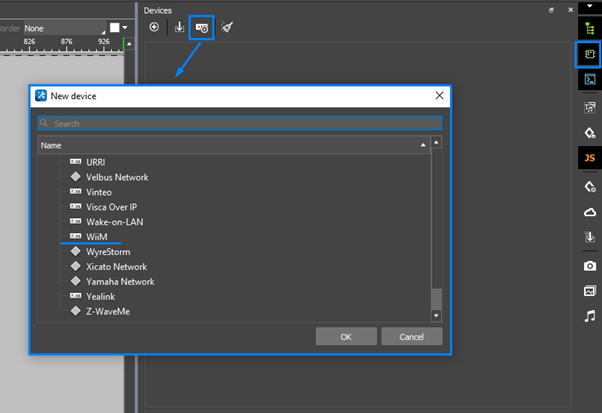
2. Enter the driver connection settings:
Log Level - level of logging;
Host - IP-address of the equipment;
Update time - frequency of requests to equipment (ms.);
Driver Version - version of the driver.
Setting Commands and Feedback Channels
To control equipment it is required to set Commands and Feedbacks. To send a command, drag'n'drop it on a graphic item and enter a value to send. To display feedback drag'n'drop a feedback channel on a graphic item and choose how to output a value.
Read more about work with graphic items in the
"Types of graphic items" article.
Commands
| Command |
Value |
Description
|
| Play Audio |
String |
To play sound
|
| Play/Pause |
Any Value |
To play a track / to pause the currently playing track
|
| Pause |
Any Value |
To pause the currently playing track
|
| Resume |
Any Value |
To resume Playback
|
| Previous |
Any Value |
To play the currently playing track
|
| Next |
Any Value |
To play the next* track
- When playlist looping (Loop Mode) is enabled, sending a Next command on the last track will restart playback from the beginning of the playlist.
|
| Seek |
0 ~ ... |
To play track from a specific time position (in seconds)
|
| Stop |
Any Value |
To stop playing the track
|
| Volume |
0 ~ 100 |
To set the volume: 0-100%
|
| Mute |
0/1 |
Enable silent mode for playback:
0- turn off,
1 - turn on
|
| Loop Mode |
0 ~ 2 |
Enable playlist loop mode:
0 – Off – turned off,
1 – Loop – to enable infinite loop playback
2 – Loop Once – to enable single loop playback
|
| Shuffle Mode |
0/1 |
To turn on a mode to shuffle tracks in the playlist:
0 – turned off.
1 - turned on
|
| Stop Alarm |
Any Value |
To stop the alarm
|
| Switch Playback Source |
0 - 7 |
To switch audio playback source:
0 - WiFi,
1 - line-in,
2 - bluetooth,
3 - optical,
4 - co-axial,
5 - line-in2,
6 - udisc,
7 - PC USB
|
| Add Slave Device to Multi-Room |
String |
To add a slave device (ip_address) to the multi-room mode (group)
|
| Mute Slave Device of Multi-Room |
0/1 |
To set the mute mode of the slave device (ip_address) of the multi-room:
0 - turn off,
1 - turn on
|
| Set Volume for Slave Device |
String |
To set slave device volume (ip_address) of the multi-room: 0 - 100
|
| Set Audio Channel for Slave Device |
0-2 |
To set the audiochannel for a slave device (ip_address) of the multi-room:
0 - Stereo - stereophonic audio channel,
1 - Left - left audio channel,
2 - Right - right audio channel
|
| Remove Slave Device from Multi-Room |
String |
To remove a slave device (ip_address) from the multi-room
|
| Disable Multi-Room Mode |
Any Value |
To disable the multi-room mode
|
| Play Preset Content |
1-12 |
To play preset tracks: up to 12 tracks
|
*Value - enter it when drag'n'dropping a command on a graphic item.
Feedbacks
Feedback channels are assigned to graphic items to display the state of equipment. When adding a driver all feedback channels are created automatically, no additional setting is required.
| Command |
Value |
Description
|
| Active Channel |
0-2 |
To set active channel for sound playback:
0 - Stereo - stereophonic audio channel,
1 - Left - left audio channel,
2 - Right - right audio channel
|
| Playback Mode |
0-12 |
Display the current track playback mode:
0 - ldling - filling,
1 - airplay streaming - real-time streaming,
2 - DLNA streaming - DLNA streaming,
3 - playing network content - playing network content,
4 - playing UDISC - your disc is playing,
5 - playback start by HTTP API - starting playback using HTTP API,
6 - spotify connect streaming - spotify connect streaming,
7- line-in imput mode - line input mode,
8 - Bluetooth input mode - Bluetooth input mode,
9 - optical input mode - optical input mode,
10 - line-in #2 input mode - line input mode #2,
11 - USB DAC input mode - USB DAC input mode,
12 - the device is a guest in a multiroom zone - the device is in multiroom is subordinate
|
| Loop Mode |
0/1 |
To set the Loop mode of track playing :
0 - Off - turn off,
1 - On - turn on
|
| Shuffle Mode |
0/1 |
To set the shuffle mode :
0 - Off - turn off,
1 - On - turn on
|
| Playback Status |
0-3 |
To display the status of the track playing:
0 - stop - it is stopped,
1 - playing audio - it is being played,
2 - load - it is loaded,
3 - pause - it is paused
|
| Current Position |
0 ~ ... |
To display the current position (second) of the track
|
| Total Length |
Any Value |
To display the total track duration (seconds)
|
| Title |
String |
To display the title of the track currently playing
|
| Artist |
String |
To display the artist of the track currently playing
|
| Album |
String |
To display the album title of the track currently playing
|
| Playlist Count |
1 ~ ... |
To show total number of tracks in playlist
|
| Track Index |
1 ~ ... |
To display the number of the currently playing playlist track
|
| Volume |
0 ~ 100 |
To display the volume of the currently playing sound (track and/or device)
|
| Mute |
0/1 |
To display the use of mute playback mode for a track:
0 – not muted,
1 - muted
|
| Multi-Room Devices |
object |
To display devices available for inclusion in multiroom: an array of objects containing the parameters of slave devices in the group
|
| Slave Mute |
0/1 |
To display the sound of the used slave device in multiroom:
0 – not muted,
1 - muted
|
| Slave Volume |
Any Value |
To display the volume of audio playback of the used slave device in multi-room: 0-100%
|
| Slave Channel |
0-2 |
To display the current channel of the used slave device in multiroom:
0 - Stereo - stereophonic audio channel,
1 - Left - left audio channel,
2 - Right - right audio channel
|
*Value - the value that the equipment gives


