Эта страница является
переводом страницы
IRidi ProAV Advanced. Перевод выполнен на 98%.
ProAV Control Processor Advanced
ProAV Control Processor Advanced
Product code: PX-VP100-Advanced
The documentation was updated on 18.11.2025
Function and Application
The device is designed for installation in automation projects for apartments, houses, buildings, apartments and commercial objects including in the decentralized Bus77 iRidi© network.
It collects, stores, processes and transmits data received via network and field interfaces.
The functionality depends on the applied software and license.
Technical Specifications
| Characteristic |
Value
|
| Processor |
RK3399 Rockchip
2 x Cortex-A72 2000 MHz,
4 x Cortex-A53
|
| RAM |
2 Gb, DDR4
|
| ROM |
16 Gb, eMMC Flash
|
| Real-time clock (RTC) |
lithium battery CR1220
|
| Interfaces |
Ethernet 10/100/1000 Mbps
USB Type-A (USB 2.0)
Configuration MicroUSB port for PC connection
2x CAN (Bus77)
KNX TP1-256
2x RS-485/232 (combined, up to 115 200 baud)
6x RS-232 (up to 115 200 baud)
10x universal inputs R and V (0-50kOhm, 0-12V DC)
10x low-current relays (NO, 3A, 24V DC/250VAC)
8x IR outputs
IR input for the capture of IR commands (36 kHz ± 5%)
|
| Power supply |
24 V DC, max 26 V DC.
The Mean Well HDR-30-24 power supply is included in the package
It is necessary to choose a more high-performance power supply according to the PSU calculator for use with Bus77 equipment.
|
| Power consumption |
max 35W
|
| Operating temperature |
0 to +50 °С
|
| Size (WхHхL) |
444х43х161 mm (1U)
|
| Installation |
rack mountable or freestanding
|
| Enclosure |
metal
|
| Weight |
1970 g
|
| Color |
black
|
| Operating system |
iRidi Linux
|
| Completeness |
ProAV Control Processor PX-VP100-Advanced (1 pc.),
Set of screw connectors (1 pc.),
Mounting kit for 19-in. rack (1 pc.),
IR-emitters (2 pcs.),
Power supply Mean Well HDR-30-24 (1 pc.),
Spec Sheets (1 pc.),
Packaging (1 pc.).
|
Warranty Оbligations
The warranty period is 24 months from the date of sale.
Without a note of sale the warranty period starts from the date of manufacture.
The manufacturer's warranty does not apply in the following cases:
- the presence of traces of mechanical damage to the device;
- moisture ingress;
- exceeding the permissible supply voltage;
- improper connection of the device;
- in cases where modifications or changes to the device or its connection schemes have by the buyer or third parties without the manufacturer's consent;
- in cases where the device is used by the buyer or third parties for purposes other than intended;
- the manufacturer's warranty does not apply in cases of non-compliance with the conditions of transportation, storage, operation, installation of the device and maintenance of the premises, as specified in this passport and operational documentation, as well as the occurrence of other circumstances beyond the control of the manufacturer.
Size
Terminals and Indication
| Front panel:
|
| (1) STATUS LED |
The system RGB LED is:
- red - indicates the system is loading or waiting to be loaded;
- blue - indicates the system is in recovery mode;
- green - indicates the system is in operation mode.
|
| (2-3) KNX LED |
Behavior is determined by the application software.
|
| (4) PROG push button |
Holding the button during the loading process will start the reset to default settings procedure.
Other functionality is determined by the application software.
|
| (5) RESET push button |
Holding the button for more than 5 seconds restarts the device.
|
(6) SERIAL LED
(7) INPUTS LED
(8) RELAYS LED
(9) IR LED |
Behavior is determined by the application software.
|
| (10) IR IN port |
IR receiver for transmitting serial IR commands (36 kHz ± 5%).
|
| (11) PC IN port |
Configuration MicroUSB port for PC connection
|
| Rear panel:
|
| (12) NETWORK port |
Ethernet port for computer network connection.
|
| (13) USB port |
USB2.0 Type-A for optional interface converters.
|
| (14) Power port |
Port for 24V DC power supply connection
|
| (15) Bus77 port |
Port for connecting the CAN bus (Bus77) without power supply from the ProAV Control Processor.
Pin sequence (left to right):
- + (24V)
- − (GND)
- CAN L
- CAN H
Use the PSU calculator to calculate total power consumption and choose a suitable power supply unit.
At both ends of the CAN bus, 120 Ohm terminal resistors must be connected (included in the set), see more details by following the link.
|
| (16) Bus77 Outer port |
Port for the CAN (Bus77) connection without power supply from ProAV control processor.
Sequence of pins (from left to right):
- + (24V)
- − (GND)
- CAN L
- CAN H
|
| (17) KNX port |
Port for KNX TP1-256 connection.
Sequence of pins (from left to right):
|
| (18) COM1 and COM2 ports |
Combined serial RS-232/485 interfaces
Operating modes are determined by application software:
(1) RS-485 and RS-232 without HRDW Flow Control, sequence of pins (from left to right):
(2) RS-232 with HRDW Flow Control, sequence of pins (from left to right):
GND - TX - RX - RTS - CTS
|
| (19) COM3-COM8 ports |
Serial RS-232 interfaces
Sequence of pins (from left to right):
GND - TX - RX
|
| (20) INPUTS port |
Universal inputs R, V (0-50 kOhm, 0-12VDC).
Operating modes are determined by application software.
Sequence of pins (from left to right):
GND - 1 - 2
|
| (21) RELAYS port |
Low current relay (NO, 3А, 24V DC / 250V AC)
|
| (22) IR input |
IR-outputs for connection emmiters.
Connecting IR-emitters via cores:
+ - black with a gray stripe (red tip)
− - black (black tip)
|
-
Additional accessories
Standard equipment does not include the following accessories and you need purchase them separately:
* Additional IR emitters (Px-IRC)
Features
IP address of the device by default 192.168.77.77
IP-адрес 192.168.77.77 является резервным и используется в сетях, где отсутствует DHCP-сервер. Процессор управления переключится на этот адрес, если в течение 30 секунд не удастся получить адрес через DHCP.
MAC address of the device starts with 42-77-85-xx-xx-xx
Connection to the Network and Power Supply
Installation and maintenance of the product should only be carried out by qualified specialists with compliance with safety measures.
1 Connect the ProAV Control Processor Advanced to the local network with PC and router with an Ethernet cable into the Ethernet port.
2 Connect the cable from the 24VDC power supply to the Power (14) terminal on the response part according to polarity (left to right):
3 Set the mating part with the connected cable into the Power terminal (14), making sure the cable connection is secure.
4 Apply the power supply.
Wait for about 30 seconds after applying power; the Status LED should light up in green.
DHCP-server must be active on the router. In case of an error in obtaining an ip address, a static address is set: 192.168.77.77.
We recommend using only 24V DC power supplies from Mean Well manufacturer.
Поддержка работы IEEE 802.1x
Поддержка реализована только на устройствах
PX-VM20-Basic и
PX-VP100-Advanced.
Если на web-интерфейсе данных устройств отсутствует блок настроек IEEE 802.1x - требуется обновление прошивки, обратитесь в техническую поддержу iRidi.
IEEE 802.1x - это стандарт протокола аутентификации, который обеспечивает контроль доступа к сети на основе идентификации пользователей и устройств. Он предоставляет механизм для аутентификации и авторизации клиентов перед тем, как они получат доступ к сетевым ресурсам.
IEEE 802.1x широко используется для обеспечения безопасности в беспроводных и проводных сетях.
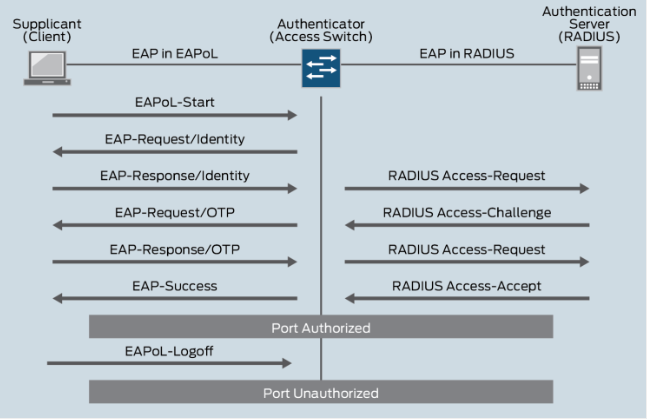
Стандарт 802.1X определяет EAP в качестве формата шифрованных сообщений, передаваемых между супликантом и аутентификатором. До тех пор, пока клиент не будет аутентифицирован и ему не будет разрешен доступ к сети, любые сообщения между ним и аутентификатором являются уязвимыми.
Протестировано с Radius Server’ами:
В iRidium Server реализована поддержка только проводных сетей и 3-х методов аутентификации:
Настройки IEEE 802.1x находятся на Web-интерфейсе iRidium Server, на странице “Network”.
Для настройки 802.1x ознакомьтесь с инструкцией по работе с веб-интерфейсом iRidium Studio.
Параметры безопасности
Дополнительно, для обеспечения высокой степени защищенности оборудования, рекомендуется использовать следующие параметры подключений, активируемые в веб-интерфейсе iRidium Server:
- Используйте защищенное соединение HTTPS (SSL) для доступа к web-интерфейсу iRidium Server. Инструкция по ссылке.
- После завершения пусконаладочных работ отключите доступ по SSH. Инструкция по ссылке.
Reset to Default Settings
To reset the ProAV Control Processor Advanced to factory settings you must perform the following steps.
1 Turn off the power of the device.
2 Turn off all terminal mating parts or wires from the terminals and all connected USB devices and cables.
3 Press the Prog button on the turned off controller.
4 Holding the Prog button, supply power to the controller.
5 Hold the button Prog.
6 When the LED starts flashing, changing its color, release the Prog button.
7 After it the controller has default settings: automatic getting the IP address via DHCP is activated.
After resetting to defaults, all documents of the iRidium Server application will be deleted.
Setting Up
To set up ProAV Control Processor Advanced in iRidium Studio, read the instruction by the link.


