Эта страница является
переводом страницы
Web interface. Перевод выполнен на 79%.
Instructions on working with iRidium server web-interface
Why is web-interface required?
Web-interface is a tool to monitor and control iRidium server. It allows to update server software, to update projects, to reboot the server and control equipment via a project channels and tags.
How to open Web-interface?
You can open Web-interface in two ways:
- Press W in the iRidium server application console (WIN server only);
- Enter http:// *IP Address of the server*:8888 in the address bar (if you use a WIN server, you can access Web interface on the same PC using the link http://127.0.0.1:8888/).
The web interface window will look like this:
Далее, на окне веб-интерфейса можно увидеть:
- Поля для ввода логина и пароля и кнопку Login. Используются для авторизации на сервере. (Примечание: без авторизации на сервере - его нельзя использовать полностью).
- На платформах RPi, HSS, PROAV Advanced и Basic, UMC имеется надпись “Change network settings” - Сетевые настройки. При нажатии на неё открывается следующая страница:
На данной странице можно:
- Настроить получение IP Адреса по DHCP (если до этого был задан статический IP Адрес).
- Задать статический IP Адрес, если выбрать чекбокс “Configure settings manually”. Страница выглядит следующим образом:
На странице присутствуют следующие поля:
- IP Address - желаемый IP Адрес сервера в сети.
- Netmask - маска подсети.
- Gateway - IP Адрес шлюза (данное поле может быть пустым).
- DNS servers - адрес DNS серверов, записываются через пробел (принимает любые значения в любом формате).
При нажатии кнопки Save and reboot сервер перезагрузится и примет новые сетевые настройки.
Web-interface capabilities
- Update server firmware
- Monitoring channels and tags of a server project and control of their current values.
- Monitoring messages from drivers and changing driver parameters
- Reviewing log archives
- Getting system information about the server
- Changing password to enter the web-interface
- Controlling parameters of databases
- Updating a project from the transfer
- Controlling log settings
- Changing system settings (data, time, language, trend settings)
- Console to control server network settings
- Controlling GPIO
- Control of Z-Wave
- Control of ZigBee
- Control of 1-Wire
- Updating a server project from the cloud
Description of the interface
After entering the web-interface and entering the password, the main window of the interface is opened with buttons to go to submenus and to different server functions. The interface of the main window is subdivided into the following functional groups.
1. Work - This group contains the following functions: controlling drivers, channels, tags and reviewing log archive.
2. System - This group contains control of system server functions, such as network settings, work with the database, control of panel projects.
3. Cloud - This group contains the following functions: synchronizing projects with the cloud and deactivating the server.
4. Information about the version of the server software and the current date and time.
5. A button to turn on\off the test mode. You can test the work of cloud projects and upload projects to panels via iRidium Transfer (locally without using iRidium cloud) with an active "Test Mode".
6. Information about the license
7. Information about the load of the processor, RAM and storage.
8. Button to open the log.
Let's go over the functions of each submenu
Channels&Feedbacks
This menu is meant to monitor and control driver channels and tags of a server project.
Commands
This section displays all channels of a server project. You can activate a channels by clicking the Set button.
Feedbacks
This section displays tags of a server project and their current values. You can write a new value in a tag by clicking the Set button.
Filter
This section allows to create a filter to display tags and channels in this menu.
Wide mode
Changes the display mode of the Commands and Feedbacks columns
Trend
If tag values are logged in the database you can open a trend of changes of this tag value by clicking the extreme right button.
Options of trends:
- Point Size - the size of a dot on a trend that corresponds to each record in the database
- Stroke Width - the width of a trend line
- Trend Background Filling - filling of the trend background:
- Fill Graph
- Don't fill Graph
- Trend Line Type - the type of a trend line:
- Line - simple line with dots
- Dotted Line - no line (only dots)
- Square Line - piecewise-constant line
SAVE TO CSV button saves data in comma-separated values (.csv) file, the name of a trend is used as the filename.
Drivers
This menu is meant to monitor drivers and changes in their settings.
1. This section contains a list of drivers of a server project.
2. This sections contains settings of a selected driver. You can change the settings of any driver and save them by clicking the Save Changes button.
3. This section contains the Save Changes button to save the changed setting of the driver, the Driver log button to open the log window of a selected driver and the Connect / Disconnect button to connect or disconnect the driver.
Log archive
In this menu you can:
- See the list of logs which are stored on the server
- Download separate log files.
- Delete all log files.
- Download all log files as one archive.
The server writes logs to a file and stores them. In these files you can find system information and error messages.
Log Settings
The page has 2 types:
- With disabled auto-cleaning of logs.
- With enabled auto-cleaning of logs.
On this page you can:
- Configure the logging level (Log Level)
- Enable remote logging (Remote Log)
- Enable and configure auto-cleaning of logs (Log files storage space)
Auto-cleaning of loga
The function is available from 1.3.70 version
The first activation of auto-cleaning can occur in 3 ways
1. When starting the server, if there were no log files on the server before.
2. When entering the Web-Interface in a pop-up window.
3. When clicking the Active cleanup button in the Logs Settings tab.
Warning: If you turn on the auto-cleaning of logs, you will not be able to turn it off.
There are 3 options of enabling auto-cleaning of logs:
- Enable auto-cleaning with downloading of loga. In this case, all logs on the server will be archived and downloaded.
- Enable auto-cleaning with log clearing. In this case, all logs on the server will be deleted.
- Leave the server running as is. In this case, auto-cleaning of logs will not be enabled.
Setting of auto-cleaning:
Where:
- Shows the current occupied place and the maximum in MB.
- Directory of logs in the system.
- Limit that log files can occupy on the server. When it is exceeded, old log files will be deleted.
- The limit for log files can be changed:
- Set the slider to the desired parameter.
- Click the Save Change button.
Info
This menu contains system information about the server.
- Build - Data and time of server update
- HWID - Server ID
- Device Name - Server name
- Device OS - Server operation system
- Device Family - Device family
- Device Model - Server model
- Document Directory - Directory where documents are stored
- Resource Directory - Directory where system files are stored
- Log Directory - Directory where log files are stored
Change of server name is possible only for UMC and RPI servers.
Update Server firmware
To update the firmware of the server, go to the Info section and click on the Update button
A window will appear with an invitation to enter a link where the updated file is located.Enter the link to download the firmware and click Update. You can also update the server firmware using a file from your PC by clicking on the "Select file" button and selecting the appropriate .ipk file according to your hardware platform.
Links to server firmware can be found here.
For automatoc update of the sever firmware to the latest version, activate “Getting a new server version from iRidium Cloud“ function and click UPDATE.
Security
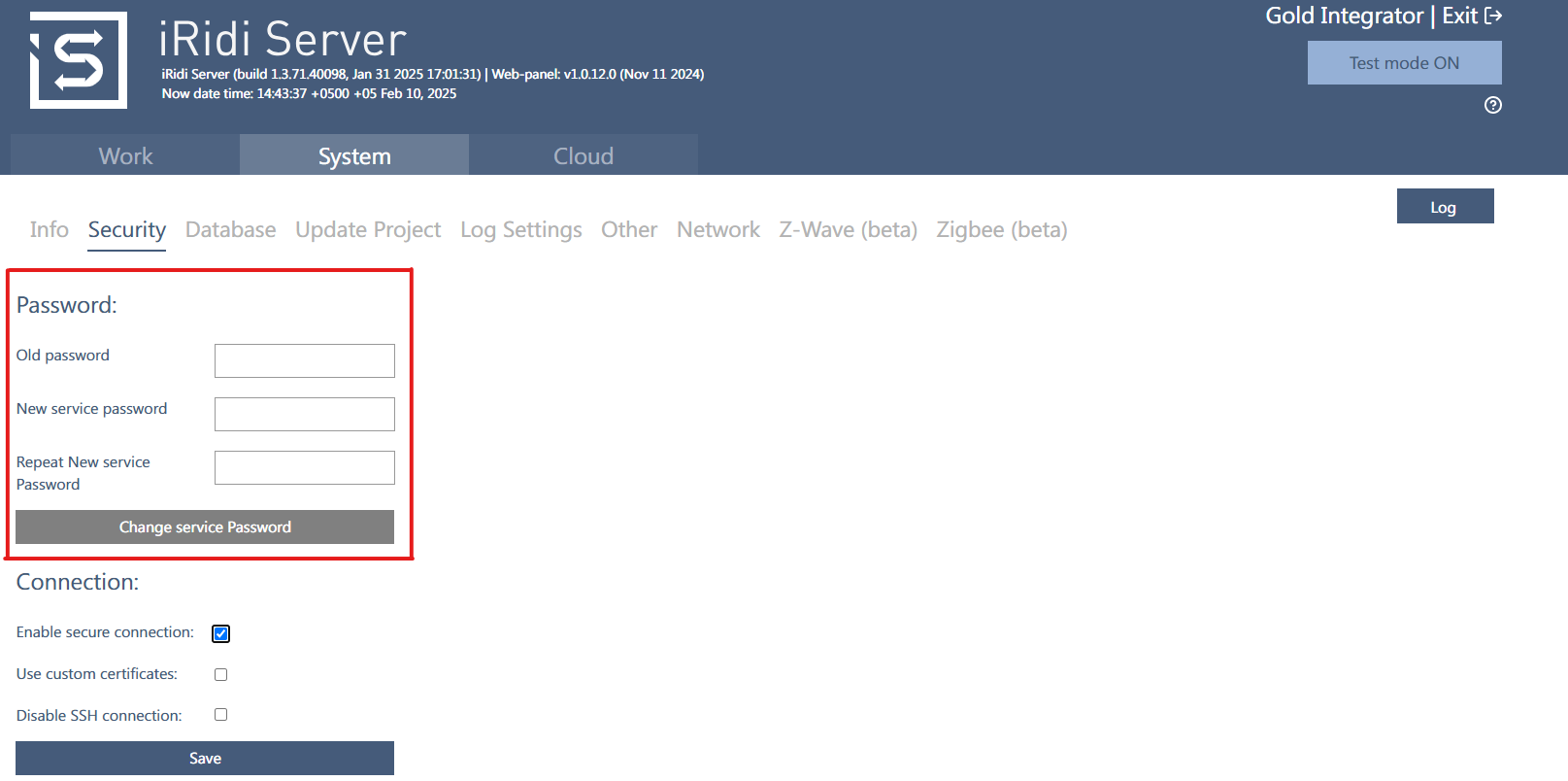
В web-интерфейсе iRidium Server на странице System -> Security представлены настройки обеспечения безопасности сервера.
Password
Данная функция используется для изменения пароля для доступа к Web-Interface.
Для изменения пароля требуется ввести ваш текущий пароль, новый пароль и повторить его.
После нажатия кнопки Change service Password для доступа к Web-Interface будет использоваться новый пароль.
Secure connection
Данная функция отвечает за активацию защищенного соединения HTTPS (SSL) для доступа к web-интерфейсу iRidium Server. Доступно в релизе 1.3.76
Для включения защищенного подключения требуется в web-интерфейсе на вкладке Security включить чек-бокс Enable secure connection и нажать кнопку Save.
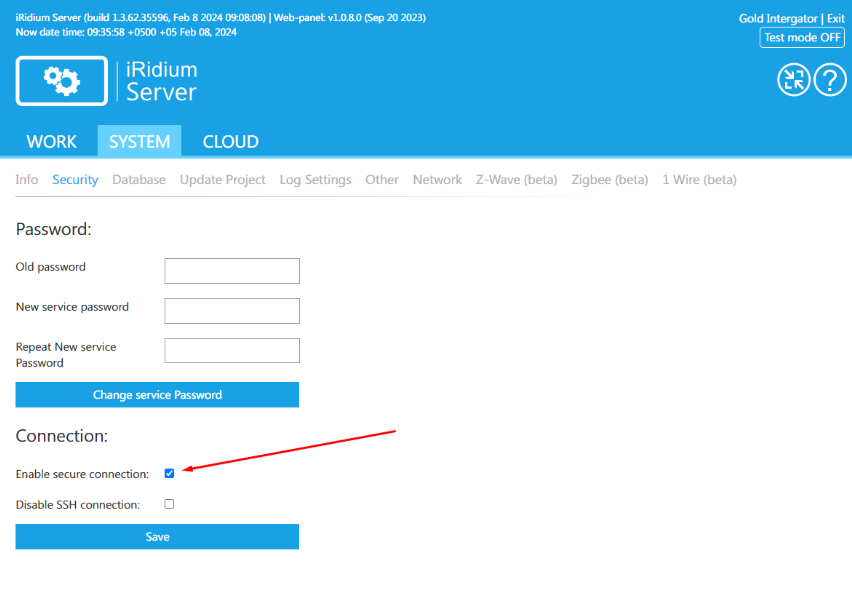
После включения данной функции сервер изменит порт доступа к web-интерфейсу на 8443 (ip адрес сервера:8443).
Для выключения доступа по SSL требуется выключить чек-бокс и нажать кнопку Save, сервер возвращает свой стандартный порт 8888 для доступа к web-интерфейсу (ip адрес сервера:8888).
Custom certificates
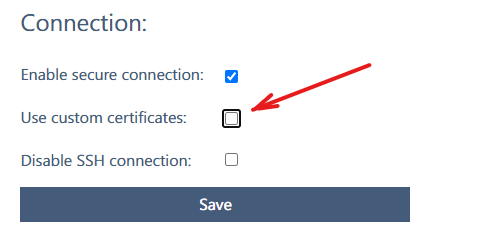
Данная функция позволяет использовать кастомные сертификаты для обеспечения зашифрованной передачи чувствительной информации
Для включения возможности добавления связки (сертификат + ключ) требуется в web-интерфейсе на вкладке Security включить чек-бокс Use custom certificates
В полях CA Certificate, Private Key: нажать выберите файл
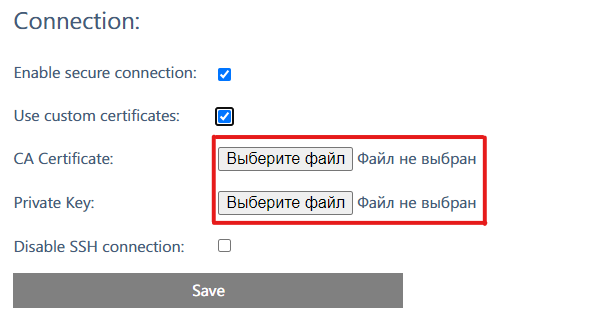
Выбрать сертификат (*.crt) и ключ (*.key) и нажать кнопку Save
После сохранения появится предложение перезагрузить сервер
При включения Use custom certificates сервер изменит порт доступа к web-интерфейсу на 8443 (ip адрес сервера:8443).
Для выключения доступа по кастомным сертификатам требуется выключить чек-бокс Use custom certificates и нажать кнопку Save, добавленные сертификаты удалятся
Use custom certificates: поддерживается на веб-интерфейсах HS Server, ProAV Advanced, ProAV Basic.
SSH Connection
Функция доступна только для iRidi Pro Server (HS Server) и ProAV Control Processor Basic и Advanced.
Данная функция отвечает за доступность сервера для SSH подключения.
Для ограничения доступа по SSH к серверу требуется включить соответствующий чек-бокс на странице Security и нажать кнопку Save.
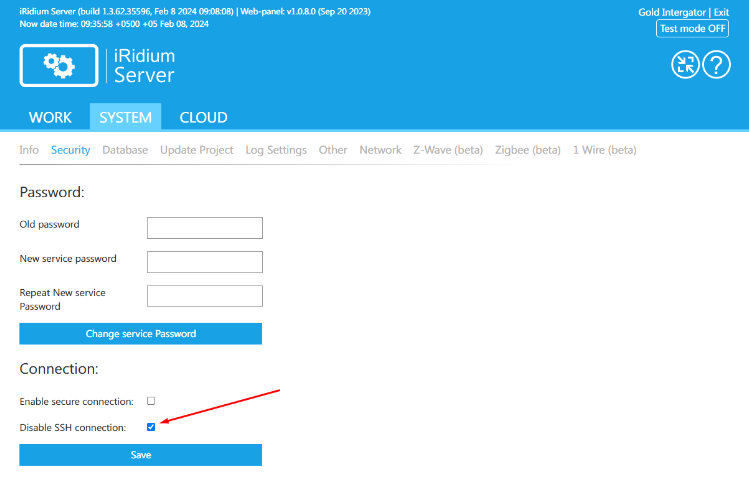
Ограничение доступа будет осуществляться только при условии наличия загруженного проекта на сервер!
Для возвращения возможности SSH подключения к серверу требуется выключить чек-бокс и нажать кнопку Save.
Database
This section contains settings of the database
- DataBase Directory - Directory where the database is stored.
- DataBase Size - The current database size compared to the allowed limit. When the limit is reached, the system database is cleaned automatically. Data from the user database is not deleted; to clean it, use autocleaning of the user database.
- Insert Cache - Speeding up data logging in the database. If the server logs data often, and this feature is turned on, the server logs data first in the temporary server memory, then when this memory is almost full it logs data in the database.
- Cache Row - The maximal size of the cache line
- File Name - Name of the database
- Cache Size - The maximal size of the temporary memory.
If you changed settings of the database, click Save Change to save the changes.
Update Project
In this section you can enter the IP address and the port of the PC where the Transfer is launched to update a project on the server, if the transfer does not see the server for some reason.
Other
This section contains information and settings of trends, date, time, web-interface language and the number of simbols after the point in values.
- Float Precision - The number of symbols after the point in displaying tag values.
- Trend point count - Number of points in trends.
- Trend binary transport - use binary data transfer to display a trend. It speeds up data transfer.
- Highlight Quality trend - show the time when the server was turned off by read areas on the trend.
- CSV delimeter - The devision simbol to work with csv files
- Naming for chanels&tags - switching between tag name / tag description
- Date\Time format - Format of date and time
- Server Date\Time - server date and time (to set the time, specify the time zone and restart the server).
NTP server
Для ряда контроллеров производства iRidi доступна настройка Use custom NTP server:
- HS Server с ПО iRidi Pro Server.
- ProAV Control Processor Basic.
- ProAV Control Processor Advanced.
Опция Use custom NTP server позволяет задать собственный NTP сервер для синхронизации даты и времени. При включении этой опции можно настроить часовой пояс, но не изменить дату/время вручную.
- NTP Server - адрес собственного NTP сервера.
- Min. poll - Минимальная частота опроса сервера.
- Max. poll - Максимальная частота опроса сервера.
If it is required to use your own time without synchronizing with an NTP server, disable this synchronizing on the server. To do it on the RPI server, use the timedatectl command, to do it on the UMC server, use the ntpd command.
- Latitude - latitude value
- Longitude - longitude value
- Web Panel language - Language of the web-interface.
Change of server data and time is possible only on UMC and RPI servers.
Network
This page contains network connection settings. Here you can:
- enable extended settings,
- select the network interface for setting,
- change the mode of obtaining the IP address, * enable and configure the IEEE 802.1x parameters.
Changing network settings via the web interface is not available for third-party controllers and PCs with Windows and Linux OS, use the appropriate functionality of the operating system.'
Для настройки сети контроллера WB 8.4 используйте инструкцию производителя.
Static IP Settings
Для задания статических настроек IP-адреса снимите галочку с пункта “Obtain an IP address automatically”, после чего отобразятся поля ввода настроек:
- IP address (this field is required)
- Netmask (this field is required)
- Gateway (this field is required)
- DNS servers (this field is not required)
IEEE 802.1x
Поддержка реализована только на устройствах
PX-VM20-Basic и
PX-VP100-Advanced.
Если на web-интерфейсе данных устройств отсутствует блок настроек IEEE 802.1x - требуется обновление прошивки, обратитесь в техническую поддержу iRidi.
IEEE 802.1x - это стандарт протокола аутентификации, который обеспечивает контроль доступа к сети на основе идентификации пользователей и устройств. Он предоставляет механизм для аутентификации и авторизации клиентов перед тем, как они получат доступ к сетевым ресурсам.
IEEE 802.1x широко используется для обеспечения безопасности в беспроводных и проводных сетях.
Стандарт 802.1X определяет EAP в качестве формата шифрованных сообщений, передаваемых между супликантом и аутентификатором. До тех пор, пока клиент не будет аутентифицирован и ему не будет разрешен доступ к сети, любые сообщения между ним и аутентификатором являются уязвимыми.
Протестировано с Radius Server’ами:
В iRidium Server реализована поддержка только проводных сетей и 3-х методов аутентификации:
Настройки IEEE 802.1x находятся на Web-интерфейсе iRidium Server, на странице “Network”.
TLS аутентификация
Для метода аутентификации TLS требуются сертификаты формата DER или PEM и расширения файла *.der или *.cer.
Для данного метода требуется:
- CA Certificate - сертификат центра сертификации
- Client Certificate - сертификат клиента
- Client Private Key - сертификат закрытого ключа клиента
- Username - имя пользователя, настроенное на уровне Radius Server
MSCHAPv2 аутентификация
Для данного метода требуется:
- CA Certificate - сертификат центра сертификации
- Username - имя пользователя, настроенное на уровне Radius Server
- Password - пароль пользователя, настроенный на уровне Radius Server
- Confirm Password - подтверждение пароля пользователя
MD5 аутентификация
Для данного метода требуется:
- Username - имя пользователя, настроенное на уровне Radius Server
- Password - пароль пользователя, настроенный на уровне Radius Server
После загрузки всех файлов и всех данных пользователя, требуется нажать кнопку Apply 802.1x setting и перезагрузить сервер по питанию или через Web-интерфейс (главная страница -> Reboot System).
Advanced settings
Для ручного редактирования настроек активируйте пункт “Advanced settings”, после чего станут доступны следующие пункты:
1 Окно для редактирования файла /etc/dhcpcd.conf операционной системы Linux.
Не изменяйте параметры, если вы не уверены в правильности их редактирования.
2 Поля ввода параметров подключения с использованием авторизации IEEE 802.1x.
Примечание: для включения IEEE, если ранее оно было выключено, потребуется внести изменения в окно (1):
В соответствующий eth интерфейс добавьте строки:
 env wpa_supplicant_conf=/etc/wpa_supplicant.conf
 env ifwireless=1
 env wpa_supplicant_driver=wired
GPIO
The section is available only for Raspberry pi servers. This section displays devices connected to the server and allows to send data to them. These servers have GPIO jack where additional devices can be connected.
Z-Wave
The interface is meant to add / delete and export devices to iRidium studio.
Detailed information is availble on "iRidium for Z-Wave" page.
Zigbee
Only iRidium server UMC C3 with ZigBee built-in module can work with .
You can find information explaining how iRidium server gets access to ZigBee wireless network on "iRidium for ZigBee" page.
1-Wire
You can find information explaining how iRidium server get access to 1-Wire digital interface on "1-Wire Interface of iRidium server UMC C3" page.
Cloud
This section displays projects, uploaded to the My account, and allows to update a project on the server and upload another project to the server.
- CLOUD SYNC - Synchronization with cloud account.
- Change object - Capability to select between different objects of an account.
Deactivate Server - This section allows to leave the current account.


