Эта страница является
переводом страницы
IRidium studio 2019 iRidium Server. Перевод выполнен на 92%.
iRidium Server
iRidium Server is software that works on the server and provides the server connection with automation equipment.
The documentation was updated on 12.8.2022
To start working with iRidium Server, do the following:
1 Create a new server project;
iRidium Studio > File > New > New server project
2 Create a panel project and assign it to a server project ;
3 Upload a server project on the server ;
4 Download a panel project on a control panel ;
Creating a server project consists of the following steps:
1 Make up a list of equipment to control on the server: set drivers, create a list of commands and feedback channels. ;
2 Set scripts: create modifying functions to transform data in server variables, etc. ;
3 If it is required, set forwarding of the values of server variables. ;
4 During synchronization of projects all commands and feedback channels will be automatically transferred to the server variables (in iRidium Server driver). iRidium control panel can call these variables. .
Project for iRidium Server
This section describes how to work in iRidium Studio when creating projects for iRidium Server. iRidium Server processes data from automation equipment, saves them and sends the information to control panels. A server project does not have a graphic part - it is a set of scripts and a list of equipment to work with.
Interaction between Server and Control Panel
Server Components
-
Drivers connect to equipment, store a list of variables that can be controlled. They are connected with server channels;
-
Server channels are intermediary variables between control panels and driver channels. Server channels unite variables of all drivers into a single space;
-
Virtual variables - store server data and results of JavaScript work that are not connected to real driver variables;
-
Data base stores the history of changes of server variables;
-
JavaScript describes scenes, routines, schedules (intellectual functions of the server), allows to modify data when they go through the server;
-
Web-sever - allows to connect to iRidium Server via a web-interface to view states and settings. It provides work of REST API , that other apps and systems can use to control server functions via НТТР.
Control of server
-
i3 pro - iRidium app client that launches visulaization to control server. It includes:
- iRidium Server driver in i3 pro - this driver sets connection with the server via TCP;
- JavaScript in i3 pro - allows to create scenes that work on a control panel (for example, control a graphic interface);
- Graphic interface in the i3 pro - a visual control interface to control automation equipment;
-
Web-interface - an interface to control server settings that can be opened in a browser. It does not display user visualization;
-
Third-party apps - apps and devices that can control the server by sending it HTTP commands set according to the REST API of the server.
Work Space of Server Project
After starting iRidium Studio and creating a Server Project you can see the workspace that consists of:
- Drivers - a list of devices and services to which i3pro or iRidium server connects to control and get data (not all devices may be displayed as it is possible to create devices via JavaScript).
- System tokens - varibles that allow to get information about the device where i3 pro or iRidium server is launched (time, type of OS, parameters of the network, of the scree, etc.).
- Project tokens - variables where user data are stored between launched of i3 pro and iRidium server.
- Schemes - programming logic of iRidium server work with the help of logic blocks.
- Script editor - JavaScript editor is available for i3 pro or iRidium server. When scripts are developed, it's important to consider the environment - a server or an interface as the environment determines a set of available methods and ways to address data.
- Routines - scenes (a sequence of commands and terms to launch them), that can ne launched by a schedule or an event.
- Schedule - a schedule of events that can be set to happen and repeat at a certain time.
- ETS import - import of group addressed from a ETS5 proejct (*.knxproj).
- GC cloud - an online base of IR commands to control audio-video equipment. Commands are stored in a format for Global Cache.
Setting a Server Project
Opening a Settings Window
To open settings you can use one of the variants below:
1. Click the right mouse button on the tab with a project name in iRidium studio and select Settings
2. Click the "gear" icon in the control panel of iRidium Studio.
Catagories of Settings
You can enter the following in the settings window of iRidium Server project: settings and a way to connect to the server, coordinates (for the work of astronomical timers). You can set level of logging or enter information about a customer and a project.
Settings
1. Settings - connection method of i3 pro to iRidium server - by the IP-address or via an intermediar server (Cloud Gate), when remote work with the server is required:
- Type: Direct connetion - connection of i3 pro to the server directly by the IP-address. Enter the IP-address of the server and a connections port (30464) in the server settings. If it is required, set a login and password to enter in the i3 pro to set connection with the server. Debug Level determines the depth of logging, "Debug" means very detailed information.
- Type: Remote cloud control - connection of i3 pro to iRidium server via an intermediary server - Cloud Gate, that provides connection with the server only via the internet without any settings on the router of the automation project. How to set Cloud Gate?
2. Location - latitide and longitude of the server location fo set astronomical timers of schedules.
Debug
- When a server works on a hardware platform, its log can't be seen like the log of a console on a PC. But the log can be sent to a PC via SMTP protocol. To do it, install a suitable SMTP server on a PC and enter the address of the SMTP server int he interface settings.
- Select a required level of logging to get log. The level of logging determines what information and how much of it will be logged from EMERGENCY (onty emergencies) to DEBUG (detailed information). Read more detailed information about debugging projects here.
- A different level of logging can be set for different components of a server project (core, database, script, web-server). If one of the logging levels is higher than the general level (p.2), the common level of logging will be the highest level of the components.
Info
The info field contains information about a project: the address and phone number of the customer, the number of the order and a description of the contents. This info may be useful later!
Connection to Equipment
In the simplest case of server use, it is required to connect to equipment from several panels. We'll set data exchange via the server and thus provide work of several control panels.
Do the following steps to solve this task:
1 Create a server project.
2 Add to the server project a list of drivers that must be controlled;
3 Set commands and feedback channels for these drivers;
4 Create a panel project for i3 pro based on the server project.
Adding a Driver
A driver can be added to the iRidium server interface in several ways:
- by importing a configuraiton flle of your equipment, by scanning the local network. The following options are supported for different equipment (see the up to date list in iRidium studio):
- DuoTecno – scanning the network;
- HDL-BUS Pro – scanning the network;
- KNX (ETS, *.knxproj) – file import, a list of IP interfaces and group addresses is formed;
- Modbus (*.csv) – file import in the internal iRidium format, see documentation on Modbus. A list of registers is formed;
- Crestron (Simpl, *.smw) – file import, a list on joins is formed;
- iRidium JavaScript (iRidium studio, *.js) – file import, it allows to add scripts from one project to another one;
- iRidium project (iRidium studio, *.irpz, *.sirpz) – file import, it allows to add drivers from one project to another one;
- Domintell - scanning the network;
- Velbus - scanning the network;
- AMX (TPDesign, *.TP4, *.TP5) – it is not displayed in driver import, but a TP4 project can be opened in iRidium Studio like a *.irpz - file *.TP4 is automatically converted to the i3 pro format;
- from the database, that stores a list of drivers of different types that can be used in a project. Commands and feedback channels must be formed manually;
- via JavaScript. In this case it won't be displayed in the driver tree, but when i3 pro is started it will work in a way determined by the developer. See JS API.
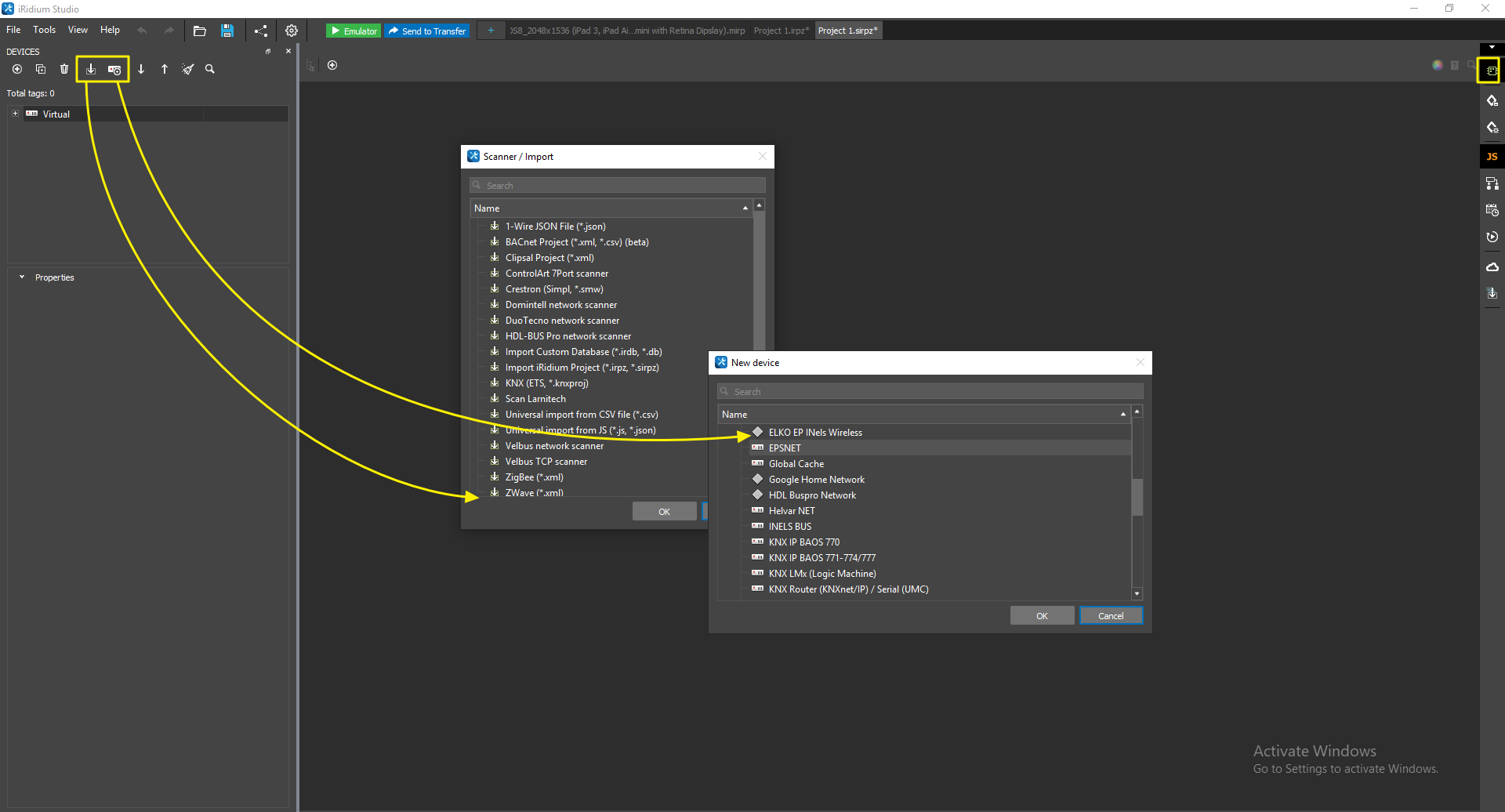
add a driver to the configuration for iRidium server
Read detailed information in Drivers for professional systems.
Variables in iRidium server
Variables in iRidium server are divided into driver variables and virtual variables.
Driver variables are a set of addresses-commands where values to send to equipment can be written, and a set of addresses - feedback channels where a driver will save values received from equipment. Depending on the protocol, drivers have different address systems. Set commands and feedback channels allow to interact with equipment addresses comfortably:
- Commands are a list of device variables where to send commands. For example, to control a KNX relay with "1/0/1" address, 0 or 1 value must be written in the command of the KNX driver with this address.
- Feedback channels are a list of variables to sort and store data received from equipment. For example, a KNX relay returns 0 or 1 when it is switched; in the driver this value is available as a feedback channels with "1/0/1" address. The value can be displayed in the interface.
- Tokens are feedback channels that inform about the connection status of the driver to the device and important information about connection parameters (address, connection port, etc.)
Virtual variables are server virtual variables that can be controlled.They are not connected directly to controlled equipment. You can create such variables manually and write in them the results of the app work (numbers, strings, arrays) or get feedback ли. Data to write are formed in JavaScript on the server or from a control panel.
Work with Virtual is identical to work with Project Tokens, the same rules and API functions are used.
Virtual variables created in a server project can be copied to another server project. To do it, select the Virtual driver in the driver tree with the help of hotkeys (Ctrl+C) or copy the virtual variables with the help the right mouse menu (Copy) and paste them in the driver tree of another server project (Ctrl+V / ПКМ > Past).
If there are variables with the same names in the target project, there will appear a dialogue window with import parameters:
- Paste only new channels and tags (selected by default) - only virtual variables with unique names will be added to the project.
- Paste all channels and tags changing parameters of variable with the same names - all virtual variables will be added to the project with changing settings. There can be exceptions: Forward value to (there is no driver or commands and feedbacks with the same name), Script Modifier (if such a function is not used in the new project). These settings will be deleted when virtual variables are pasted.
Commands / Virtual Commands
The main parameters of command settings:
- Name - the name of a channel;
- Path to server tag - a path to the channel to call it from the script;
- Script Modifier - a modifier function (a script function), that allows to make an intermediary transformation of values before they are sent to a driver channel or after getting them from a control panel or a script;
- Description - a description of the variable, optional;
- Forward value to - forwarding a value from one tag to another one (read more here);
- On Server - turn on/off command connection with a panel project (a command is not displayed in a panel project in the off state).
Feedbacks / Virtual Feedbacks
- Name - tag name;
- Path to server tag - a path to a tag to call from the script;
- Script Modifier - do JavaScript function each time a tag is activated - it allows to modify received data before sending them to a control panel;
- Access - a type of variable:
- Public - can be edited on a control panel;
- Private - can be edited only on the server;
- Persist - restore the last variable value in case the server is restarted;
- Description - description (optional);
- Store In DB – turn on storing in the database, chose a data format
- None – storing in the database is turned off
- Signed 32bit – write as a signed integer
- Float 64bit – write as floatpoint
- String UTF8 – write as a string
- Load On Start - write the last variable value from the database in the feedback channel when the server is started;
- DB Save Strategy - a strategy of saving data: choose a type of event that is written in the database:
- Deadband – saving only when a variable is changed by a value that is different from the previous one at a set value or more.
- Deadband (value) – the min change of a variable that is written in the database. In Deadband: 0 strategy any value that is different is written in the database, if the same number comes to the variable again, it is not written.
- Interval – saving at an interval. Data are written at a set time interval;
- Interval (value) – choose an interval to write data from 5 seconds to 1 hour, or enter it manually (Custom) in ms. If a string (String UTF8) is chosen in Store In DB, data are written once a minute. A shorter interval can't be set (use Deadband strategy);
- Interval Value - the value of an interval (min -1);
- Interval Units - measure units;
- Forward value to - forwarding a value from one tag to another one (read more here);
- On Server - turn on/off tag connection to the panel ptoject (if it is off, a tag is not displayed in a panel ptoject and is not counted in licensing).
Saving at an interval is convenient for variables that change the values smoothly and are quite inactive, for example, temperature and humidity of air.
Saving "at a change" is suitable for variables for which it is important not to miss the moment they are changed. For example, turning on/off the light, changing the speed of fan rotation can be saved in the database.
Device Tokens
Tokens display the connection status to equipment:
- Online - connection status to a controlled system (Online/Offline = 1/0);
- Status - connection status to the system (Offline/Connecting/Online/Waiting = 0...3);
- Host - the domain name of a remote system;
- HostPort - port of the remote system to which i3 pro is connected;
- IP - the IP-address of a control panel;
- HostIP - the IP-address of a remote system to which i3 pro is connected;
- Port - a local port of a client via which a remote device is connected to.
Driver tokens store information about server connection to controlled equipment. They can be stored in the database and used for creating trends and logging.
Modification of Data on Server
Modification is changing received data before sending them to the destination: equipment or panel.
Modification is done with the help of a script functions - a modifier, that is set in the parameters of a server channel or tag (virtual variables are modified the same way):
- If the function modifies a server channel, a value received from a control panel is changed by a script and then sent to a driver;
- If the function modofies the server tag, a valed receved from a driver by a tag is changed in the script and then sent to a control panel.
Example: graphic items on a control panel control a variable in the range from 0 to 100. The server changes these values into ones from 0 to 255 with the help of modifers and then sends them to a driver (automation equipment):
A modifier-function can be created in the Script Editor and written in the Script Modifier string of the variable properties.
function modify_send (in_Type, in_Name, in_Value)
{
   in_Value *= 255/100;
   return in_Value;
}
function modify_receive (in_Type, in_Name, in_Value)
{
   in_Value *= 100/255;
   return in_Value;
}
A channel or a tag that called a functions, sends it the following arguments:'
-
in_Type - a type of variable, 0 - a channel, 1 - a tag of a feedback channel;
-
in_Name - the full name of a command or a tag;
-
in_Value - the value of a command or a tag.
Thus, data a processed when they go through the server both ways (from a control panel to equipment and back).
A modified value (in_Value) is returned with the help of return in_Value; command.
A modified value does not have to be returned - a one-time action can be done. In this case the initial value received by a function does not reach the addressee but leads to doing a function.
Modified values of tags and channels are displayed in the server web-interface, that is:
- tag values appear in the server web-interface as a result of work of the Script Modifier function,
- values, set in the web-interface by the "Set" command, are sent to the input of the Script Modifier function before it is sent to a channel of a phisical device.
Examples of Modifiers
▼ Modifiers Driver Tokens
Driver Tokens display the connection status to automation equipment - they are available only to read.
/*    The Online token of any driver can return only 1 = Online and 0 = Offline.
   We'll replace 1 with the "Connection established" phrase; and 0 - with a " Connection closed" one.
    And the result of the modification is returned to the one that called the function.
*/
function onlineModify (in_Type, in_Name, in_Value)
{
   if (in_Value == 1)
   {
      in_Value = IR.GetVariable("System.Time.24")+" Connection established";
      return in_Value;
   } else
   {
      in_Value = IR.GetVariable("System.Time.24")+" Connection closed";
      return in_Value;
   }
}
▼ Modifiers Driver Channels & Tags
Channels and tags of drivers are connected with server variables that can be modified. A modifier can't be assigned to a driver command, it can only be assigned to a server channel connected with the command.
When a command is done, a value must be sent (sometimes a a value is not required, this his case an empty line is sent). This value is modified before it is sent to equipment.
/*    A value in the 0-100 range comes to a channel. The value can be modified into one in the 0-255 range, rounded and sent to equipment.
*/
function rangeModify (in_Type, in_Name, in_Value)
{
      in_Value *= 255/100;
      return in_Value.toFixed(0);
}
Driver Tags
/*    A channel receives a value in the 0-255 range. The value can be modifed into one in the 0-100 range, rounded and sent to a feedback channel.
*/
function rangeModifyBack (in_Type, in_Name, in_Value)
{
      in_Value *= 100/255;
      return in_Value.toFixed(0);
}
▼ Modifiers Virtual Channels & Tags
Virtual server variables look like server channels and tags on the side of a control panel. A value canbe sent to a variable. On its basis tou can form a command and send it to automation equipment:
/*    a command to a DVD player looks like this: "VOLUME XX", ХХ - it is volume from 00 to 100
    Volume can cotain 2 or 3 symbols, that is 00, 01, 02, ... 100 (ASCII)
    Let's get a value in the 0-100 range from a control panel (from a regular Level Item), form and send a command.
*/
var driver = IR.GetDevice("AV & Custom Systems (TCP)");
function volume (in_Type, in_Name, in_Value)
{
      if (in_Value < 10)
      {
            in_Value = "0"+in_Value;
            driver.Send(["VOLUME "+in_Value+"\r\n"]);
      } else
      {
            driver.Send(["VOLUME "+in_Value+"\r\n"]);
      }
}
Virtual Tags
Virtual server tags look like feedback channels on a control panel. A value from a script can be written in them and then processed by a modifier function. The final value will be available to read from a control panel.
/*    A virtual tag does not get values directly from equipment. That's why we'll write a value in the tag from a script when it is required.
*/
IR.SetVariable("Server.Tags.Virtual 1", 100)
/*    let's process the value with the modifier function
*/
function value (in_Type, in_Name, in_Value)
{
    in_Value = "brightness: "+in_Value+"%";
    return in_Value; // brightness: 100%
}
Writing and Reading Variables
Server variables are Tokens, Commands, Feedback channels and Virtual Commands and Virtual Feedbacks. Their state can be changed and requested from control panels and from scripts on the server.
Values are written and read with the help of JavaScript commands:
-
IR.GetVariable(name)
IR.SetVariable(name, value)
Server variables look like commads and channels of a driver to a control panel. That's why API iRidium for drivers can be used to them.
Write a value in the variable
1. Copy the full name of the variable from the Devicestab;
2. User the IR.SetVariable method to write a value in the variable:
Syntax
IR.SetVariable("Server.Path.Name", value)
| Server.Path.Name
|
Server.Channels.Command 1
|
type: string
the full name of a server variable
|
| value
|
100
|
type: string, number, boolean
a value to write in the server variable.
|
| success
|
true
|
type: boolean
a value is written successfully.
|
Sample
IR.AddListener(IR.EVENT_START, 0, function()
{
    IR.SetVariable("Server.Channels.Command 1", 100);
});
the method can be used to server channels and tags.
Read the value of a variable
1. Copy the full name of the variable from the Devicestab;
2. User the IR.SetVariable method to read a value in the variable:
Syntax
IR.GetVariable("Server.Path.Name")
| Server.Path.Name
|
Server.Channels.Command 1
|
type: string
the full name of a server variable
|
| value
|
100
|
type: string, number, boolean
a value in the server variable
|
Sample
IR.AddListener(IR.EVENT_START, 0, function()
{
    IR.GetVariable("Server.Channels.Command 1");
});
the method can be used to server channels and tags.
Data Exchange Between Virtual Channel and Tag
Virtual Channel (Server.Channels.Virtual 1) is not initially connected with a Virtual Tag of feedback channel (Server.Tags.Virtual 1), that's why you can change the value of a virtual variable on the server but it will not return to the panel ad a value of a feedback channel.
To return to the i3 pro a value senf from the i3 pro to the server, a Script Modifier function must be created. This function will take a value sent from the i3 pro and write it in the virtua; tag of server beedback. A control panel will see this change.
download the example
To set sending data from a virtual command to a tag, do the following:
1 Create a new project for iRidium server
2 Create a virtual channel (command) and a tag (feedback channel) with with the same name. For example, "Virtual 1"
3 Open the Script Editor (the JS button on the tool panel) and create a new script file. Add to it the following modifier function:
function virtual_to_virtual (in_Type, in_Name, in_Value)
{
   var namepart = in_Name.split(".");
   IR.SetVariable("Server.Tags." + in_Name, in_Value);
   return in_Value;
}
4 Return to the virtual command "Virtual 1" (Server.Channels.Virtual 1), select the "'virtual_to_virtual"' function in the drop-down list of the Script Modifier parameter.
5 And it's ready. When a value is written in Server.Channels.Virtual 1, it will be automatically sent to Server.Tags.Virtual 1 and can be displayed as a feedback channel on the control panel.
Data Exchange between Drivers
The task of intellectual data exchange is to exchange data between automation systems that are not connected with one another.
It can be done with the help of modifier functions.
download the example
Example: when a register is changed in Modbus controller, its new value is sent to a KNX group address. A value can be modified (for example, it can be multiplied by 1000):
function gate_to_modbus (in_Type, in_Name, in_Value)
{
   IR.SetVariable("Server.Channels.Modbus TCP 2.Channel 12", in_Value*100);
   return in_Value;
}
The address_1 function keeps track of changes in the feedback channel, choose it in the Script field of Modbus server tag.
If variables in drivers, between which intellectual data exchange is set, have the same name, it's enough to create one modifier function and assign it to driver channels data from which must be sent to another one:
function gate_to_modbus (in_Type, in_Name, in_Value)
{
   var namepart = in_Name.split(".");
   IR.SetVariable("Server.Channels.Modbus TCP 2." + namepart[1], in_Value);
   return in_Value;
}
Activation of Scenes from a Control Panel
Scene is a set of actions done periodically when a required event is activated.
Use the following tools as the main method to do actions periodically Schedules and Routines. But if their functions are not enough, you can use scripts.
To activate a script scene at the moment a value is sent to a virtual channel of the server, subscribe to changes in the channel in server scripts:
Example of a scene:
IR.SetGlobalListener(IR.EVENT_GLOBAL_TAG_CHANGE, function (name, value)
{
   if (name == "Server.Channels.Scene 1" && value ==1)
   {
      IR.SetVariable("Server.Channels.KNX Router (KNXnet/IP).Address 1", 100);
      IR.SetVariable("Server.Channels.KNX Router (KNXnet/IP).Address 2", 75);
      IR.SetVariable("Server.Channels.KNX Router (KNXnet/IP).Address 3", 0);
   }
});
IR.SubscribeTagChange("Server.Channels.Scene 1");
To create such a Scene, send 1 to "Server.Channels.Scene 1" from a control panel.
Only one global listener can be created in a project.(IR.SetGlobalListener()). All operations can be done in one Listener. The number of subscriptions is almost unlimited.
Periodic actions
Use the following tools as the main method to do actions periodically Schedules and Routines. But if their functions are not enough, you can use scripts.
Example 1: the simplest variant is a periodic action without a capablity to set. Create a set of timers on the server, they can't be seen or edited in the client.
// if your another JS files includes  "IR.SetGlobalListener()"
// you have to add the code inside of previous IR.SetGlobalListener() and delete the listener from this file!
// if you are not sure that you are able to do it yourself please contact to support@iridiummobile.ru
IR.SetGlobalListener(IR.EVENT_GLOBAL_TAG_CHANGE, function (name, value)
{
   if (name == "System.Time.Minutes")
   {
      // SET UP PERIODICAL ACTIONS:
      // start hour, start minute, duration of process (ms), channel full name, start value, stop value
      // if you don't want to stop process, add "no" instead of stop value
      check_timer (10, 45, 60000, "Server.Channels.KNX Router (KNXnet/IP).Pump 1", 1, 0);             // timer 1
      check_timer (14, 30, 480000, "Server.Channels.KNX Router (KNXnet/IP).Pump 2", 1, "no");         // timer 2
                                                                                                      // you can add more
   }

   // do not edit the other part, you need only to add the needed timers in above
   function check_timer (hours, minutes, duration, channel, start_value, stop_value)
   {
      if (IR.GetVariable("System.Time.Hour") == hours && IR.GetVariable("System.Time.Minutes") == minutes)
      {
         function stop ()
         {
            IR.GetServer().Set(channel, stop_value);
            IR.Log("process at "+hours+":"+minutes+" stopped");
         }
         IR.GetServer().Set(channel, start_value);
         IR.Log("process at "+hours+":"+minutes+" started");
         if (stop_value != "no")
         {
            IR.SetTimeout(duration, stop);
         }
      }
   }
});

IR.SubscribeTagChange("System.Time.Minutes");
Example 2: a script is repeated every minute on the server. If time agrees with the time of an alarm-clock set to go off at a certain time and if the alarm-clock is active, the script will do a set of actions in the automation system (light can be turned on and music can be played).
To set time, it is required to send values to server variables from a panel.
For all panels to get data about the time of the alarm-clock and its state, the settings the the alarm-clock must be written in the virtual tags of the server.
Example 3: is based on using IR.SetInterval() and IR.ClearInterval() functions: a reminder will be displayed every 5 seconds until the event is over:
Do not regard these projects as a ready solution. Their task is to show the interaction between a sever and the client app.
Requests to Database
SQL database is formed on iRidium Server when a server project is created.
If you work with several projects and you change them on the server, a file of system database is created in each project. Your own user database can also be created:
- System database
- data are written in the database only via the settings of server variables in iRidium Studio
- it can be read with the help of special SQL requests
- it cannot be edited or deleted
- User database
- data are written in the database only via JavaScript;
- it can be read with the help of special SQL requests
- it can be edited or deleted with the help of JavaScript.
Where to find system database:
You can find a path to the database file via the server web-interface, the tab System > Database.
How to save data in the system database:
You can write only server variables - Driver Channel, Driver Tags, Virtual Channel, Virual Tag - in the database. That is why only server variables have a settings for saving. If you want to save a driver channel, select it projection on the server variables - you will see the settings for saving in the database:
- Name - the name of the server variable;
- Path to server tag - a full name of the variable. it can be used to call it from the script and to determine the type;
- Script Modifier - JavaScript modifier-funtion, it processes a variable before sending it to a control panel;
- Access - access to the variable from a control panel:
- Public - allowed,
- Private - forbidden;
- Persist - return the last value of the variable incase the server is rebooted;
- Description - a description of the variable for simpler identification (not obligatory);
- Store In DB - the variable is saved in the database:
- None - do not saveне,
- Signed 32bit - save as an integer,
- Float 64bit - save as float point,
- String UTF8 - save as a string;
- Load On Start - restore the value of the variable from the database in case the server is rebooted (unlike Persist = Yes parameter, the last value saved in the database will be restored and not the last value);
- DB Save Strategy - an event that activates saving in the database:
- Deadband - miminal change. A value of the varaible is saved in the database if the change is larger than a set value,
- Interval - periodic saving in the database. A value is saved in the database at a certain interval;
- Interval Value - time of the interval,
- Interval Units - measure unit of the interval (Ms, Sec, etc.);
- Forward value to - forwarding a value from one tag to another (read more here).
There are two principles to set saving values in the database:
- in a set time interval;
- when the value of a variable changes at a value that is more than the set one, an interger or a fraction.
The first one is convenient for variable that change smoothly and are quite inactive, for example, temperature and humidity of air. The second principle is ideal for variables that do not change often but they change greatly. For example, the fact of light being turned on/off can be saved in the database. This principle creates fewer entries in the database and it does not allow to miss an event.
Access to the server databases is performed with the help of special SQL requests. The requests allow you to receive data by preset conditions.
User database:
You can create an editable database with the help of JavaScript. Writing, reading and editing date in a user database are done with the help of SQL requests.
Access to user databases via JavaScript:
The guide provides instructions on working with the system and user databases.
The handbook contains a list of all methods to work with databases.
Building Graphs
To display graphs of variable changes, iRidium saves changes of a variable in a SQL database that is stored on iRidium Server.
When it is required to build a graph of variable changes, i3 pro forms a request to the database for a certain period of time and displays the result on the graph.
When storing in the database is set, you can display a variable in i3 pro as a graph.
Synchronization of Control Panel with Server
We recommend that you create a visualization project after a server project is created: connection with automation equipment i set, virtual tags and their server scripts are formed. Import of a server project allows to get all controlled variables for a visualization project. All that is left to do is to assign variables to graphic items.
A server can work with several iRidium control panels that have one and the same or different projects downloaded on them. A visualization, a graphical interface to control automation equipment, is started only in the i3 pro app on a control panel (read more about creating a visualization project in the Visualization tools article).
Connection
Set a server project - form a list of controlled devices and variables. A server project must be imported to iRidium visualization project, and graphic items to control server variables must be set.
iRidium panels connect to iRidium Server and semd commands. Servers do commands, thus changing the states of variables of connected automation equipment:
Import of Data from Server Project
There are several ways to add the iRidium Server driver to a project for control panels.
Fast project creation
Click right mouse buttom on a Server project and choose "Create panel project" in the menu:
A panel project with an empty page and iRidium Server Driber with all server tags will be created. You can work with them likr with commands and feedback channels, i.e., you can assign them to items for control and display and to process with the help of iRidium Script.
When changes are made in a server project, you can synchronize it with a panel project fast. Choose iRidium Server driver and click
Synchronize.
The file of a server project with which the driver will synchronize can be substituted in
Source Project line.
Adding iRidium Server to Ready Visualization Projects
If you have already created a visualization project and you want to add connection to a Server to it, do the following:
- Add iRidium Server driver from the database;
- Enter a path to a *.sirpz project with which a visualization project must be synchronized;
- You will get iRidium Server driver with a list of commands and feedback channels.
If a server project is already created, it can be opened with a right mouse click on a panel project by choosing Open Server Project in the menu.
If a required server project is not entered in the settings of iRidium Server driver, a window will appear offerign to opne it in iRidium Studio.
Commands & Feedbacks
There are two levels of settings as a result of import:
- iRidium Server is a driver that contains a list of server variables. Let the IP address and other parameters to connect to the server;
- Commands and Feedbacks are commands and feedback channels that allow to control variables. Commands are variables to write and feedback channels are variabels to read.
Commands and feedback channels must to be assigned to graphic items of a project to control equipment:
- Commands are assigned to graphic items indicating the value to be sent to the bus when an item is pressed;
- Feedback channels are assigned to graphic items to display the state of a group address.
To assign a command or a channel to a graphic item use the drag&drop method.
Setting Connection to the Server
Setting connection to iRidium Server:
- Source Project - abound server project;
- Log Level - the level of logging: from EMERGENCY (only errors) to DEBUG (detailed information);
- Host - the IP-address of a server or a domain. 127.0.0.1 local host can be used, if the server and the visualization work on one device;
- Port - TCP port to connect to the server by default: 30464;
- Wait for Connect (ms) - time to wait for connection (otherwise another connection attempt is made);
- Wait for Data (ms) - time to wait for an asnwer from equipment (otherwise another request is sent and connection is checked). Put 0, if it is required for the driver to stay connected to equipment, if there are no data;
- Keep Alive - time to hold connection in seconds;
- Mode - local / remote control (see more).
Change of Connection Settings
A possibility to change connection parameters is required if you leave the Wi-Fi network of the object and start using 3G or another Wi-Fi network. To continue controlling a project, a switch is required from a local to a public IP-address of the internet router.
The switch does not happen automatically, you have to press a button to select a connection mode. For remote control of the system, ports to control the automation system must be made public. To do it Port Forwarding is set on the internet router, Protected connection can be provided by VPN.
1 Download the template (*.js) (right-click button: "Save object as ..."), add the template in the script editor with the button (+) Add Script from file.
2 Set script parameters as it is shown in the example:
- function Internal_1() {
- IR.GetDevice(Driver).SetParameters(Parameters1);
- }
- function External_1() {
- IR.GetDevice(Driver).SetParameters(Parameters2);
- }
Copy the driver name (Devices > Name). A list of parameters must be copied from the example.
3 Select a button which will switch Internal and External properties. Open Macros Editor for the Press event (Object Properties > Programming), select the Script Call command and add it with a double-click on it. Select the name of the function which will be activated by the button:
Now a corresponding set of connection settings will be applied each time when the button is pressed.
Uploading Project to Server
Uploading a server projects (*.sirpz) to the server is similarl to uploading a projects to i3 pro, i.e. it is done with the help of iRidium Transfer application on your PC.
Transfer finds all servers acrive in the IP-network and displays them in its interface. A configuration project and a license is sent to iRidium server with the help of Transfer.
See How to launch projects on iRidium Server


